Cursor integration
What is Cursor?
Cursor provides an agent that can read your codebase, run commands, and modify files. Buddy uses the Cursor Agent CLI to run this agent inside a pipeline.
By integrating Buddy with Cursor you can add the Cursor action to your pipelines and let the agent review code, generate changes, or automate routine engineering tasks on every push, on a schedule, or on demand.
Setting up Cursor integration
Go to the Integrations tab and click New integration.
Look up and click Cursor.
Image loading...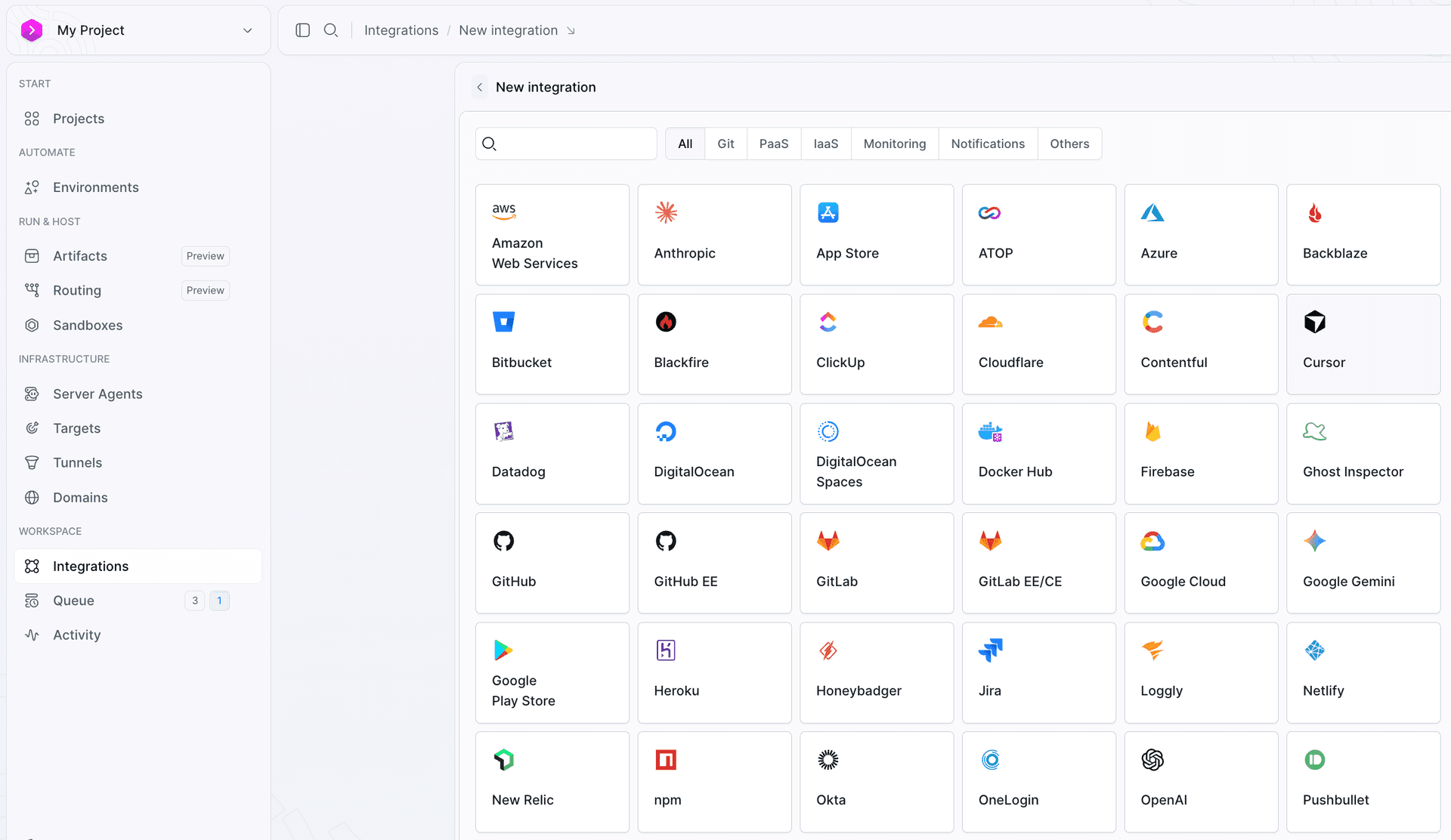
- A configuration window will show up. Here you provide:
- Name and ID of the integration
- Scope - whether the integration is available across the whole Workspace, a single Project, or a specific Environment
- API key - your Cursor User API Key (see below)
Image loading...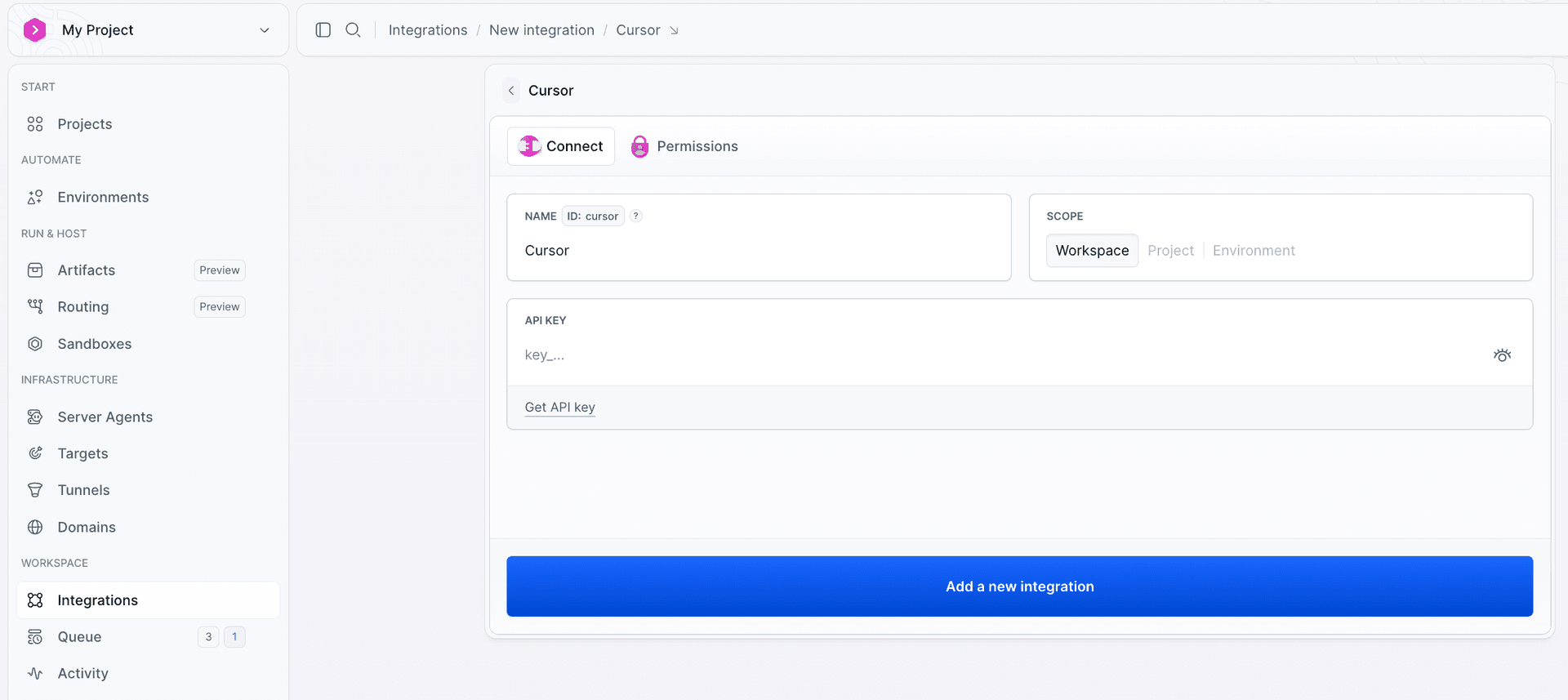
- Once done, click Add a new integration to finish configuration.
Authorization
Authorize with a Cursor User API Key. The value always starts with crsr_.
To obtain the key:
- Sign in to your Cursor account.
Image loading...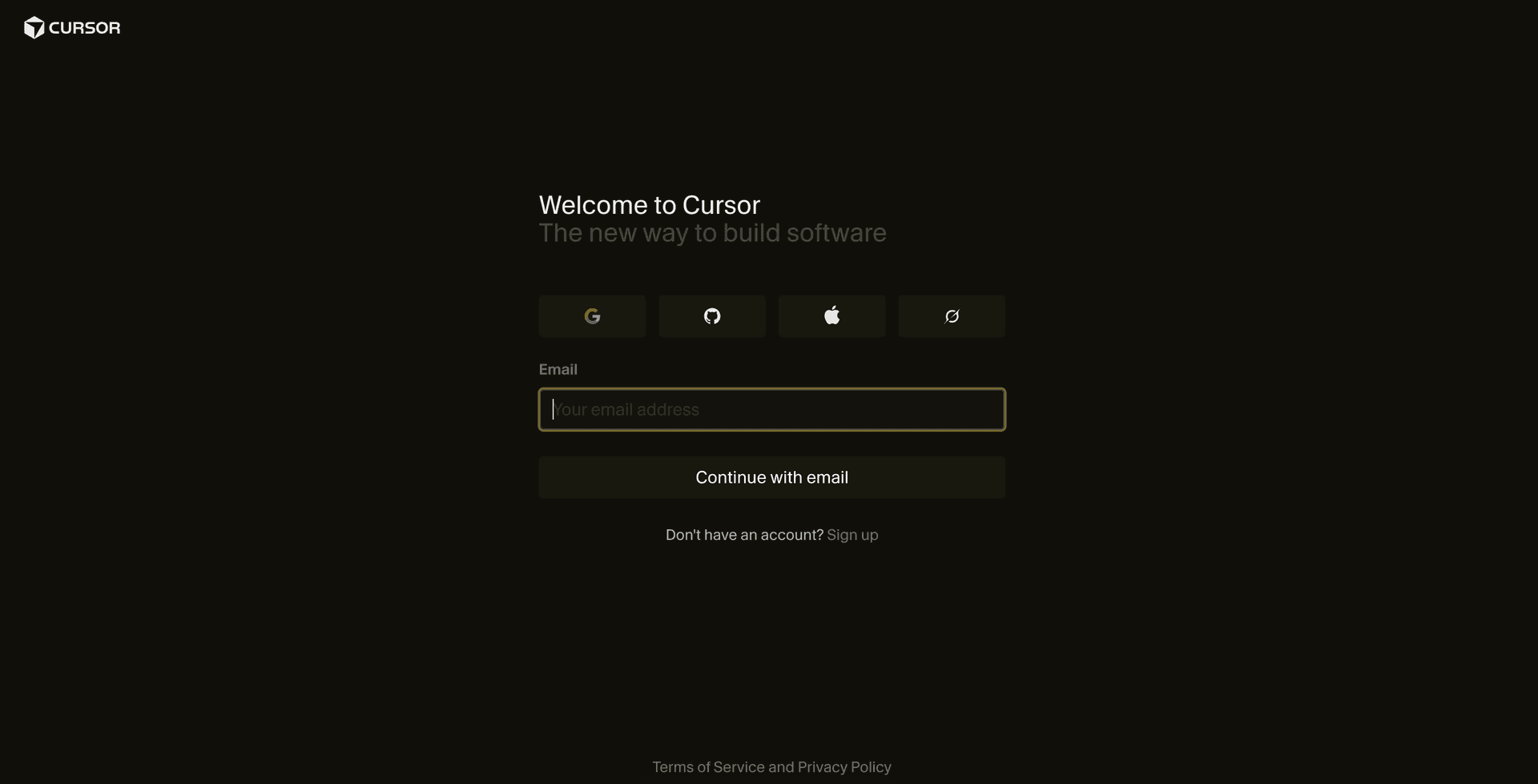
- Go to Cursor API Keys (also linked as Get API key in the form) and click New API Key.
Image loading...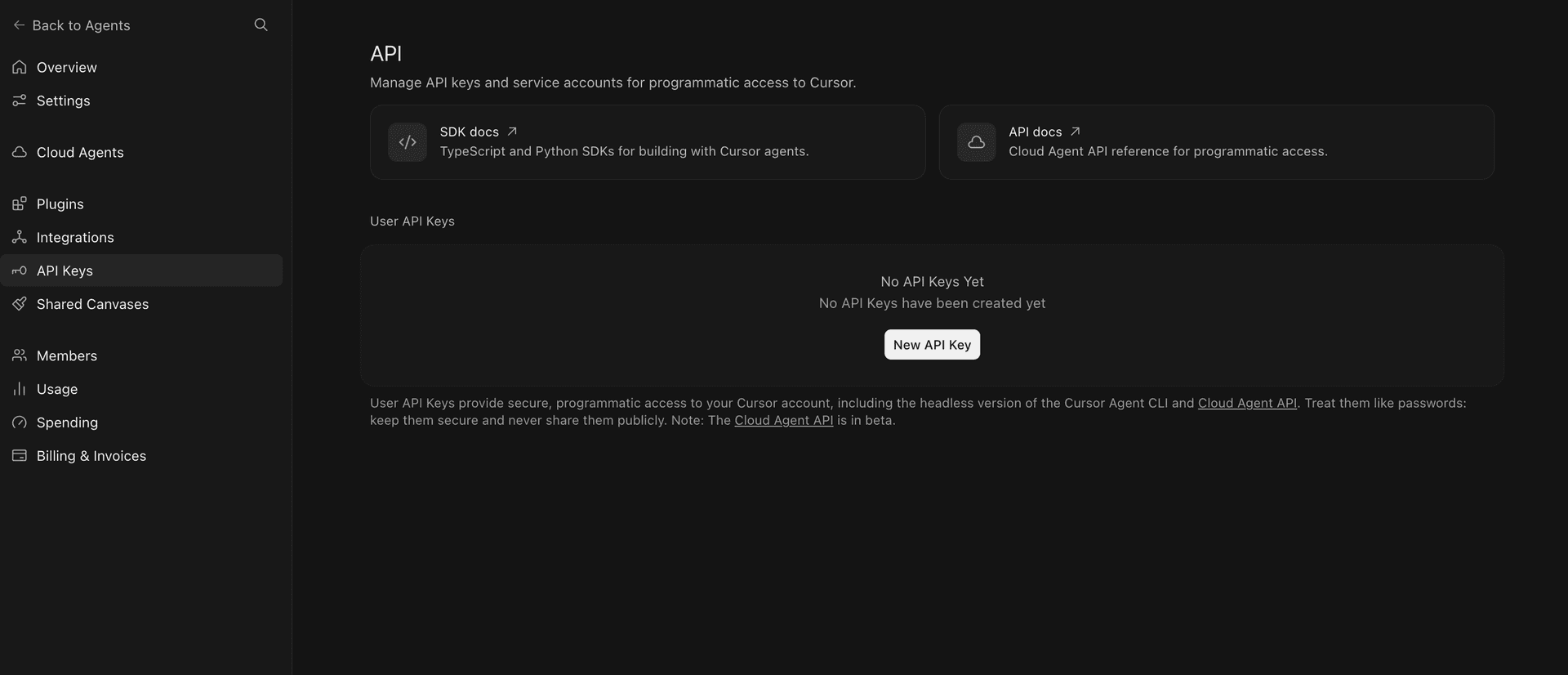
- Name the key and pick how long it stays valid - 30 days, 90 days, 180 days (recommended), 1 year, or never expires. Then click Save.
Image loading...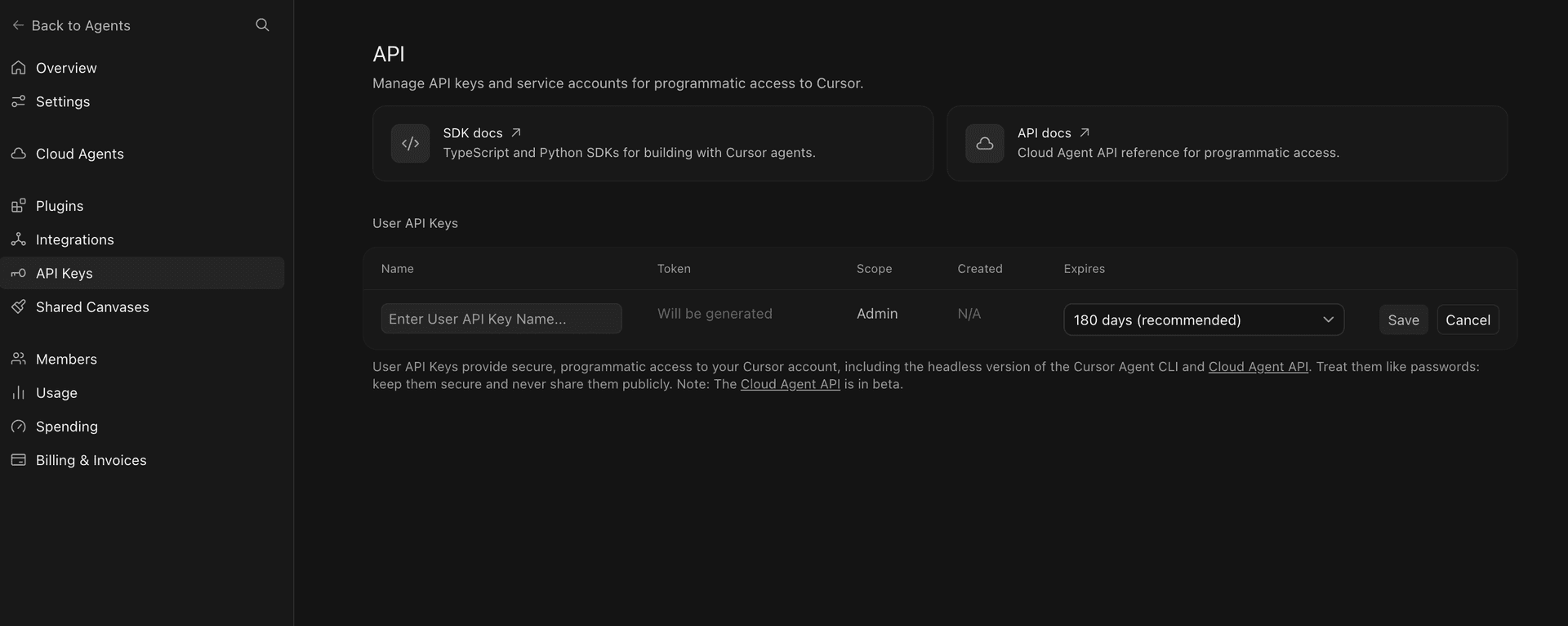
- Copy the generated key - Cursor shows it only once and it cannot be retrieved later.
Image loading...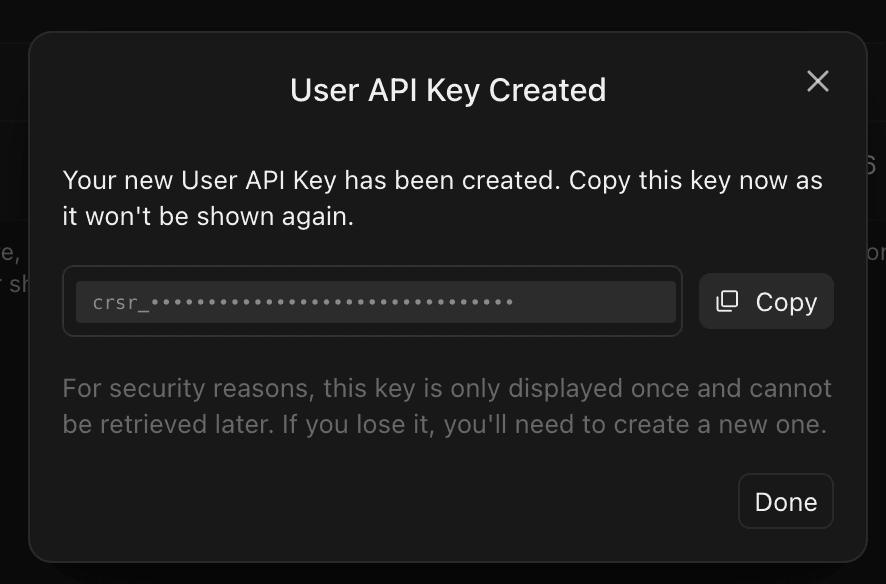
- Paste it into the API KEY field in Buddy and click Add a new integration. The key is stored as an encrypted secret and passed to the pipeline as a secure environment variable, never saved in plain text in your repository.
Image loading...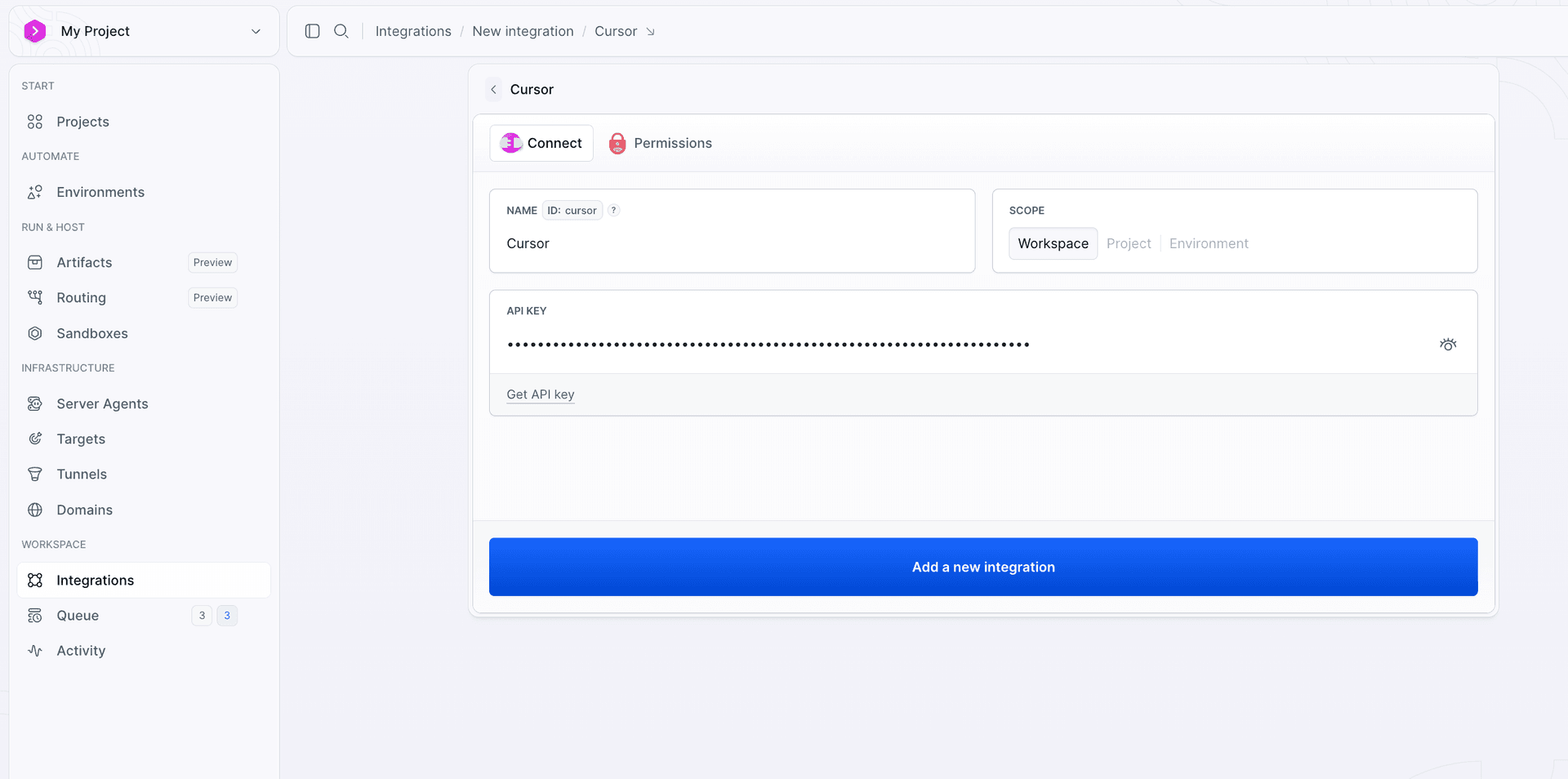
Once the integration is added, you can use the Cursor action in your pipeline and reference the integration by its ID.
Last modified on Sep 1, 2026