ClickUp integration
What is ClickUp?
ClickUp is a project management platform used by teams to plan work, track tasks, and collaborate in one place.
The ClickUp integration supports two types of workflows:
- Pipelines update ClickUp - the Create ClickUp Task and Update ClickUp Task actions open a task when a run fails, move it to another status after a deployment, or attach reports and comments.
- ClickUp starts pipelines - the ClickUp trigger runs a pipeline when a task is created, changes status, or receives a comment.
Image loading...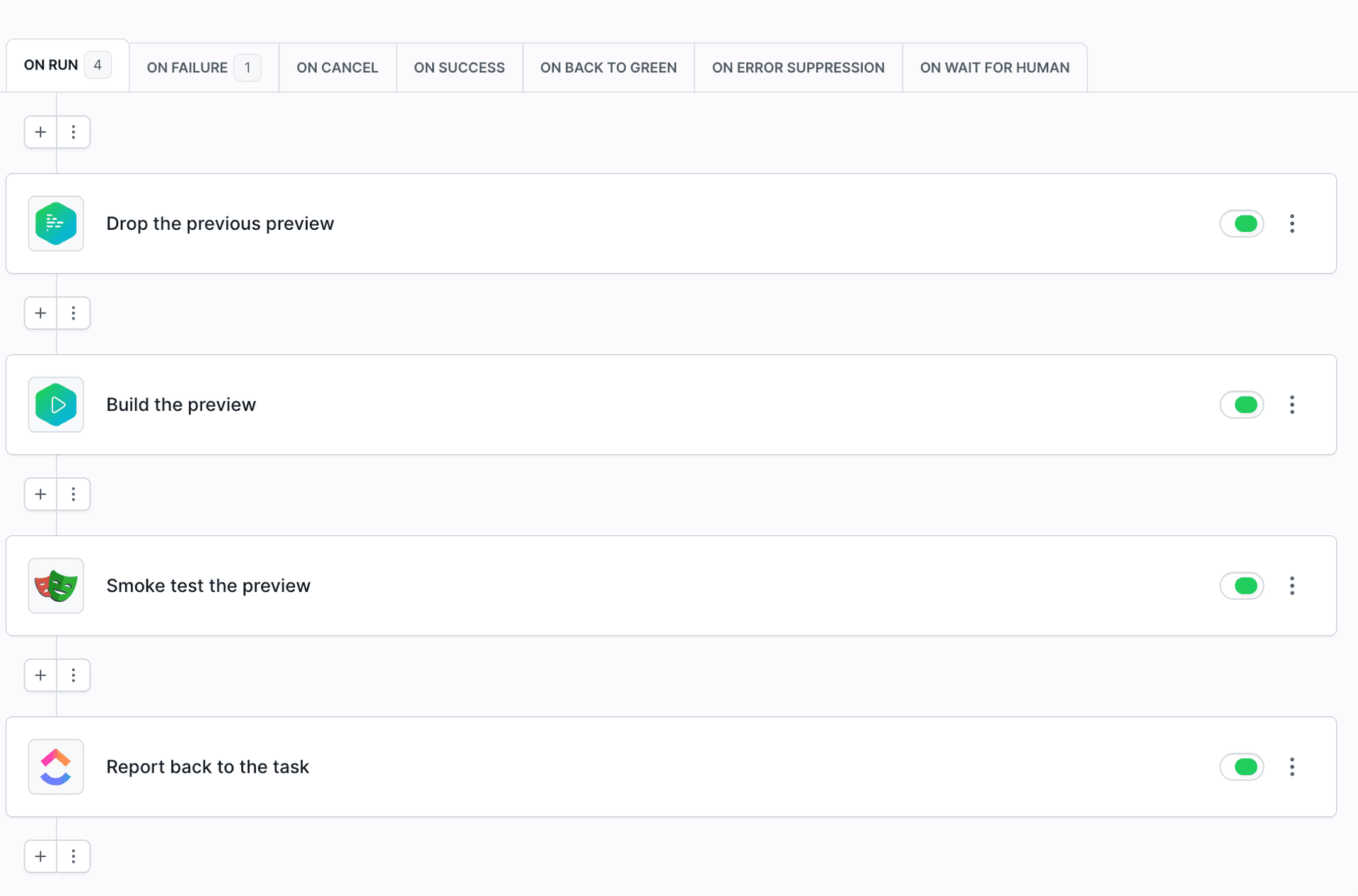
Setting up the ClickUp integration
Navigate to the Integrations tab and click New integration.
Search for and select ClickUp in the Others category:
Image loading...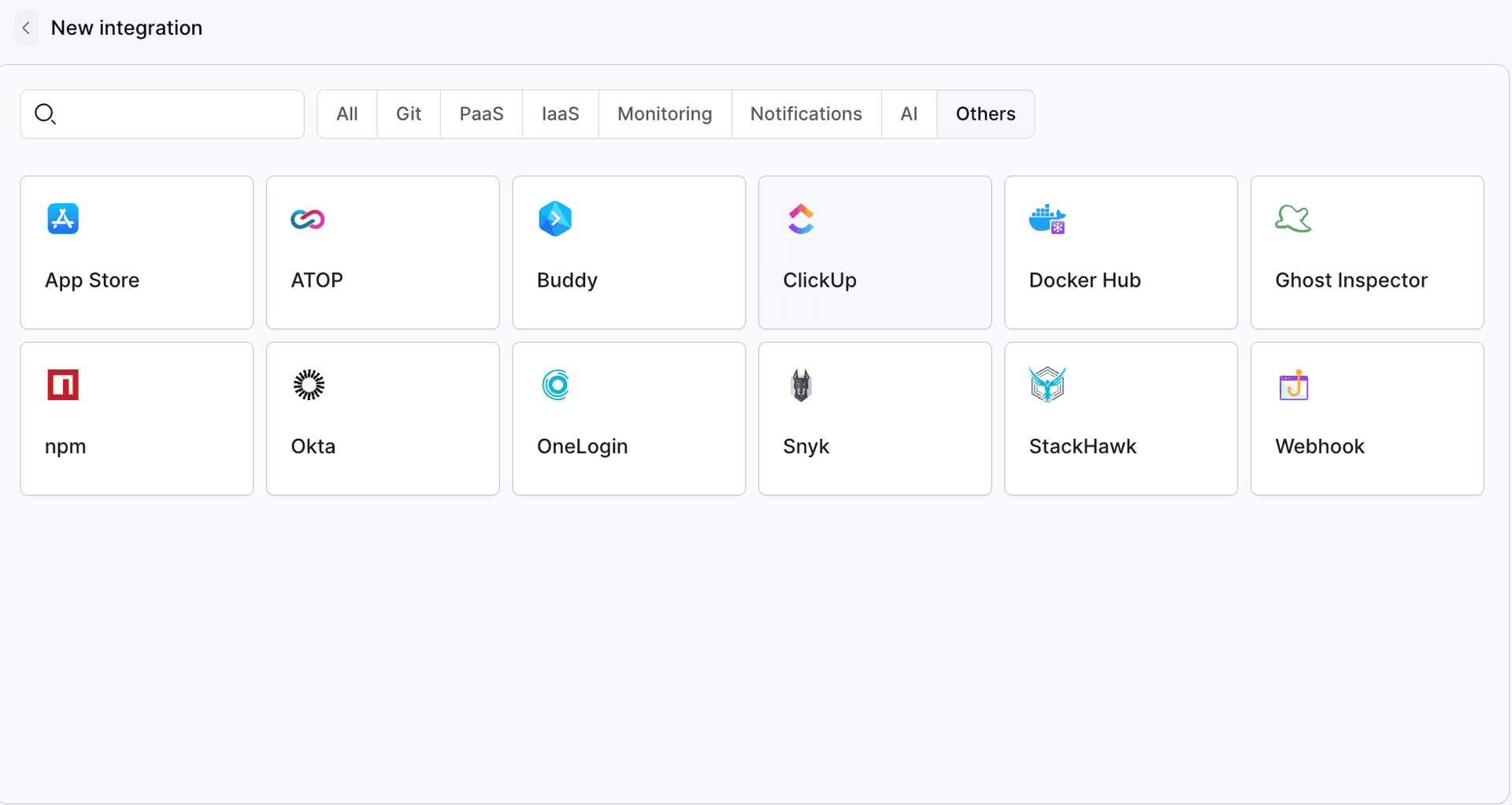
- The configuration window will show up:
Image loading...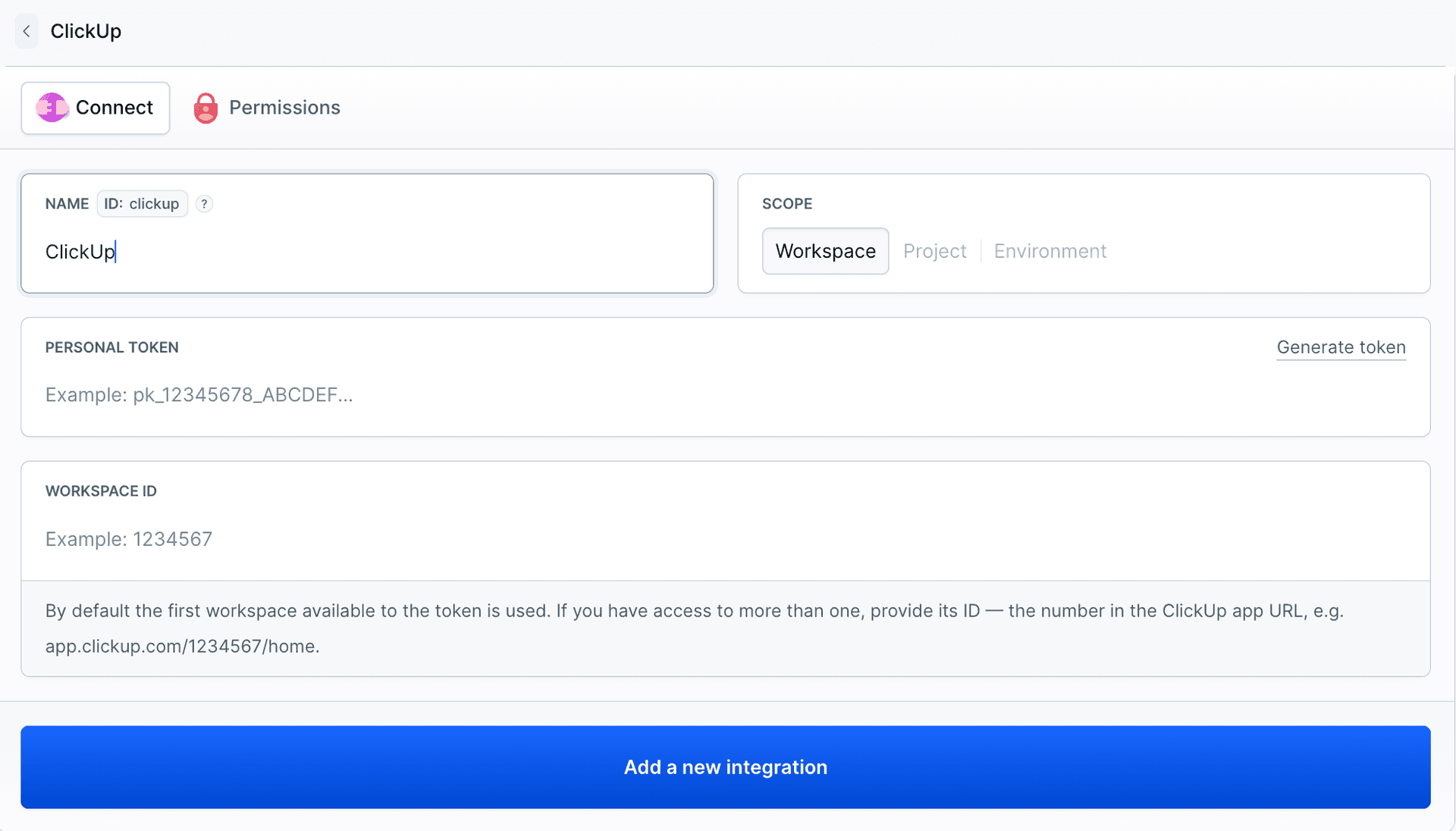
Configure the following fields:
- Integration name, e.g.
My ClickUp integration - Personal token
- Workspace ID - optional. By default, the integration uses the first workspace available to the token. If you have access to more than one, enter the ID of the workspace - the number in the ClickUp app URL, e.g.
1234567inapp.clickup.com/1234567/home
- Once done, click Add a new integration to add it to your workspace.
Obtaining a ClickUp personal token
In ClickUp, click your profile avatar in the top menu and select Settings. Then click ClickUp API in the Integrations & ClickApps section of the left menu. You can also click Generate token in the integration configuration window in Buddy to open the same page.
Click Create token:
Image loading...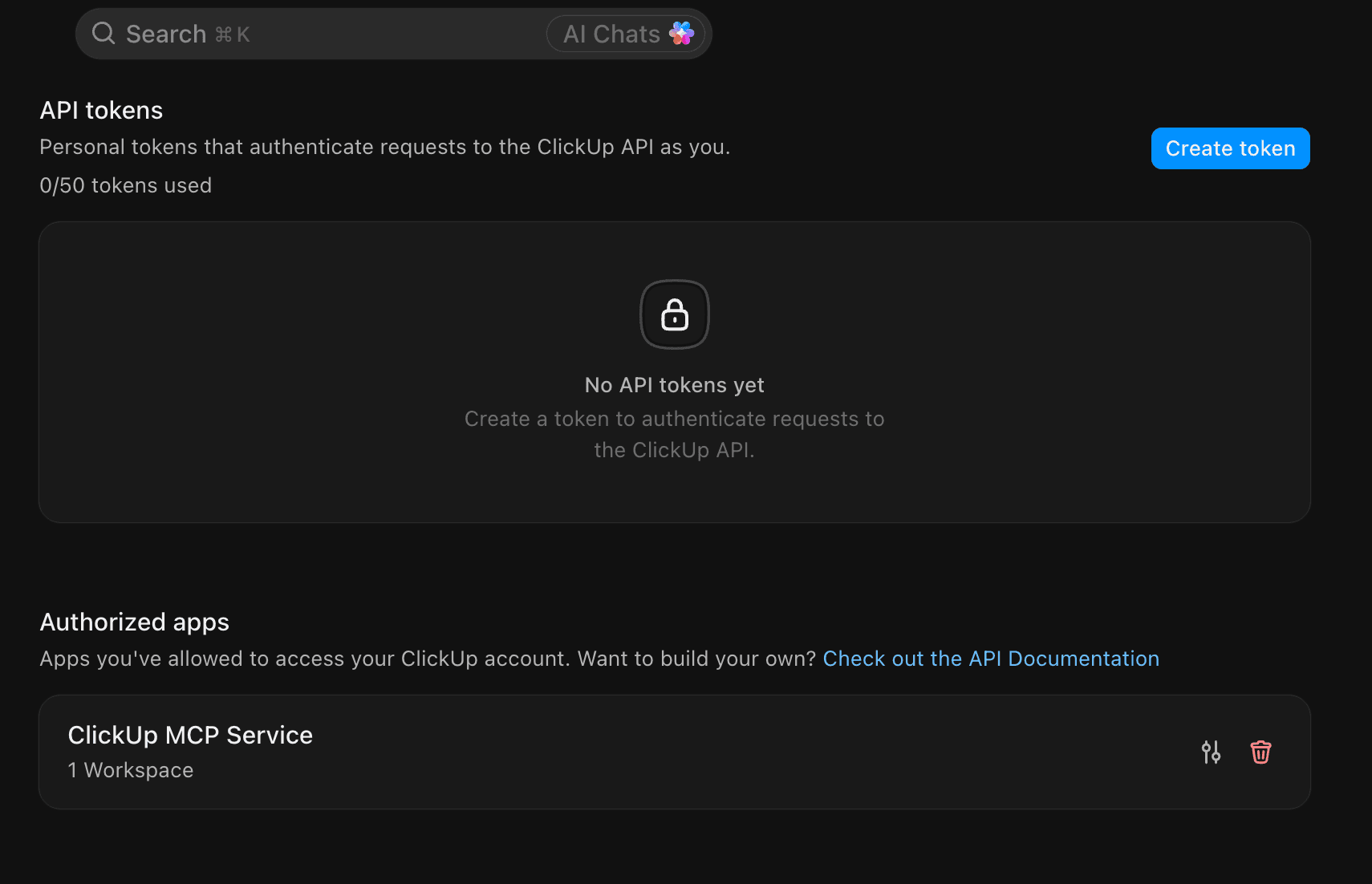
- Enter a description of the token, select its Expiration, and click Create token. ClickUp asks for your password before the token is created:
Image loading...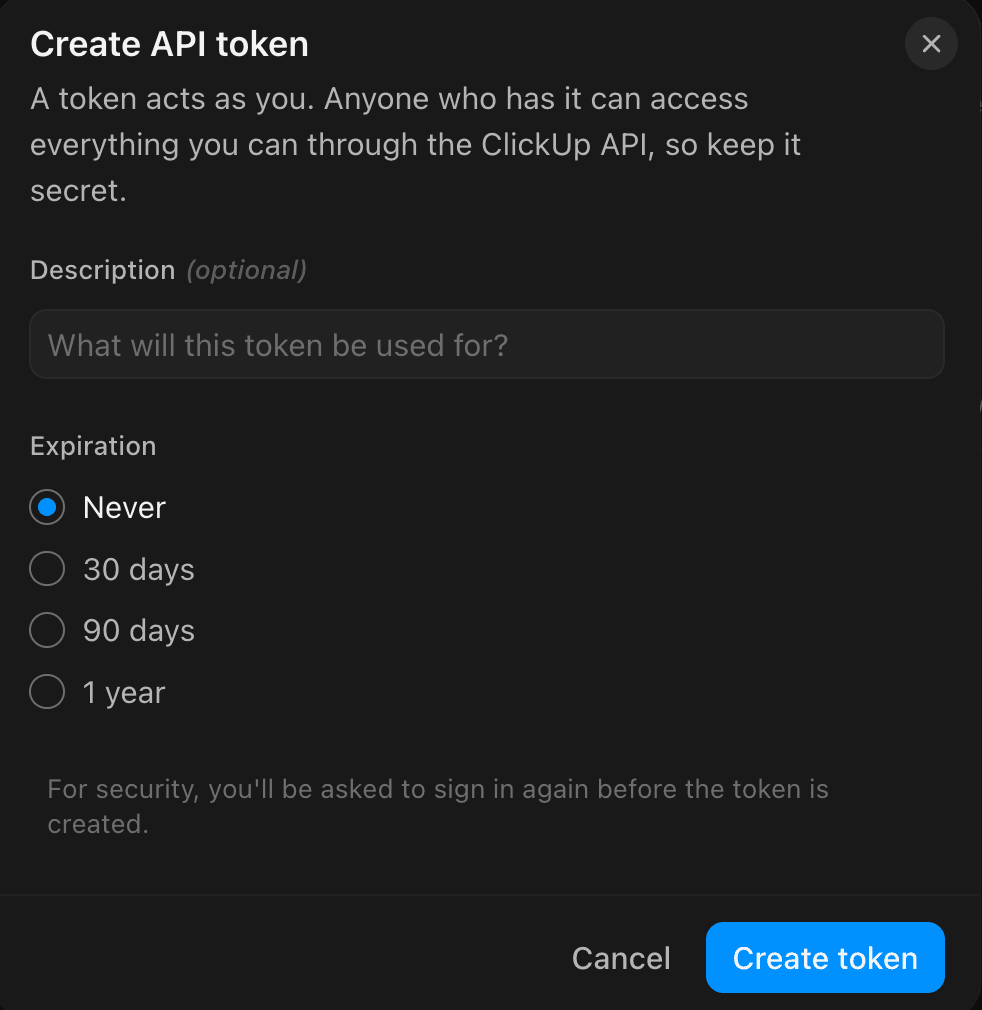
- Copy the token to the Personal token field in Buddy. ClickUp personal tokens start with
pk_:
Image loading...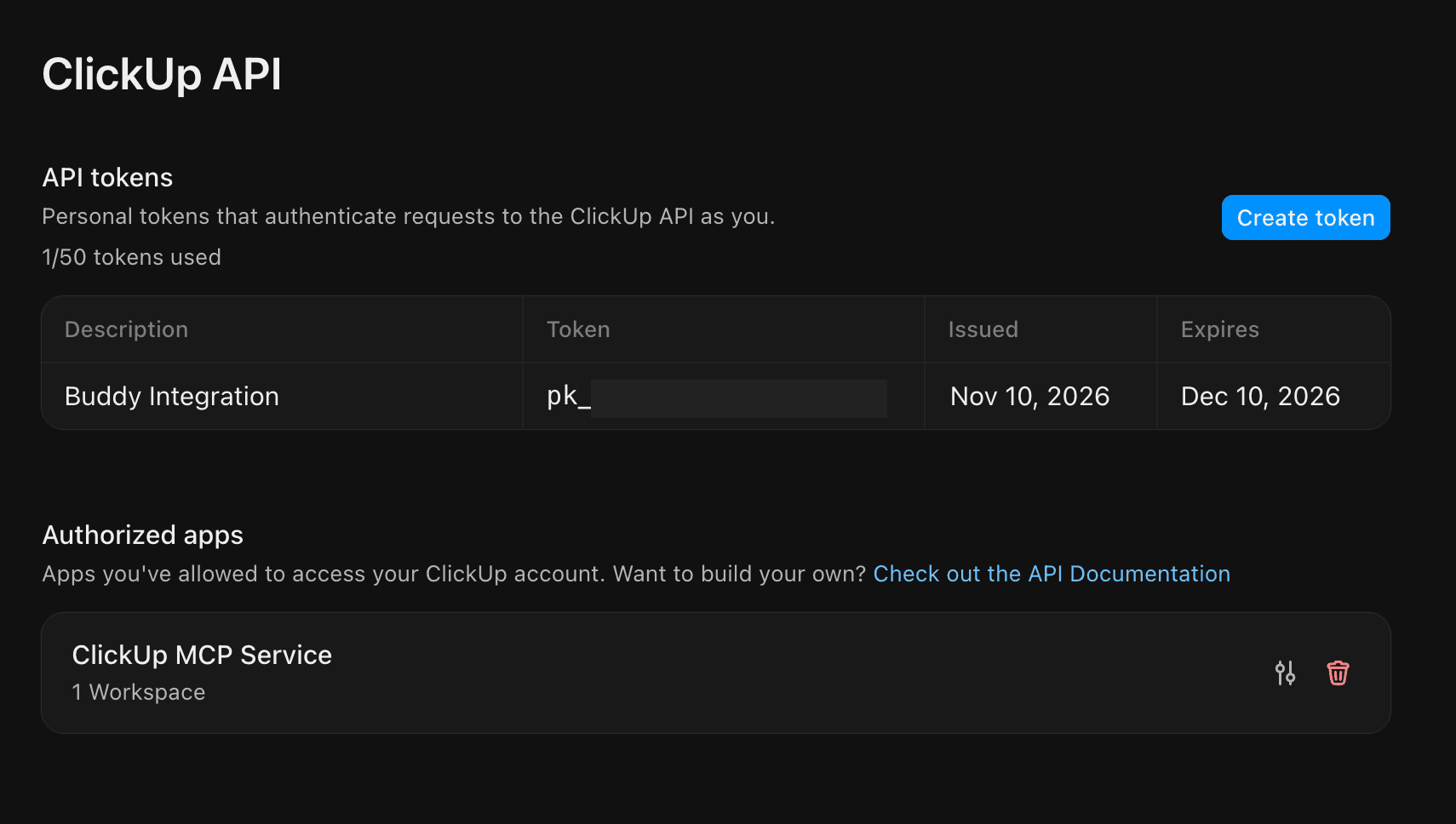
Once the integration is set up, both ClickUp actions are available in the Chat & Notifications category of the action roster.
See also
Last modified on Nov 12, 2026