Jira integration
What is Jira?
Jira is a project management and issue tracking platform by Atlassian, used by development teams to plan, track, and manage agile projects and tasks.
By integrating Jira with Buddy, you can automatically send build and deployment status updates to your Jira projects, keeping your team informed about CI/CD pipeline results without leaving Jira. Build and deployment data appears in the Development panel of linked Jira issues.
For additional channels (Slack, Teams, Telegram, and others), check the full Notification Actions guide.
Once the integration is added, you can use two notification actions in your pipelines:
- Submit Jira Build - sends build status information to Jira
- Submit Jira Deployment - sends deployment status information to Jira
Prerequisites
Before setting up the integration, make sure you have a Jira site with at least one project board created. Your site URL (e.g. https://my-company.atlassian.net) will be used as the App URL in Buddy.
If you don't have a Jira account, sign up at atlassian.com and create a new site:
Image loading...
Setting up Jira integration
Navigate to the Integrations tab and click New integration.
Look up and click Jira (it can be found under the PaaS category). The configuration window will show up:
Image loading...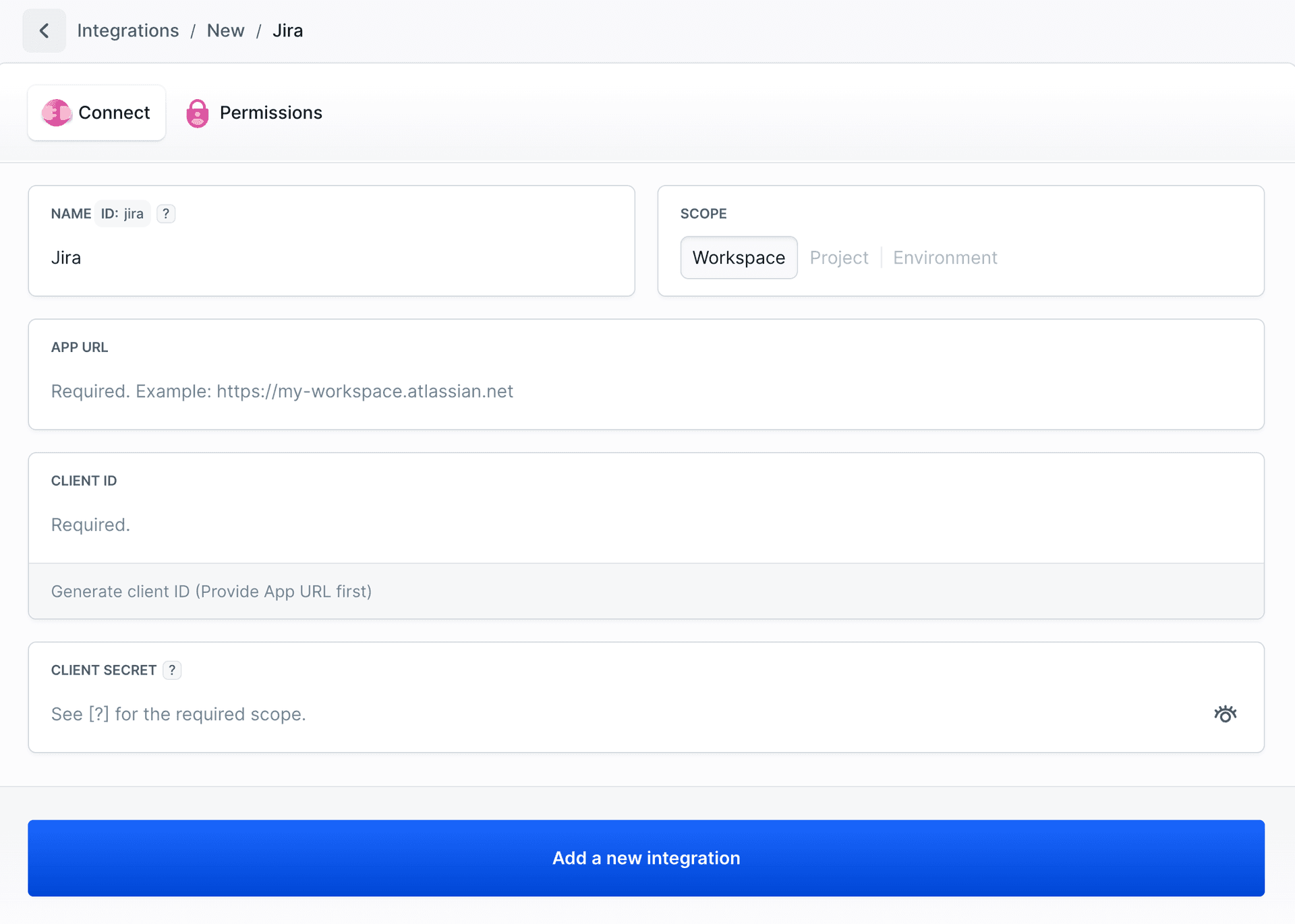
Enter the integration Name and your App URL - the URL of your Jira site, e.g.
https://my-company.atlassian.net.Once you provide the App URL, the Generate client ID link will become active. Click it to open the OAuth credentials page in your Jira site:
Image loading...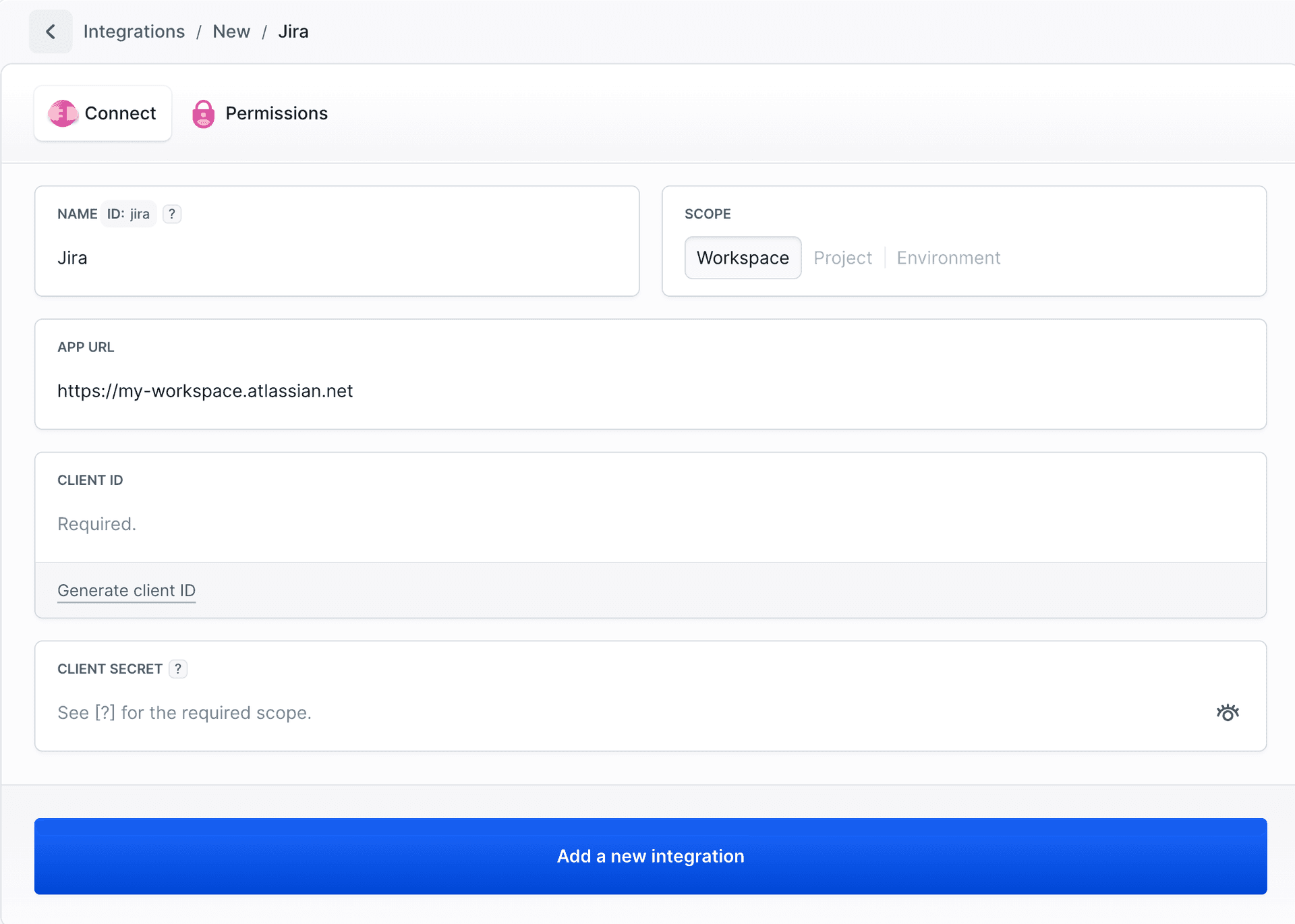
Creating OAuth credentials in Jira
- On the OAuth credentials page in Jira, click Create credentials:
Image loading...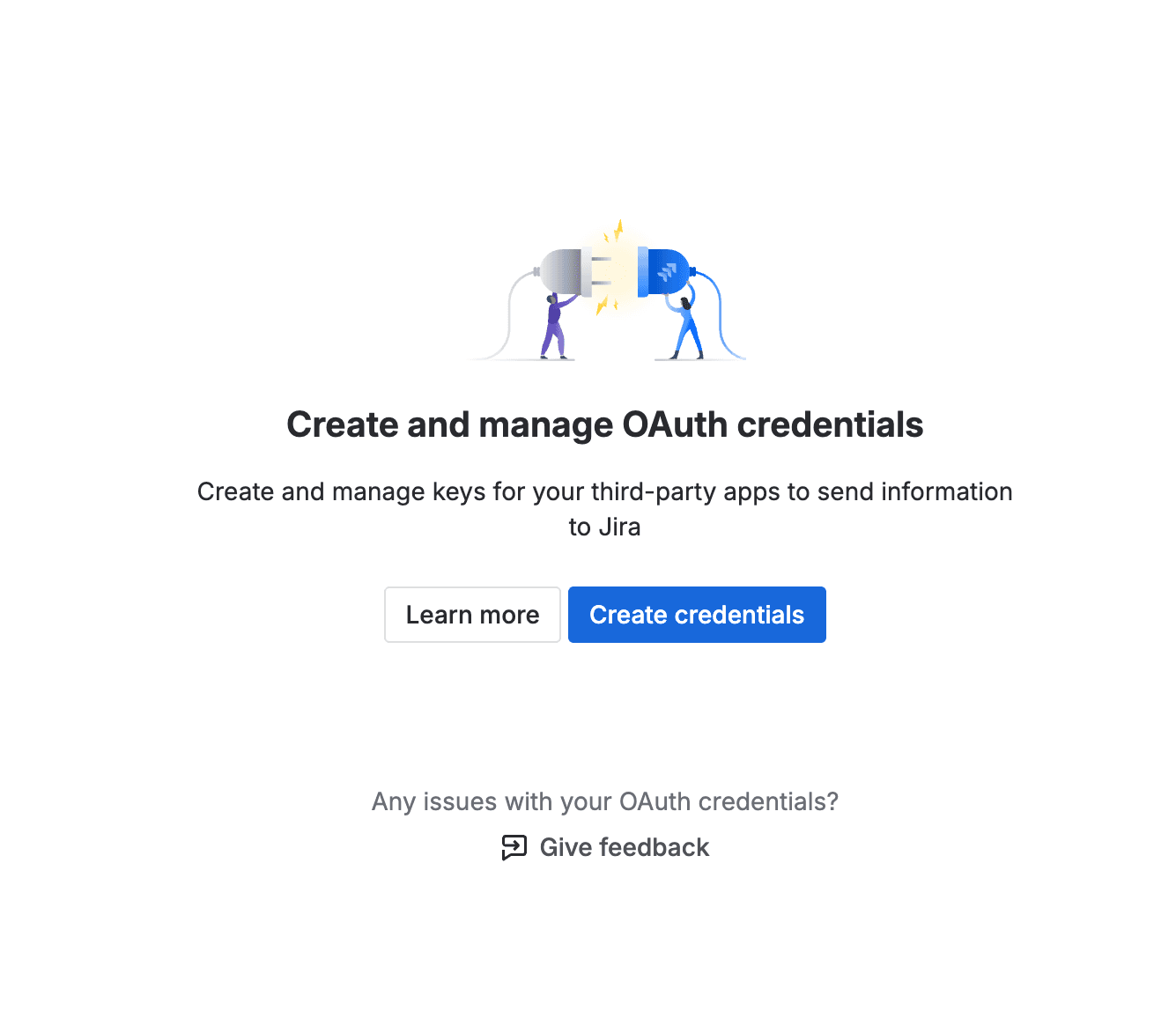
- Fill in the form:
Image loading...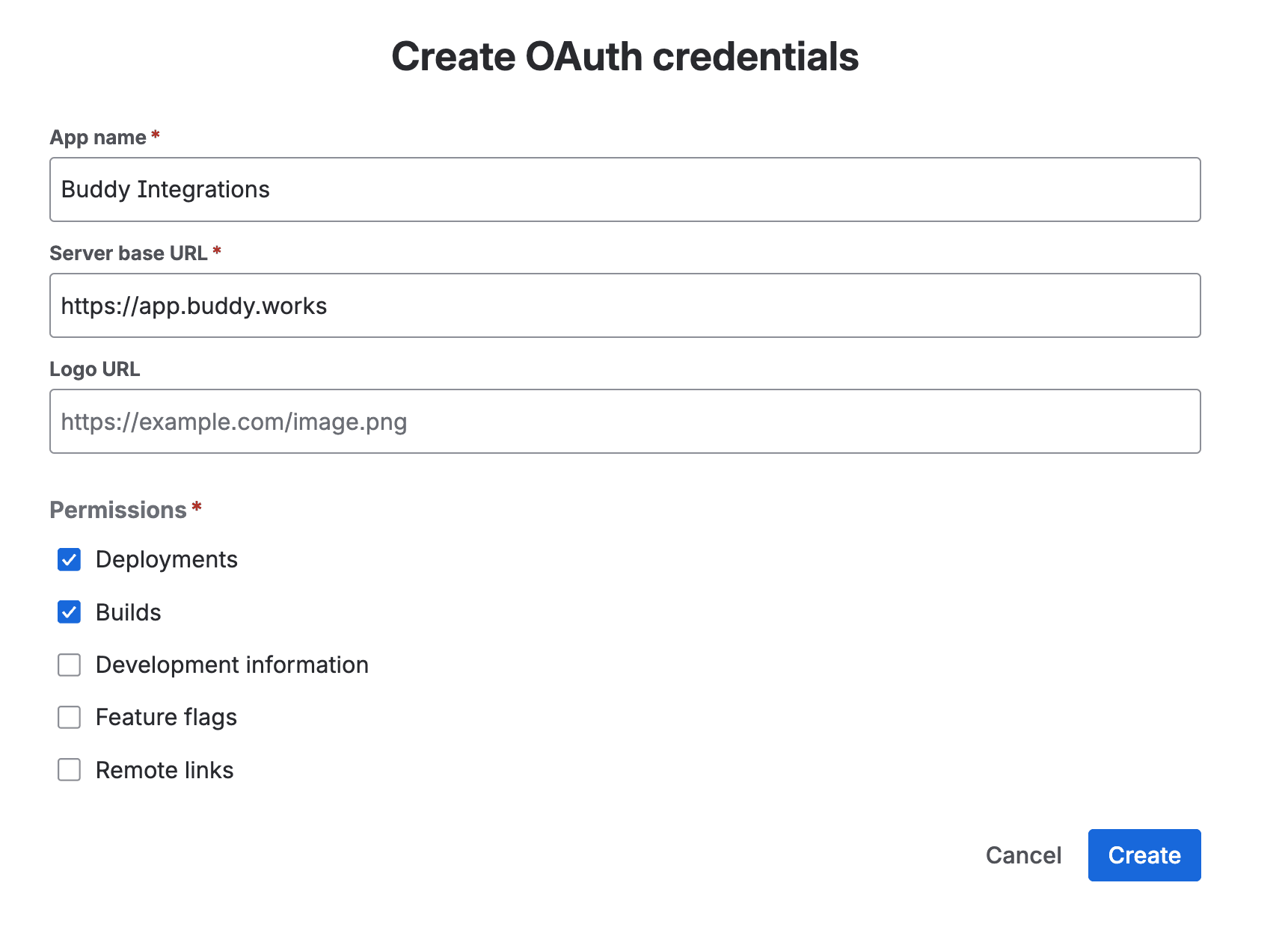
Here you have to provide:
- App name - e.g.
Buddy Integration - Server base URL - enter
https://app.buddy.works - Logo URL - optional
- Permissions - select the required Deployments and Builds permissions
- Click Create. Once done, you'll see the newly created credentials with the Client ID and Secret:
Image loading...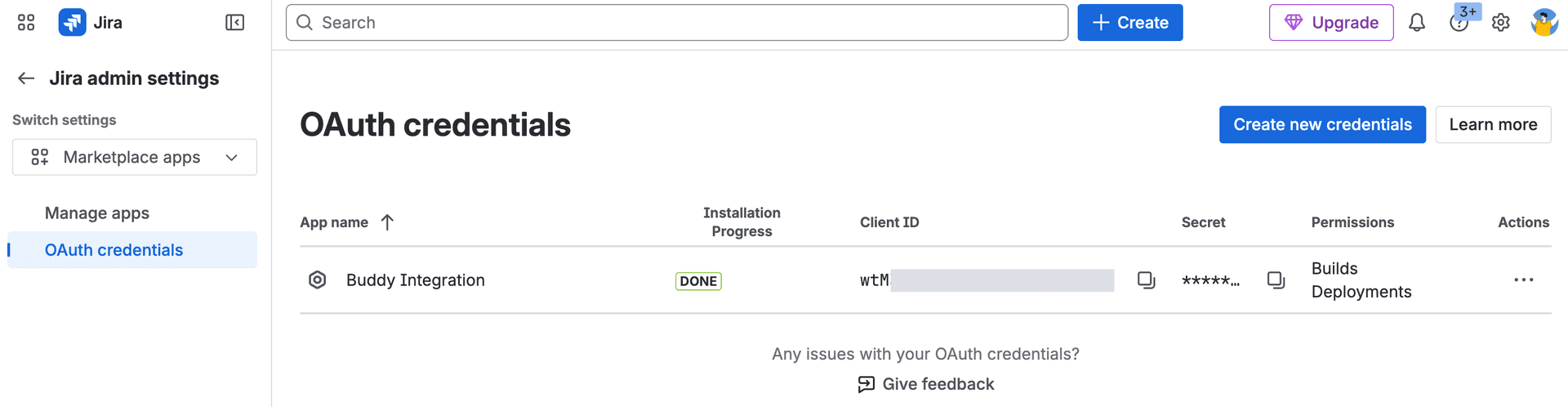
Completing the integration in Buddy
Go back to Buddy and paste the Client ID and Client Secret from the previous step.
Click Add a new integration to save.
Image loading...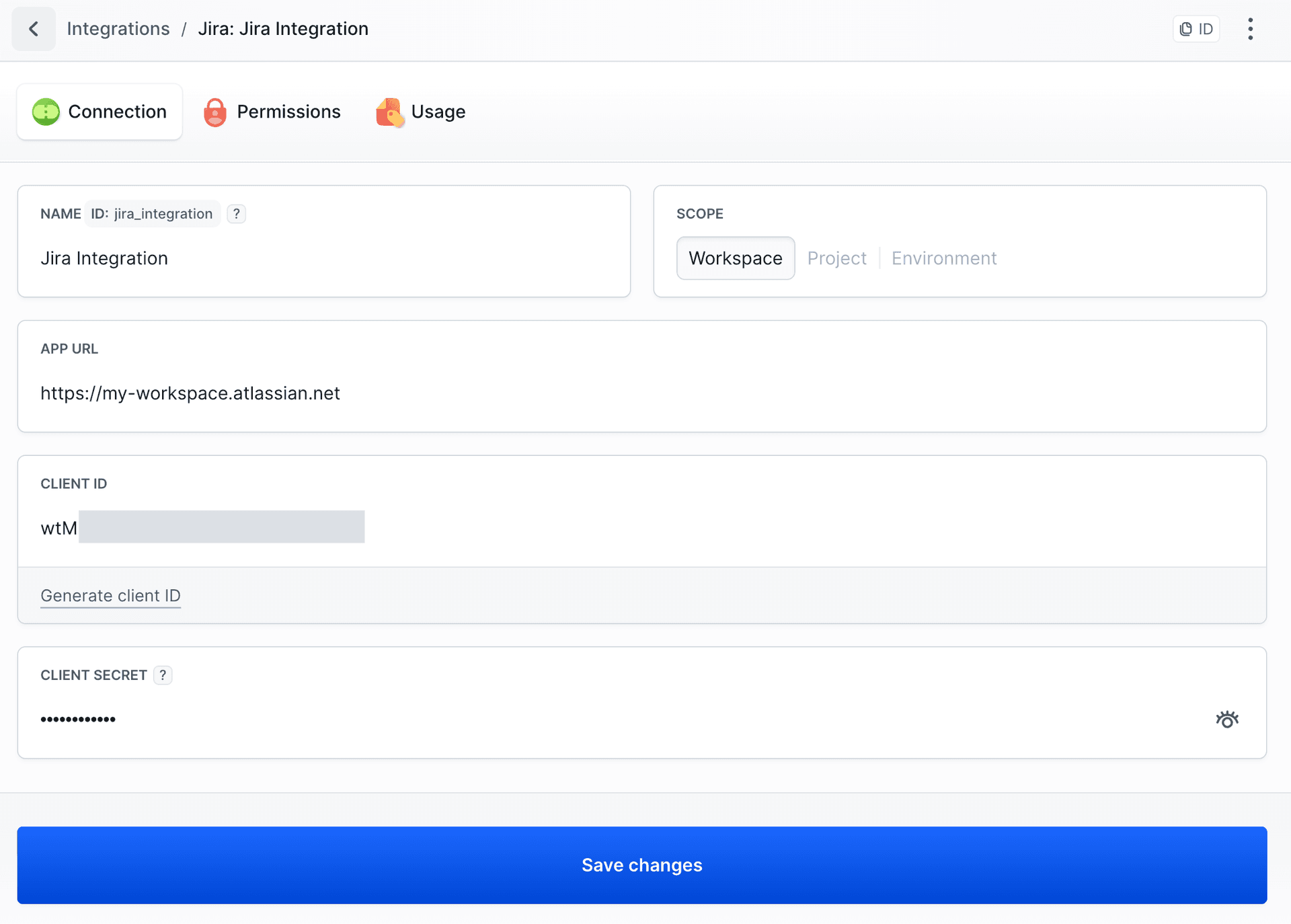
Last modified on Apr 22, 2026