ClickUp actions
Buddy provides two actions for managing ClickUp tasks from pipelines. Both actions are available in the Chat & Notifications category of the action roster and require a configured ClickUp integration. To run a pipeline when a task changes in ClickUp, use the ClickUp trigger.
Image loading...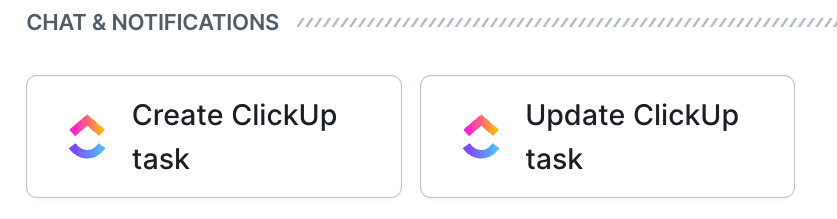
Create ClickUp Task
The action creates a task in a ClickUp list. The list is selected by name. If multiple lists have the same name, specify Space and Folder to identify the target list.
Image loading...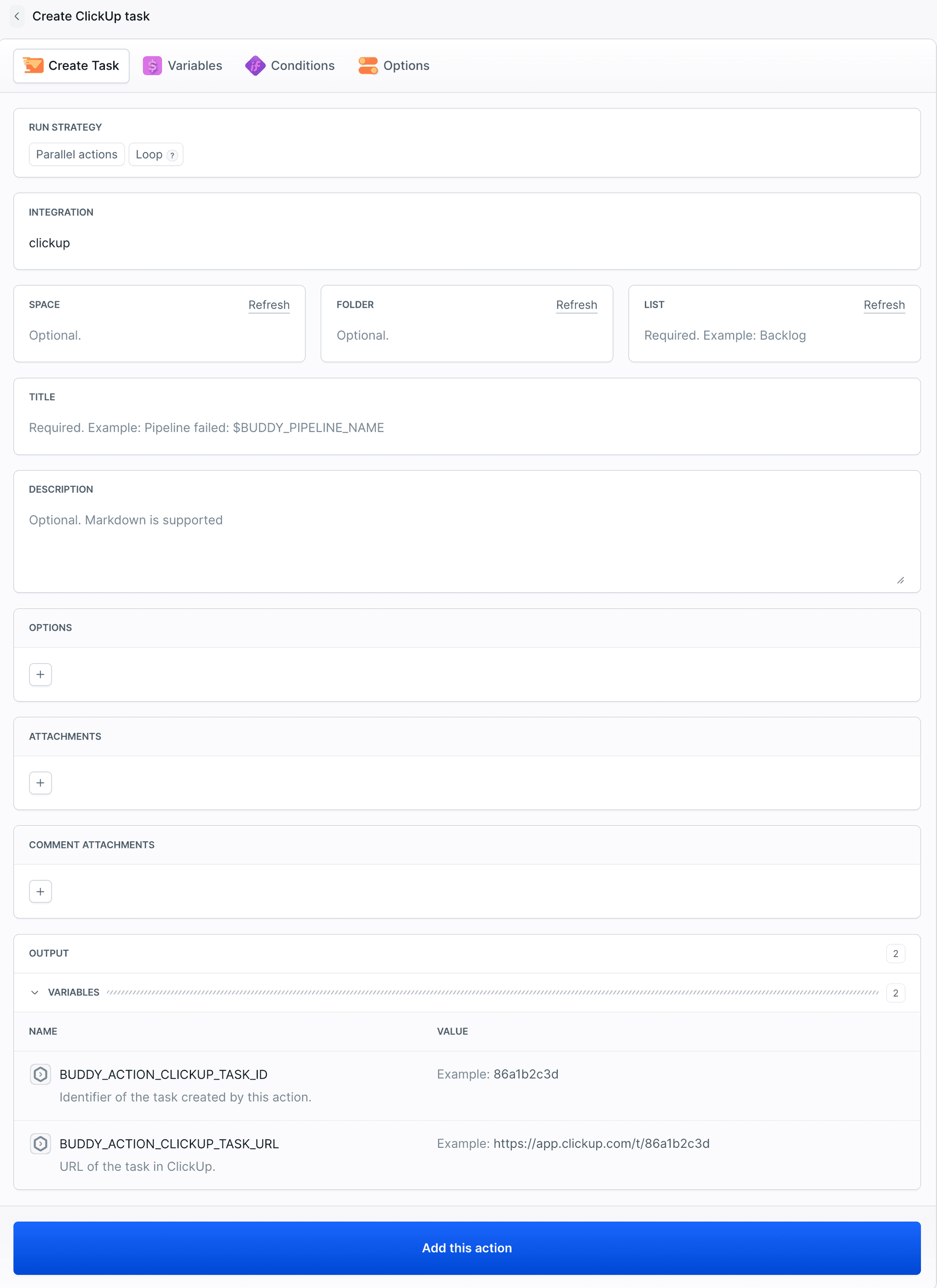
Available fields:
- Integration - the ClickUp integration to use
- List - the name of the target list. Use Space and Folder to distinguish between lists with the same name
- Title - the title of the task
- Description - the description of the task. Markdown is supported
- Status - the status of the task, as displayed in ClickUp
- Priority -
urgent,high,normal, orlow - Tags - the names of the tags to set on the task
- Assignees - the email addresses of the people to assign the task to
- Start date and Due date - epoch milliseconds, an ISO 8601 date-time, or
yyyy-MM-dd - Time estimate - in minutes
- Parent - the ID of the parent task. When set, the task is created as its subtask
- Custom fields - custom field values specified by field name
- Attachments - the paths of the files to attach to the task, relative to the pipeline filesystem
- Comment and Comment attachments - a comment to add to the task and the files to attach to it
- Notify all - notifies everyone assigned to the task
For example, you can create a task when a pipeline run fails:
- action: "Report failure to ClickUp"
  type: "CLICKUP_CREATE_TASK"
  trigger_time: "ON_FAILURE"
  integration: "our-clickup-prod"
  space: "Development"
  folder: "Sprints"
  list: "Backlog"
  title: "Pipeline failed: $BUDDY_PIPELINE_NAME #$BUDDY_RUN_ID"
  description: "Opened by run **$BUDDY_RUN_ID**"
  priority: "high"
  tags:
    - "ci-failure"
  assignees:
    - "mike.benson@buddy.works"
  attachments:
    - "reports/test-results.xml"
Update ClickUp Task
The action updates an existing task selected by its Task ID. It can change the same fields as the Create ClickUp Task action, add or remove tags and assignees, move the task to another list, archive or restore it, attach files, and add a comment.
Image loading...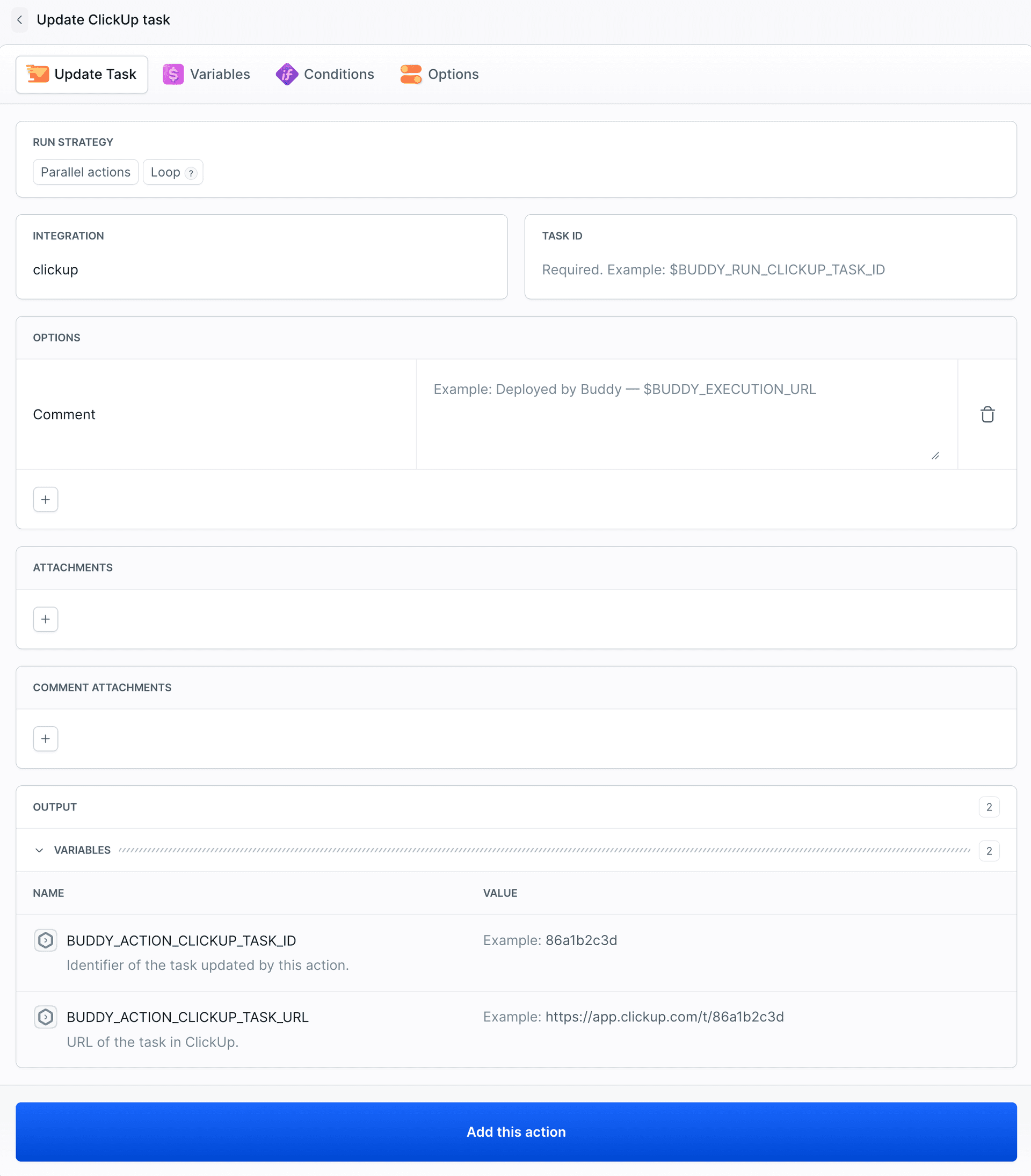
Available fields:
- Integration - the ClickUp integration to use
- Task ID - the ID of the task to update
- Title, Description, Status, Priority, Start date, Due date, Time estimate, Custom fields - the same as in the create action
- Add tags and Remove tags - the names of the tags to add to or remove from the task
- Add assignees and Remove assignees - the email addresses of assignees to add or remove
- List - the name of the list to move the task to. Optionally narrowed by Space and Folder
- Archived -
truearchives the task,falserestores it - Attachments - the paths of the files to attach to the task, relative to the pipeline filesystem
- Comment and Comment attachments - a comment to add to the task and the files to attach to it
- Notify all - notifies everyone assigned to the task
Combined with the ClickUp trigger, it reports the result back to the task that started the run:
- action: "Mark task as deployed"
  type: "CLICKUP_UPDATE_TASK"
  integration: "our-clickup-prod"
  task_id: "$BUDDY_RUN_CLICKUP_TASK_ID"
  status: "done"
  add_tags:
    - "deployed"
  comment: "Deployed to production from `$BUDDY_RUN_BRANCH`"
Action variables
Both actions export variables that the following actions can use:
| Name | Description |
|---|---|
BUDDY_ACTION_CLICKUP_TASK_ID | Identifier of the created or updated task |
BUDDY_ACTION_CLICKUP_TASK_URL | URL of the task in ClickUp |
BUDDY_ACTION_CLICKUP_COMMENT_URL | URL of the comment added by the action. Exported only when the action adds a comment |
See also
Last modified on Nov 12, 2026