Jira actions
Buddy provides two actions for sending status updates to Jira. Both actions are available in the Chat & Notifications category of the action roster and require a configured Jira integration. If you also send updates to chat tools, see the full Notification Actions overview.
Image loading...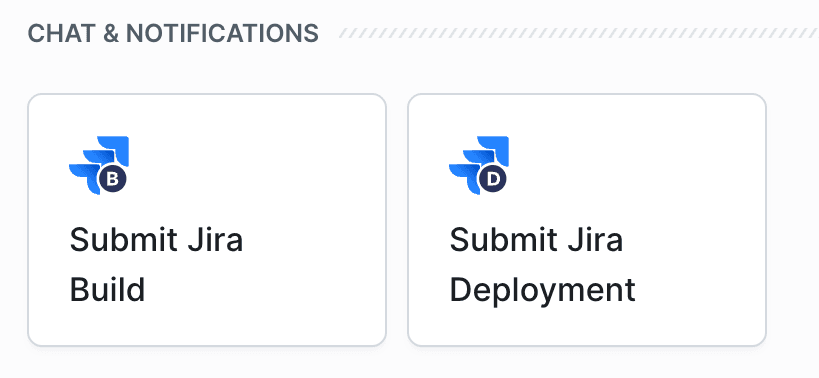
Submit Jira Build
This action sends build status information to your Jira project, allowing your team to track build results directly from Jira issues.
Image loading...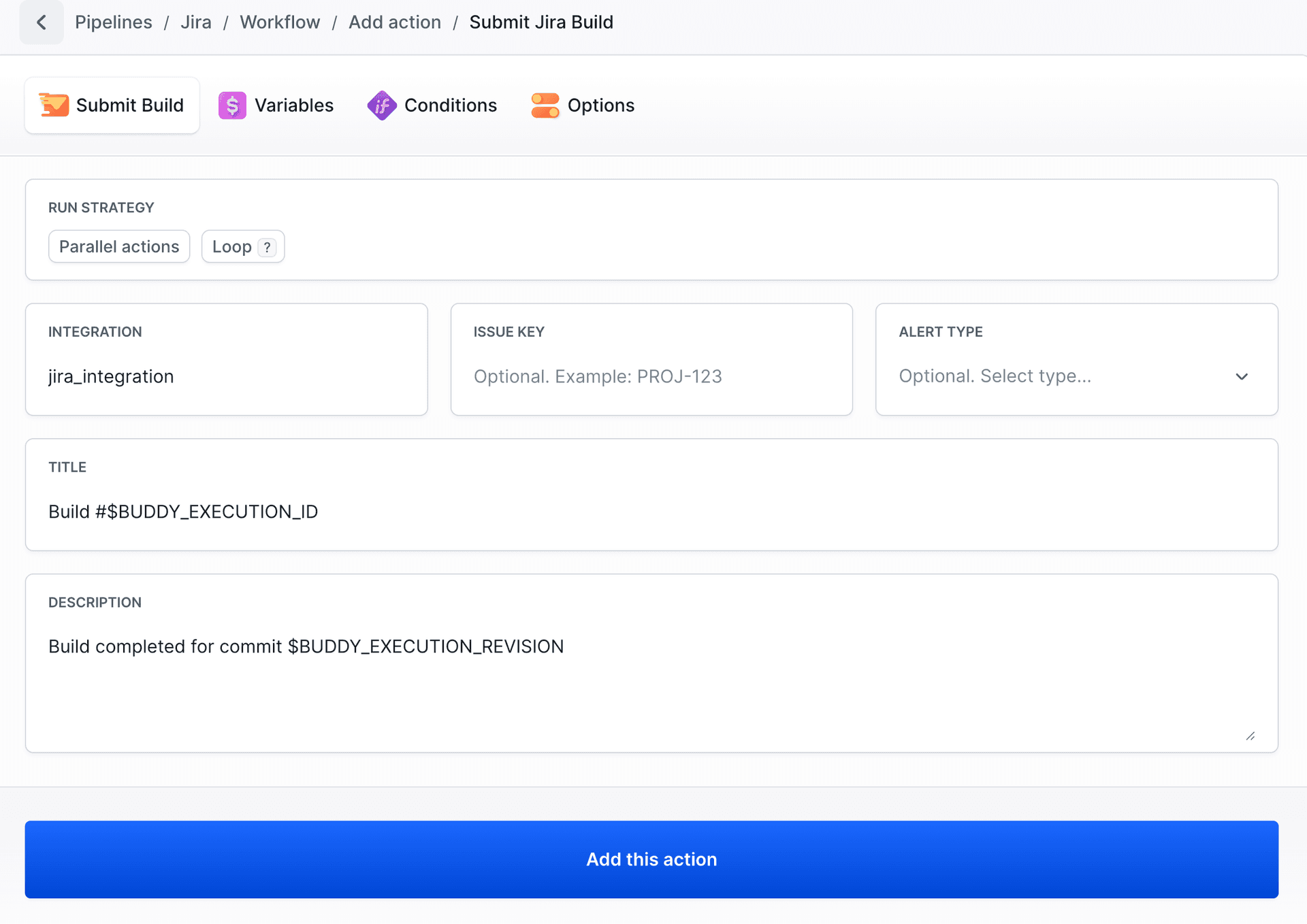
Available fields:
- Integration - the Jira integration to use
- Issue Key - optional Jira issue key (e.g.
PROJ-123). When provided, the build is explicitly linked to the specified issue. When omitted, Jira associates the data automatically based on issue keys found in branches, commits, or pull requests. - Alert Type - optional status of the build. Available values:
Pending,In progress,Successful,Failed,Cancelled. By default, the value is derived from the action's trigger context:Successfulon normal execution,Failedon failure, andCancelledon stop. - Title - the build title. Default:
Build #$BUDDY_EXECUTION_ID - Description - the build description. Default:
Build completed for commit $BUDDY_EXECUTION_REVISION
Submit Jira Deployment
This action sends deployment status information to your Jira project, letting your team monitor deployments from within Jira.
Image loading...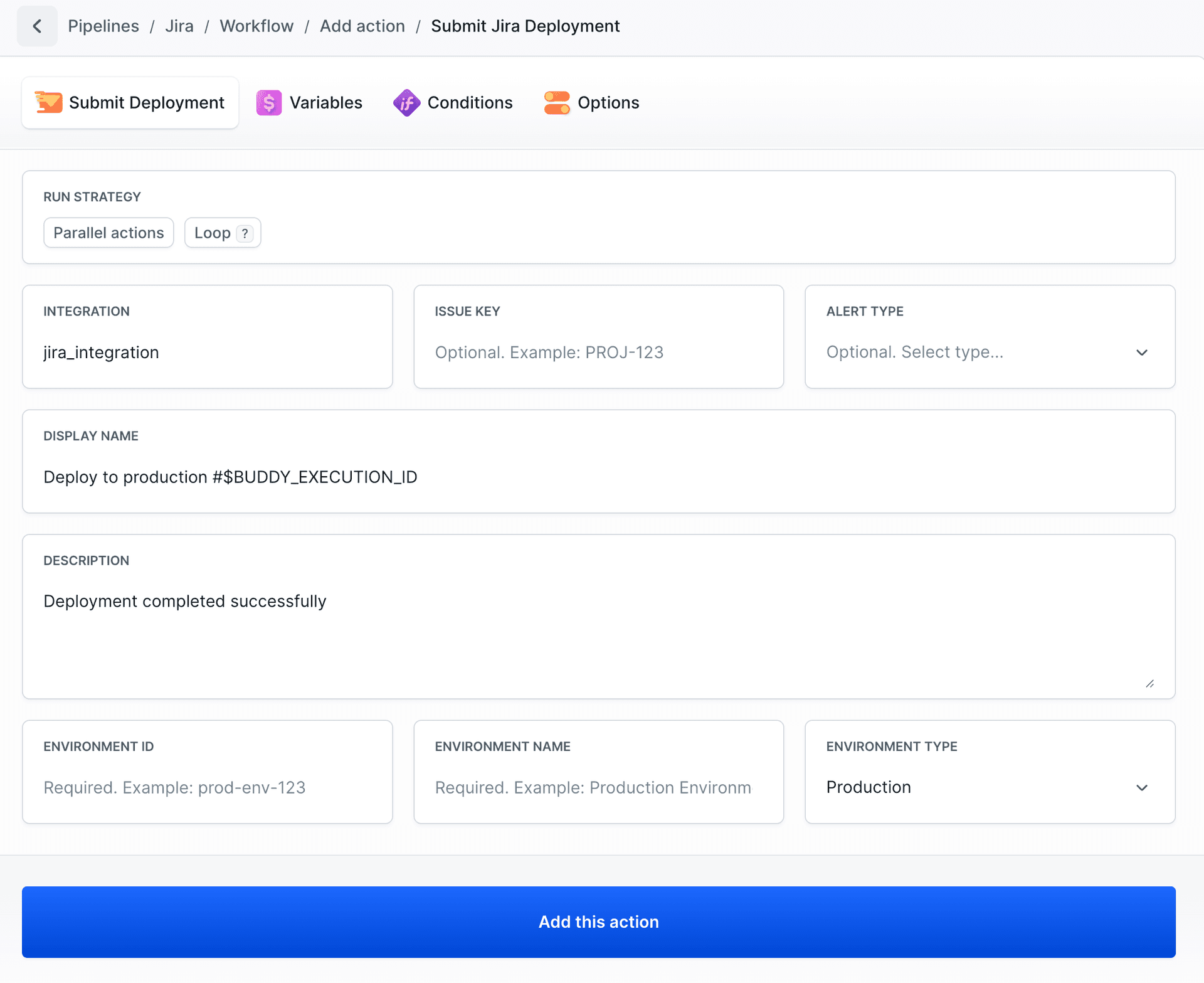
Available fields:
- Integration - the Jira integration to use
- Issue Key - optional Jira issue key (e.g.
PROJ-123). When provided, the deployment is explicitly linked to the specified issue. When omitted, Jira associates the data automatically based on issue keys found in branches, commits, or pull requests. - Alert Type - optional status of the deployment. Available values:
Pending,In progress,Successful,Failed,Cancelled. By default, the value is derived from the action's trigger context:Successfulon normal execution,Failedon failure, andCancelledon stop. - Display Name - the deployment display name. Default:
Deploy to production #$BUDDY_EXECUTION_ID - Description - the deployment description. Default:
Deployment completed successfully - Environment ID - required, e.g.
prod-env-123 - Environment Name - required, e.g.
Production Environment - Environment Type - the type of environment (e.g.
Production,Staging,Testing)
How Jira links builds and deployments to issues
For a build or deployment sent by these actions to appear in a Jira issue, Jira must be able to associate the data with repository activity related to that issue.
Jira links data using the issue key (e.g. PROJ-123) detected in your version control workflow. A build or deployment will be visible in the Development panel of an issue only if at least one of the following exists in the repository:
- a branch name containing the issue key (e.g.
feature/PROJ-123-login) - a commit message containing the issue key (e.g.
PROJ-123 fix validation) - a pull request title or description referencing the issue key
If no repository activity is linked to the issue, Jira will accept the data but it will not be displayed in the issue view.
Suggested Alert Type values
When no Alert Type is set, the value is resolved automatically from the trigger context. If you prefer to set the value manually, consider matching the Alert Type to the action's position in the execution flow:
| Pipeline stage | Suggested Alert Type |
|---|---|
| Before build/deploy steps | Pending or In progress |
| After successful build/deploy | Successful |
| In a failure-handling action | Failed |
| In a stop-handling action | Cancelled |
Last modified on Apr 22, 2026