Terminal and SSH
There are two ways into a running Sandbox - the terminal in the browser and SSH - and both land you on the same machine as the buddy user with passwordless sudo.
Who can connect
Access follows the Sandbox permissions. A user whose effective permission on the Sandbox is Manage - granted directly or through a group - can open the terminal and log in over SSH.
For SSH, Buddy takes the public keys from that user's profile and adds them to the Sandbox's authorized_keys. Nothing is configured on the machine by hand - adding a key to your profile is enough. See SSH keys.
Beyond that, any public SSH key defined as a Sandbox variable authorizes SSH access as well. See Variables and secrets.
Terminal in the browser
The Terminal tab of a Sandbox gives you a full shell without leaving Buddy. Useful for a quick look around, checking a process, or fixing something without setting up SSH keys at all.
Image loading...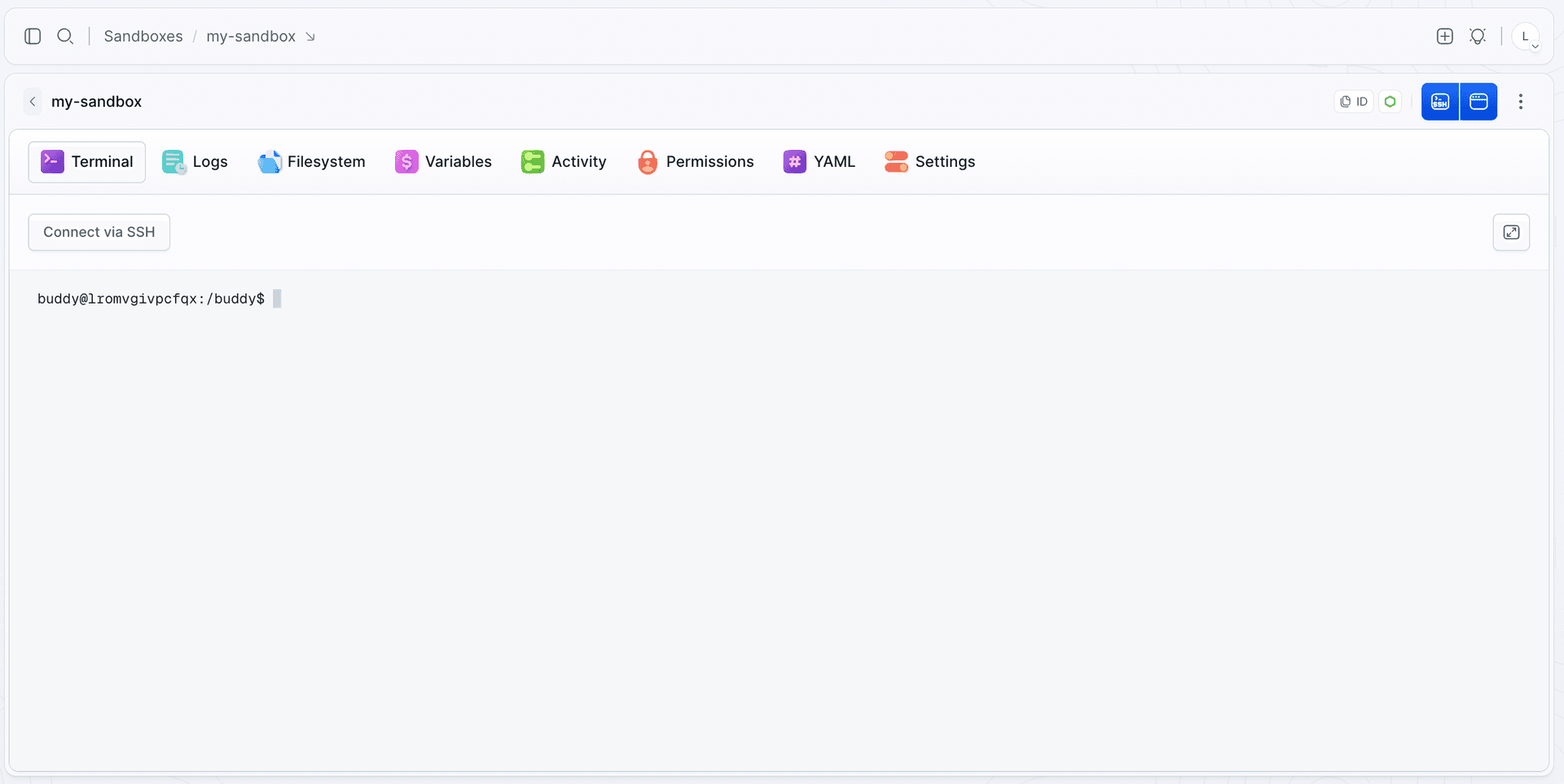
SSH
The Connect via SSH button above the terminal opens an ssh:// link with the Sandbox host and port already filled in. Your browser asks which application should handle it and hands the connection over to your local terminal. If nothing is registered for ssh:// links on your machine, use the connection details below instead.
Image loading...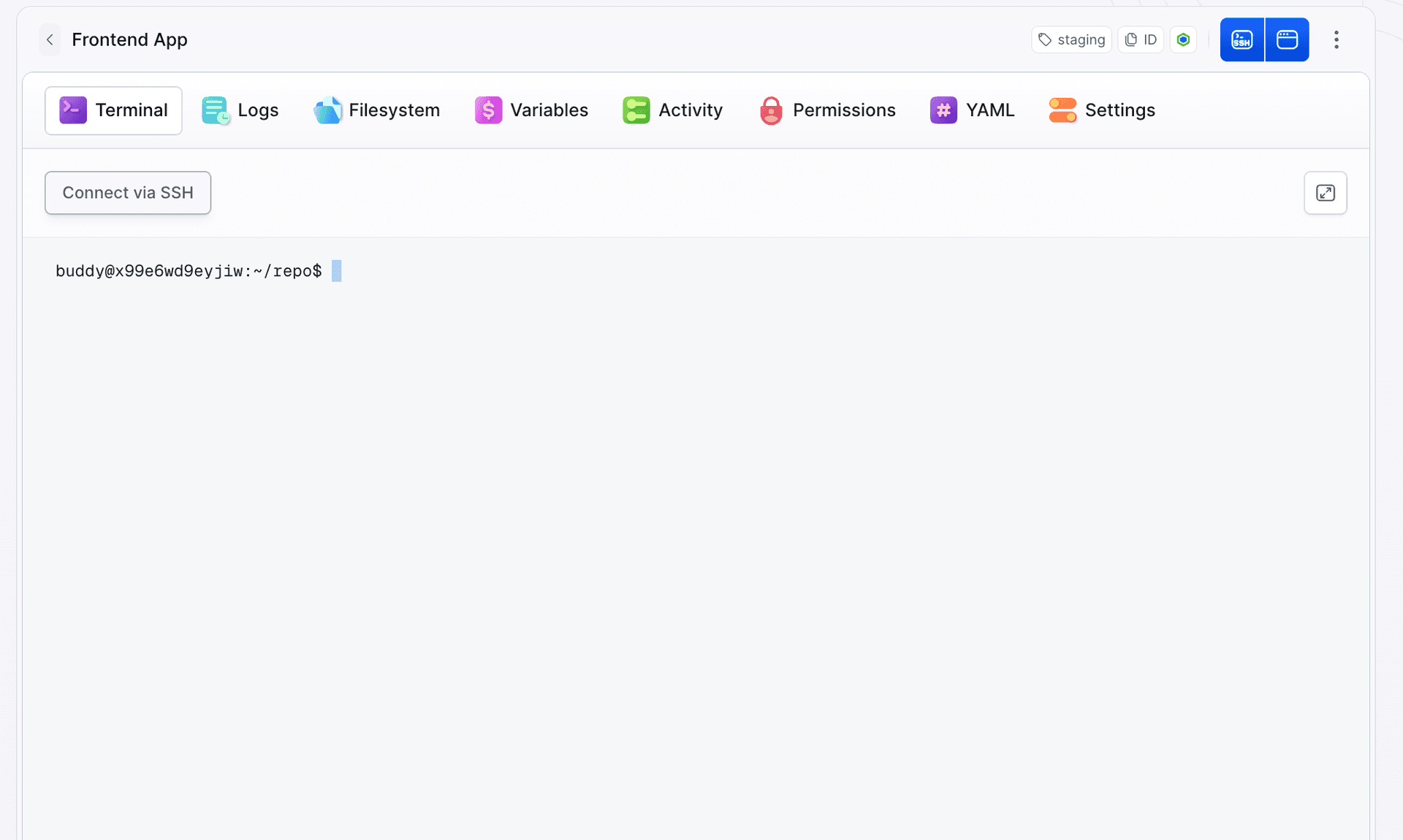
Creating a Sandbox from the CLI prints the same details the moment it comes up, so you can connect without opening the interface at all:
$ bdy sb create
Creating sandbox: pink-geese-walk (pink-geese-walk-ms8qh6d0)
Identifier:   pink-geese-walk-ms8qh6d0
SSH:          ssh pink-geese-walk-ms8qh6d0.us-1.shr.io -p 12201
Web terminal: https://app.buddy.works/myplayground/t12/sandboxes/ig7t3f0lax5hx
Copy the SSH line into a terminal to connect. The Web terminal link opens the same machine in the browser.
SSH runs on its own generated host, *.shr.io, on a port assigned to the Sandbox. It has nothing to do with the address your application is served on - that one is a tunnel on *.buddy.app, see Endpoints.
BUDDY_SANDBOX_SSH_URL - see Variables and secrets.
A shell in one command
The CLI wraps the same SSH connection, so there is no address to copy:
bashbdy sb connect my-sandbox$
Connecting your IDE
Because it is a standard SSH connection, remote development tooling works out of the box:
- VS Code - use the Remote-SSH extension and point it at the Sandbox address, user
buddy. - JetBrains Gateway - create an SSH connection with the same address and user.
System users
A Sandbox is a full Linux machine, so users work the way they do anywhere else. The default user is buddy, and it has passwordless sudo. You can create additional system users and target them explicitly:
bashbdy sb exec command my-sandbox "sudo useradd -m -s /bin/bash agent-a" bdy sb exec command my-sandbox "sudo -u agent-a whoami" bdy sb cp ./task-input my-sandbox:/home/agent-a/ --user agent-a$$$
Commands always start as buddy, so switching user is a matter of prefixing them with sudo -u. File transfers are different - bdy sb cp takes a --user flag and writes the files straight into that account.
Each system user gets its own home directory: one user cannot read or overwrite another's files, while buddy with sudo still sees everything.
Sessions and the timeout
An open terminal session and a connected SSH session both count as activity, so a Sandbox with a timeout set will not stop while you are connected. See Lifecycle.
Next
Last modified on Oct 7, 2026