Permissions and security
By default, access to a Sandbox follows the user's role in the project. You can override that per Sandbox on its Permissions tab.
Image loading...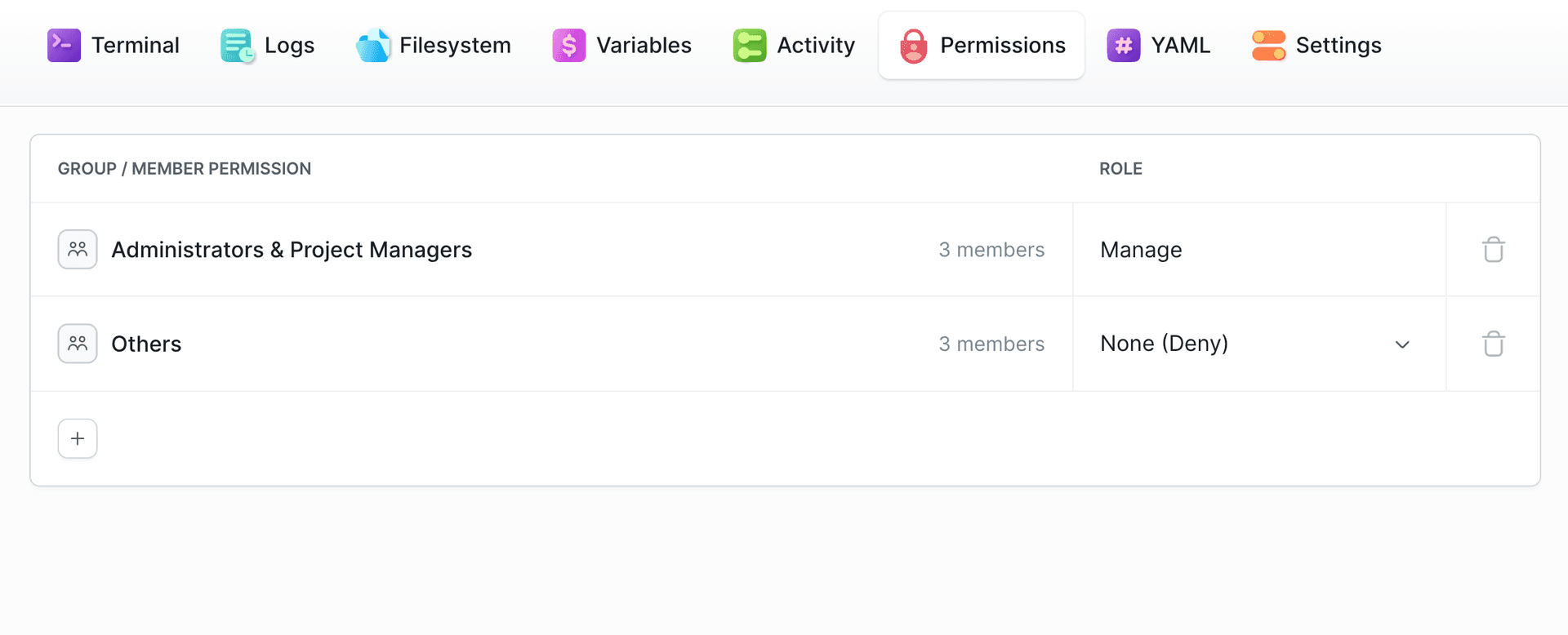
The tab has three sections, each assigned independently:
| Section | What you assign |
|---|---|
| Member | Individual workspace members |
| Agent | AI agents - assigned separately from people |
| Group | Groups, plus the Others row that covers everyone not matched above |
Use the + button in a section to open its assignment screen, pick a role per row, and confirm with Assign roles.
Image loading...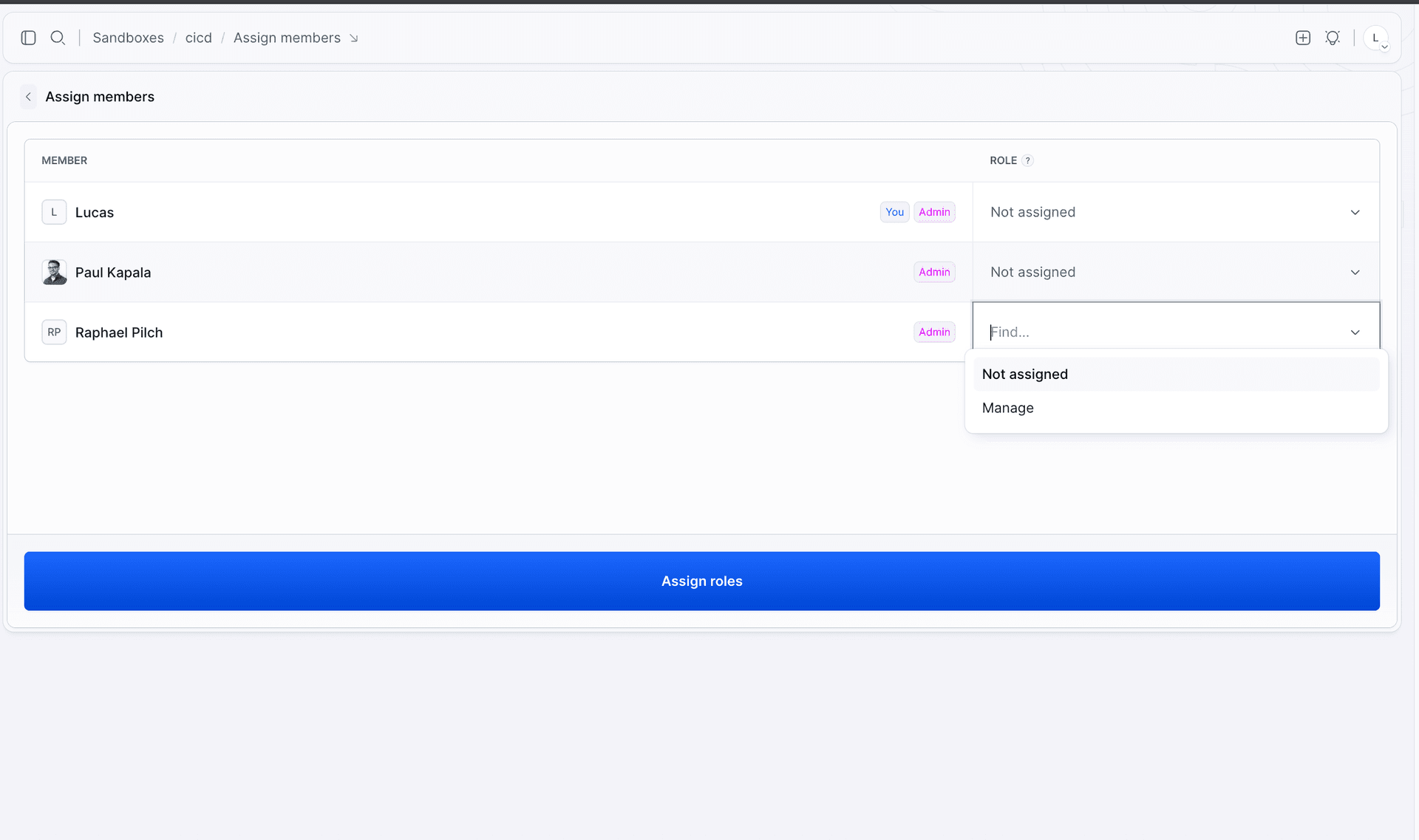
How access is calculated
For a given user or agent, Buddy resolves permissions in this order:
- Assigned directly to the Sandbox? That assignment decides, and nothing else is considered.
- Otherwise, a member of groups assigned to the Sandbox? The widest of those groups' permissions wins.
- Otherwise - the level configured on the Others row applies.
Granting one person Manage role does not require touching group configuration, and removing someone from a group takes their access away immediately.
Access levels
Image loading...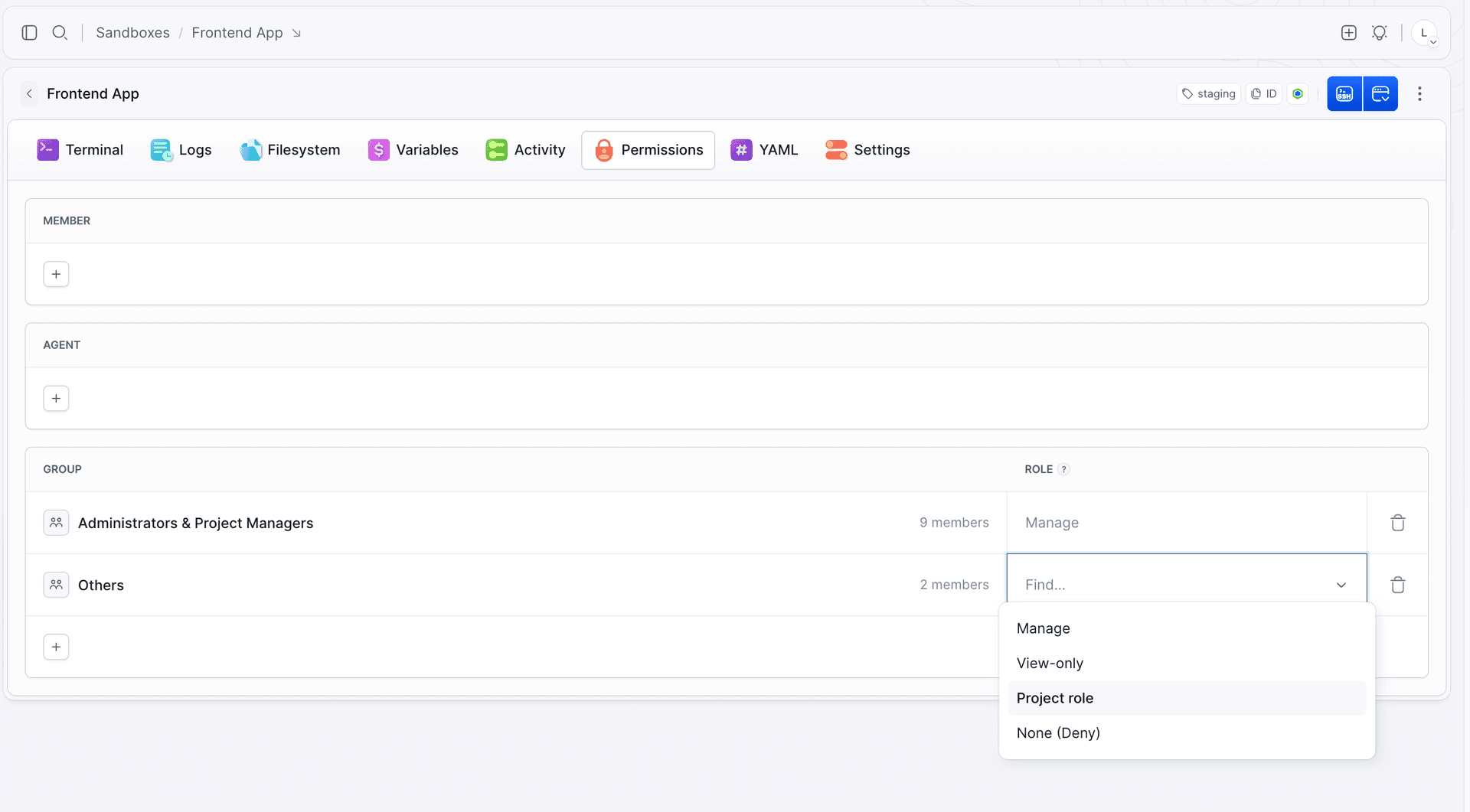
| Level | What it allows | Value in YAML and the API |
|---|---|---|
| Manage | Full control - edit settings, delete the Sandbox, manage its permissions | READ_WRITE |
| View-only | See the Sandbox and its activity, nothing else | READ_ONLY |
| Project role | Inherit whatever the user's role in the project grants - the default | DEFAULT |
| None (Deny) | No access at all | DENIED |
Workspace owners and administrators always have Manage on every Sandbox, and this cannot be changed. Their rows show Manage greyed out, and a lower level written over the API is ignored for them - the effective access stays Manage.
Sandbox access to repositories and artifacts
A Sandbox's access to your code is granted on the resource, not on the machine. Open the Project repository target or the artifact, go to its Permissions tab, and add a row in the Sandbox section - either a single Sandbox, or All sandboxes to cover every one of them at once.
| Role | What the Sandbox can do |
|---|---|
| Read-only | Fetch the repository. The default |
| Read-write | Fetch and push - what an AI agent needs to commit its work |
| None (Deny) | Nothing, even if All sandboxes grants access. The way to exclude one machine from a blanket rule |
With that in place, fetching and pushing need no credentials inside the Sandbox at all. See Git and Artifacts.
Programmatic access
Tokens scoped to Sandboxes. Automation does not need a full personal access token. Issue a token limited to Sandbox operations.
IP whitelist. At workspace level you can restrict which addresses may reach the REST API and the CLI.
Isolation
Each Sandbox is an isolated machine with its own filesystem, processes, and network. Code running in one Sandbox does not see another.
Inside a single Sandbox, standard Linux users are your isolation boundary: give each workload its own system user when you run several in parallel. See Terminal and SSH.
Who did what
Lifecycle operations and executed commands are recorded in the Sandbox activity view - see Logs.
Project-level roles, which Sandbox permissions build on, are described in Roles and permissions.
Last modified on Oct 7, 2026