Files
You have access to every file in a Sandbox - through the browser, over SSH, from the CLI, and programmatically.
The filesystem is persistent: stopping or restarting a Sandbox does not erase anything. Whatever you write stays on the disk until you delete it or delete the machine. See Lifecycle.
Browsing in the UI
The Filesystem tab shows the Sandbox's directory tree, so you can look around and inspect files without opening a terminal. Add file puts something on the disk straight from the browser.
Image loading...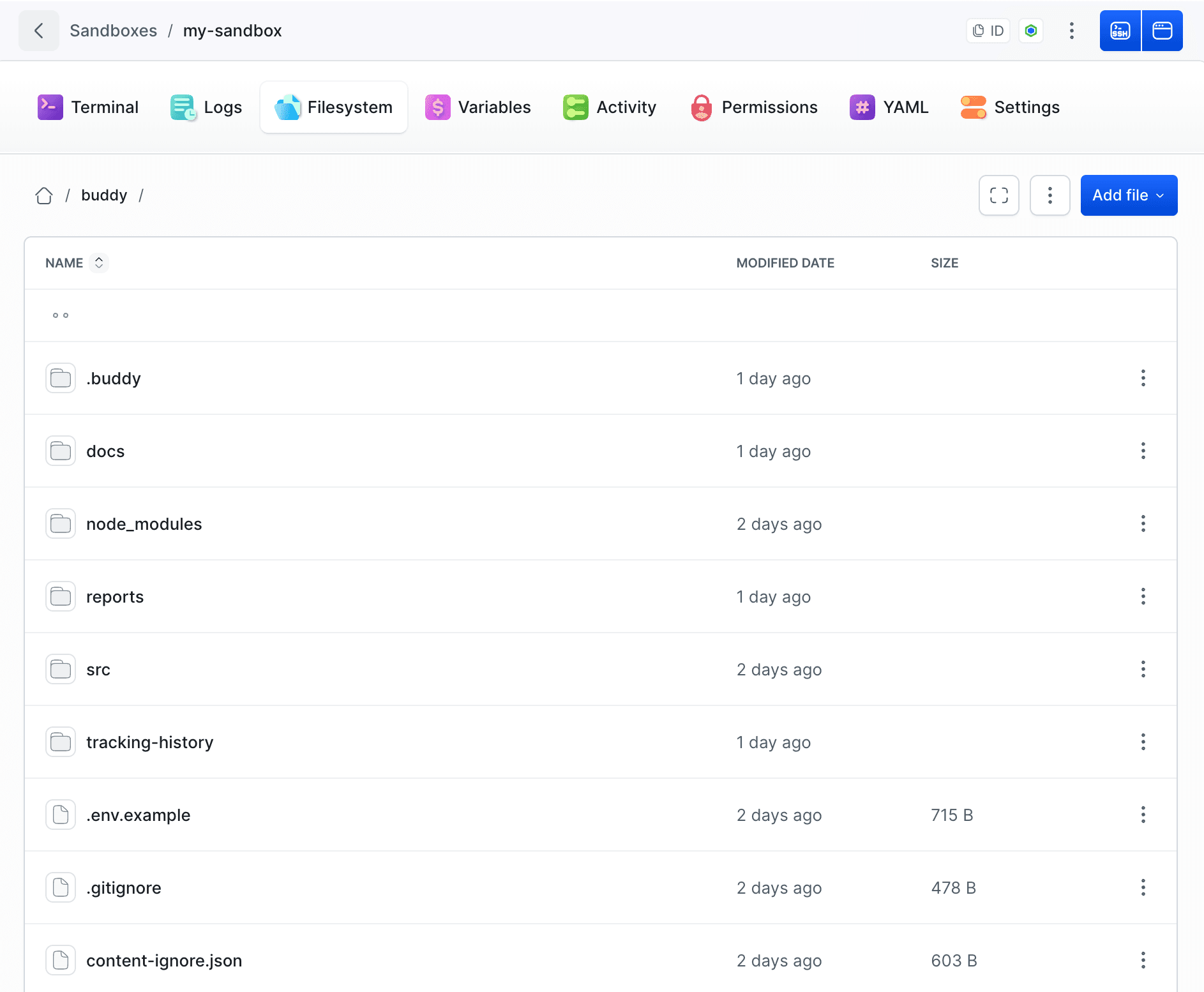
Working with files from the CLI
Copy files into a Sandbox:
bashbdy sb cp ./dist my-sandbox:/home/buddy/app/dist$
Copy them back out:
bashbdy sb cp my-sandbox:/home/buddy/app/report.json ./report.json$
Useful options:
| Option | What it does |
|---|---|
--merge | Merge with the destination if it already exists, keeping files that are there |
--replace | Overwrite the destination if it already exists |
--ignore | Skip files matching glob patterns, for example --ignore "node_modules/**" ".git/**" |
--user | Upload as a specific system user instead of buddy |
Programmatic access
Over the REST API you can upload a file, download a file or a directory, create directories, and delete content. The SDK exposes the same operations as methods, a pipeline reaches the same files with a Transfer action, and AI agents get there through MCP.
This is how you collect the result of work done inside a Sandbox - a build output, a test report, or the files an AI agent produced. Nothing special is required: the agent writes to disk, and you read the path.
Ownership and permissions
Files land owned by the user that wrote them. An upload with bdy sb cp arrives owned by buddy, or by the account you pass with --user; the group is always root, whoever the owner is, so don't rely on group permissions for uploaded files. If you run workloads as separate system users - one per agent, for example - use --user when copying so the files are owned by the right account. See Terminal and SSH.
The same flag covers destinations buddy has no write access to, such as a directory owned by root outside the home: --user root and the copy goes through.
For configuration files and keys that must exist before anything runs, use file and SSH key variables instead of copying them by hand - they are written at provisioning time with the permissions you set. See Variables and secrets.
Last modified on Oct 7, 2026