Protecting Sandbox previews with Buddy login
In the previous guide we showed how every branch gets its own preview with a public address. Anyone who gets that link can open it. That may be fine for an internal tool, but not for a client application or a preview containing sensitive data.
A sandbox endpoint can be protected with a Buddy account. Enable it with one flag, and users who are not signed in see the Buddy login screen instead of the app. No changes to the application code are required:
bashbdy sb ep add preview-dispatch-eta -e 3300 -n www -r us --buddy$
Below we add Buddy login to the preview-up pipeline from the previous guide, restrict access to specific workspace members, and show how the application can identify the signed-in user.
Prerequisites
- A preview environment from the previous guide or any sandbox with an HTTP endpoint
- bdy CLI after
bdy login
Buddy auth on the endpoint
An HTTP endpoint in a sandbox has three protection modes:
NONE(public, the default),BASIC(HTTP login and password),BUDDY(Buddy account).
In the dashboard, switch the mode in the endpoint settings and save with Update endpoint. In the CLI, edit the sandbox YAML: download it to a file, add auth_type: BUDDY to the endpoint, and update the sandbox with the modified file:
bashbdy sb yaml preview-dispatch-eta > preview-dispatch-eta.yml$
yamlendpoints:
  - name: www
    endpoint: "3300"
    http:
      auth_type: BUDDY
bashbdy sb update preview-dispatch-eta @preview-dispatch-eta.yml$
The preview address stays the same, and Buddy auth takes effect as soon as you save. bdy sb ep get confirms the change. Note the last row:
$ bdy sb ep get preview-dispatch-eta www
Field              Value
Name               www
Endpoint           0.0.0.0:3300
Type               HTTP
Region             US
Status             Online
URL                https://www-preview-dispatch-eta-sandboxes-preview-envs-buddy-mar-l2p5r.us-1.buddy.app
Auth type          BUDDY
From now on every visit without a Buddy session is redirected to the login screen. You can see it in the response headers. curl has no cookies, so it gets a 302:
$ curl -sI https://www-preview-dispatch-eta-sandboxes-preview-envs-buddy-mar-l2p5r.us-1.buddy.app/
HTTP/2 302
location: https://app.buddy.works/tunnel/auth?redirect_url=https%3A%2F%2Fwww-preview-dispatch-eta-...&id=BrEZp9YM&agentId=8bGrJYBG&challenge=4a32...&state=j9Dj...
cache-control: private, no-cache, no-store, max-age=0, must-revalidate
In the browser it is the regular Buddy login screen, and after signing in you land straight back in the app:
Image loading...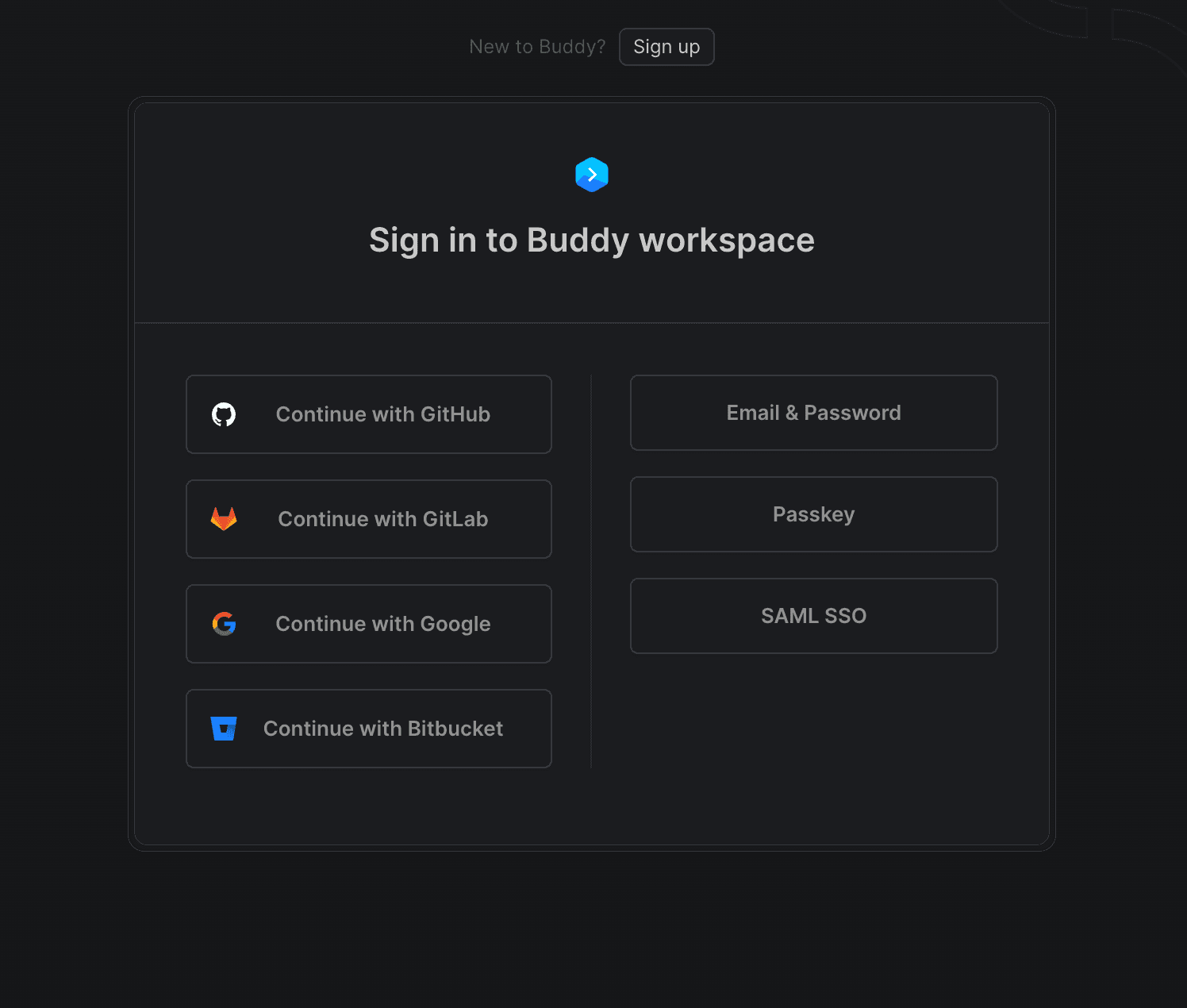
Anyone already signed in to Buddy never sees this screen and goes straight to the app.
In the sandbox Settings tab, the Tunnels section shows that the endpoint is behind a login:
Image loading...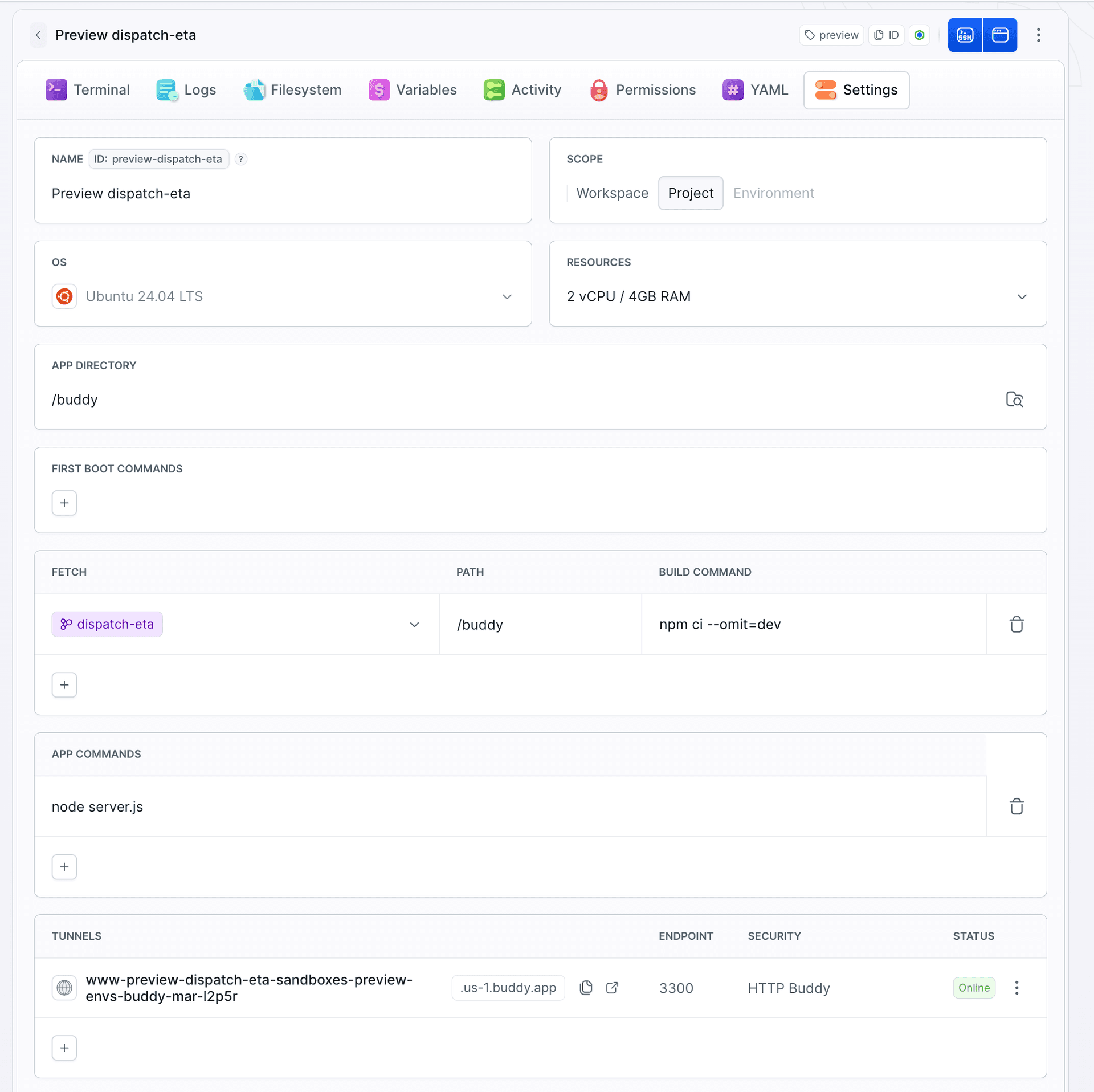
Add Buddy auth to the preview-up pipeline
There is no need to configure the endpoint manually for every new preview. The preview-up pipeline from the previous guide creates the sandbox from a spec, so that is where you add the http block. Only the endpoints fragment changes, the rest of the pipeline stays as it was:
yaml# preview-up.yml (fragment of the Build the preview action spec)
      endpoints:
      - name: www
        endpoint: 0.0.0.0:3300
        region: US
        http:
          auth_type: BUDDY
Update the pipeline from the file:
bashbdy pip update preview-up @preview-up.yml -p sandboxes-preview-envs$
Every next push brings up a preview that is already closed. The link on Slack is the same as before, only now it opens for people with a Buddy account:
Image loading...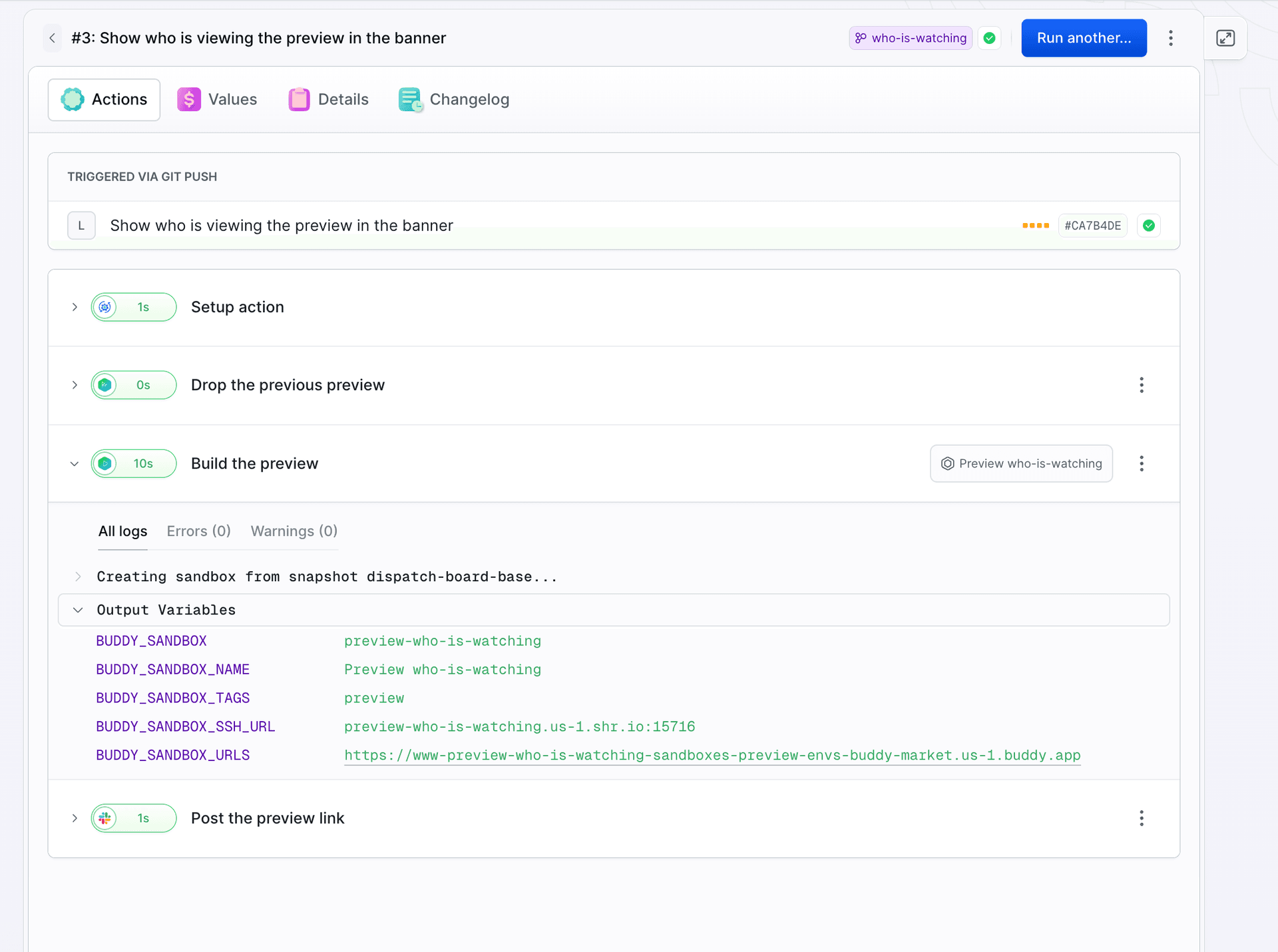
The www: 0.0.0.0:3300 shorthand does not support additional endpoint options.
The short endpoint form used in app-base.yml does not support the http block. To configure authentication, a whitelist, or custom headers, use the full endpoint form with name, endpoint, and region. The syntax of all fields is in YAML for sandboxes.
Restrict access with Permissions
Buddy auth requires the user to sign in with an account from your workspace. Access to the sandbox itself is controlled separately in the Permissions tab, including who can open the terminal, read logs, or change settings. By default the project role applies, and the Others row then shows Project role.
Image loading...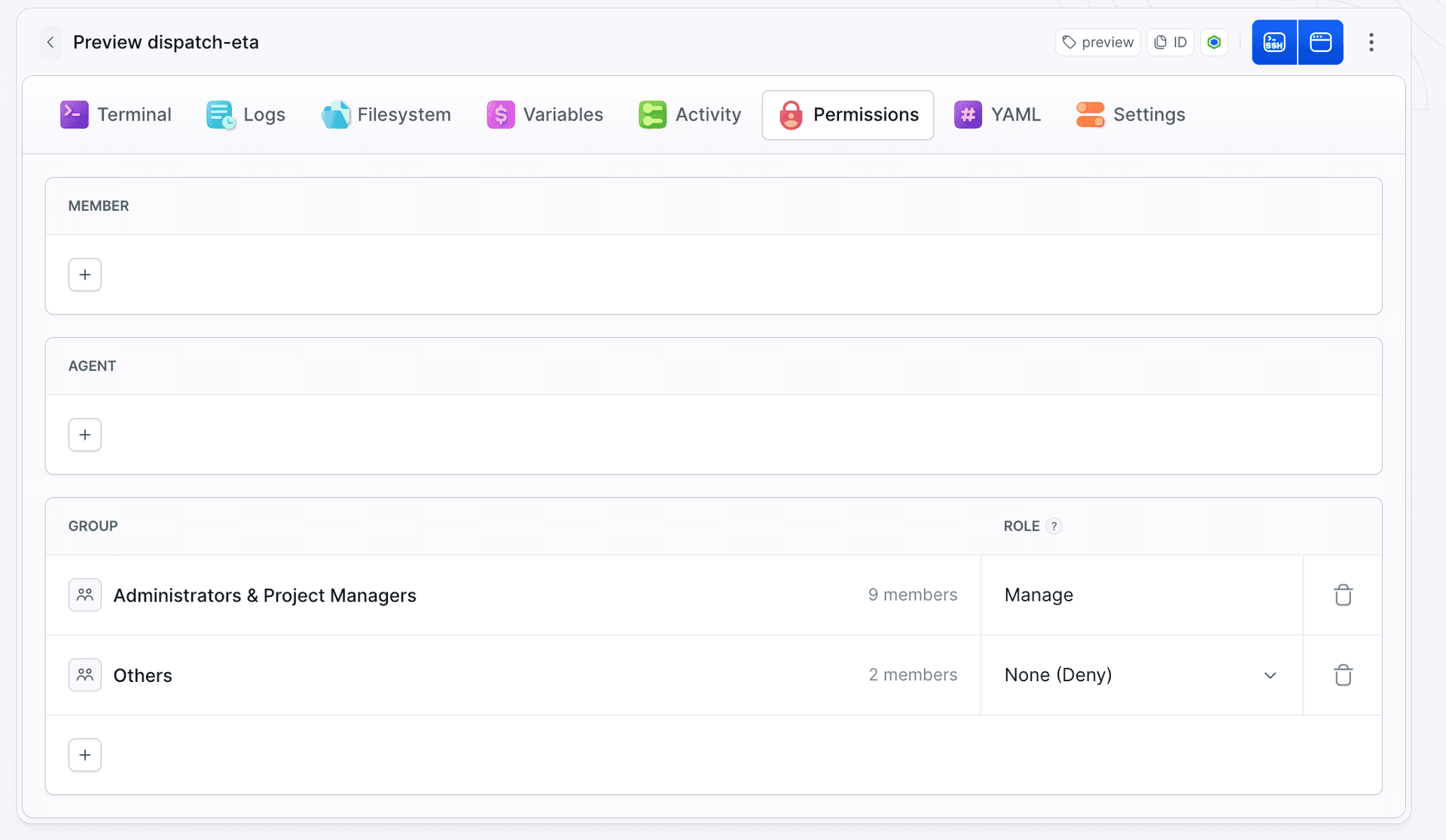
A proven setup for a client preview: Others set to None (Deny), and the people who should see the environment added one by one in the Member section with the View-only role. The + button opens the list of workspace members, you pick a role per row and confirm with Assign roles:
Image loading...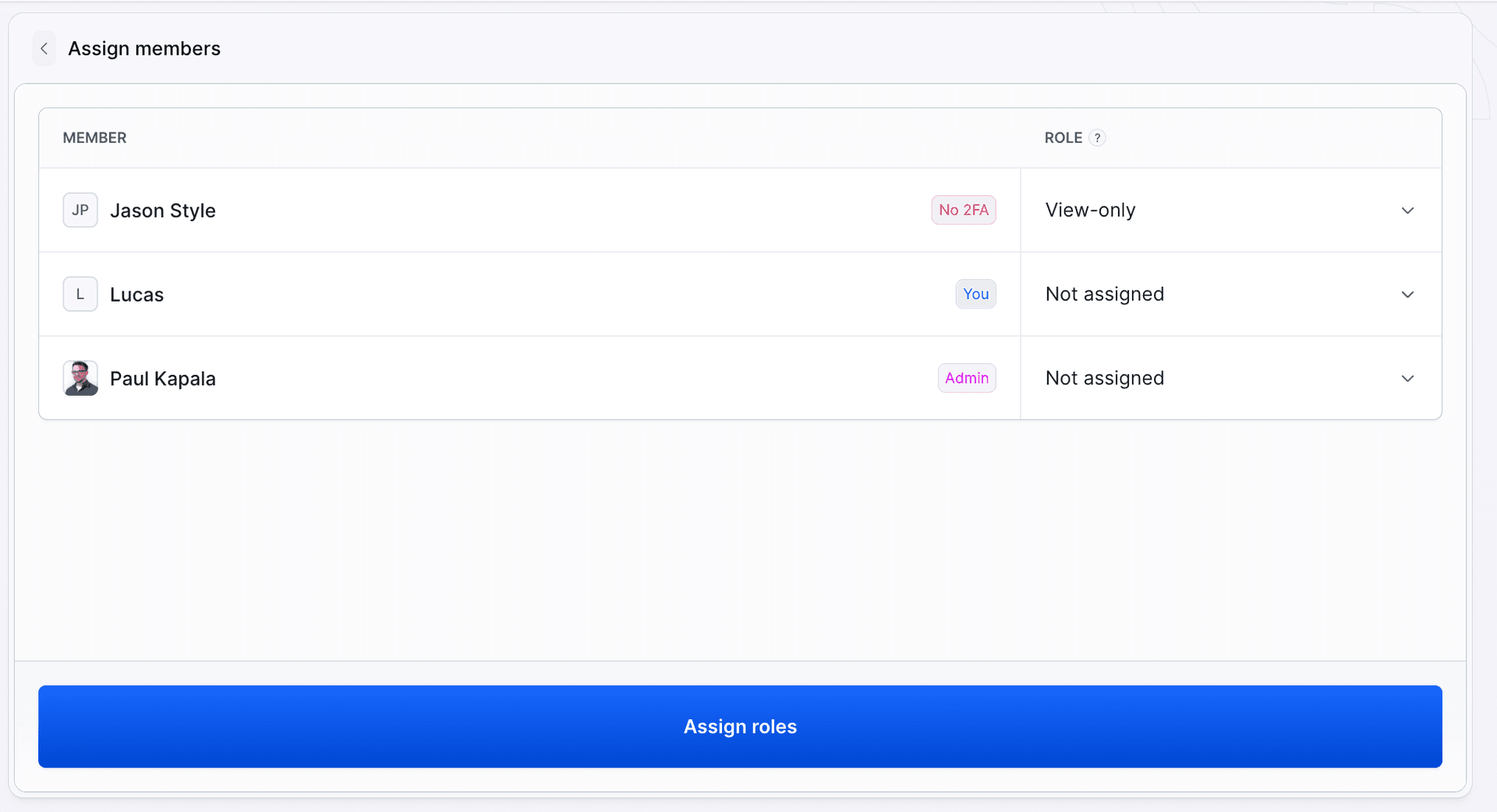
The same setting goes into the sandbox YAML. The values differ from the UI labels: Manage is READ_WRITE, View-only is READ_ONLY, Project role is DEFAULT, and None (Deny) is DENIED:
yaml# preview-dispatch-eta.yml (fragment)
  endpoints:
  - name: www
    endpoint: 0.0.0.0:3300
    region: US
    http:
      auth_type: BUDDY
  permissions:
    others: DENIED
bashbdy sb update preview-dispatch-eta @preview-dispatch-eta.yml -p sandboxes-preview-envs$
The pipeline will not set permissions for you.
The permissions block in the spec of the SANDBOX_CREATE action is silently ignored, so the sandbox is created with Others set to Project role. The pipeline applies the endpoint authentication (http.auth_type), but sandbox permissions must be configured separately in the Permissions tab or with bdy sb update and a YAML file. Workspace owners and administrators always have Manage access, and this cannot be lowered.
Two other protections on the same endpoint.
For people outside the workspace, for example a client without a Buddy account, there is BASIC: bdy sb ep add preview-dispatch-eta -e 3300 -n www -r us -a review:secretpassword. Access from specific IP addresses, for example the office or a VPN, is handled by --whitelist 203.0.113.0/24. A whitelist can be combined with Buddy auth. Details in Endpoints and Permissions and security.
Identify the signed-in user
For protecting the preview alone, the above is enough. When the app needs to do something with the identity of the person on the other side, for example sign a review comment or show a panel only to admins, you reach for Identity. The tunnel in front of the sandbox serves GET /.buddy/auth/me and returns the data of the signed-in user:
$ curl -s -b "$BUDDY_COOKIES" https://www-preview-who-is-watching-.../.buddy/auth/me
{"id":8635,"name":"Lucas","email":"lucas.czulak@buddy.works","owner":false,"admin":true,"avatar":null,"sso_id":null,"groups":[]}
In Node, the @buddy-works/identity library calls this endpoint and exposes the signed-in user as req.buddyUser:
bashnpm install @buddy-works/identity$
js// server.js (fragment)
const { buddyIdentity } = require('@buddy-works/identity');
const { mockAuthEndpoint } = require('@buddy-works/identity/dev');

if (process.env.NODE_ENV !== 'production') {
  app.use(mockAuthEndpoint('member'));
}
app.use(buddyIdentity());

app.get('/', (req, res) => {
  const viewer = req.buddyUser
    ? `${req.buddyUser.name} (${req.buddyUser.email})`
    : 'not signed in';
  // ...
  // <span class="branch-viewer">viewing as ${viewer}</span>
});
buddyIdentity() asks the tunnel for the user on every request and does not block traffic, because blocking is already done by Buddy auth on the endpoint. The buddyIdentity({ required: true }) variant rejects requests without a user with a 401, useful for an API that someone could call bypassing the browser. mockAuthEndpoint('member') injects a test user (Max Member, max@example.com) on your local machine, where there is no tunnel. In the sandbox this code does not run, because npm ci --omit=dev from fetch starts the app in production mode.
Pushing the who-is-watching branch brings up a preview through the same pipeline. The banner now shows the signed-in user:
Image loading...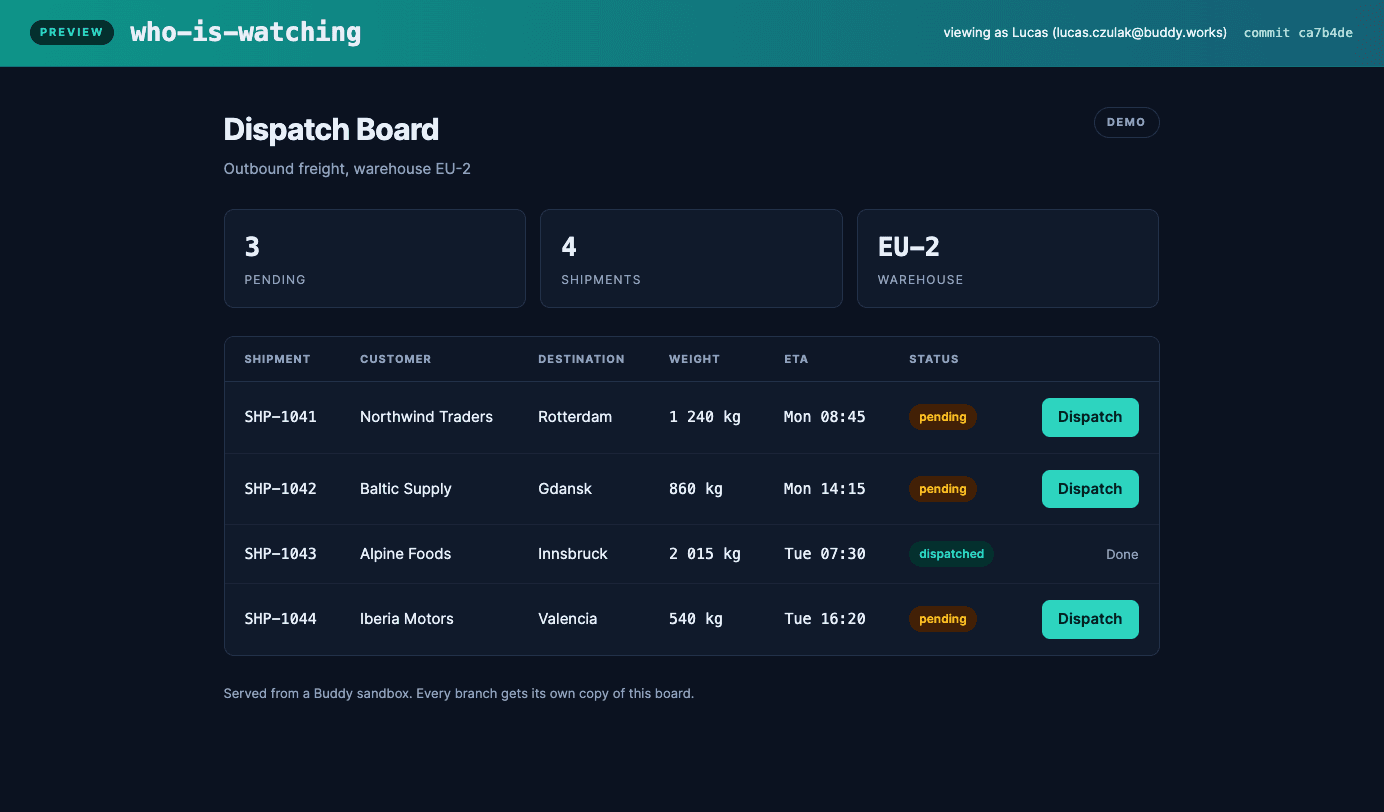
The req.buddyUser object has the fields id, name, email, owner, admin, avatar, sso_id and groups, so without a user table of your own you can tell an admin from a regular member and check whether someone is in the QA group. In other stacks you do the same with a single GET /.buddy/auth/me, forwarding the request cookies. Any status other than 2xx means nobody is signed in.
Takeaways
- Protection is one flag, not a feature in the code.
--buddyin the CLI orhttp.auth_type: BUDDYin YAML and the preview closes behind a Buddy account. The app does not know anything changed. - Buddy auth and Permissions are two different things. The first controls who gets to the preview address. The second, who can touch the machine itself in Buddy. The pipeline sets only the first, Permissions you add separately.
- Add Identity when the app has to do something with the identity. For simply closing the preview it is not needed. When it is, it is one library and one middleware, and locally it runs on a mock.
Details are in the docs: Endpoints, Permissions and security and Identity, and the syntax of the http and permissions blocks in YAML for sandboxes. A sandbox does not have to be just a place people look at. It can also run code you do not want to run on your own server, for example code written by an AI agent.

Jarek Dylewski
Customer Support
A journalist and an SEO specialist trying to find himself in the unforgiving world of coders. Gamer, a non-fiction literature fan and obsessive carnivore. Jarek uses his talents to convert the programming lingo into a cohesive and approachable narration.