Setup & Reporters
Creating a Suite in Buddy Project
To get started with Unit Tests, you need to create a test suite in your Buddy project:
- Navigate to project settings
- Select the Test Suites tab
- Click
+, to add a new suite
Image loading...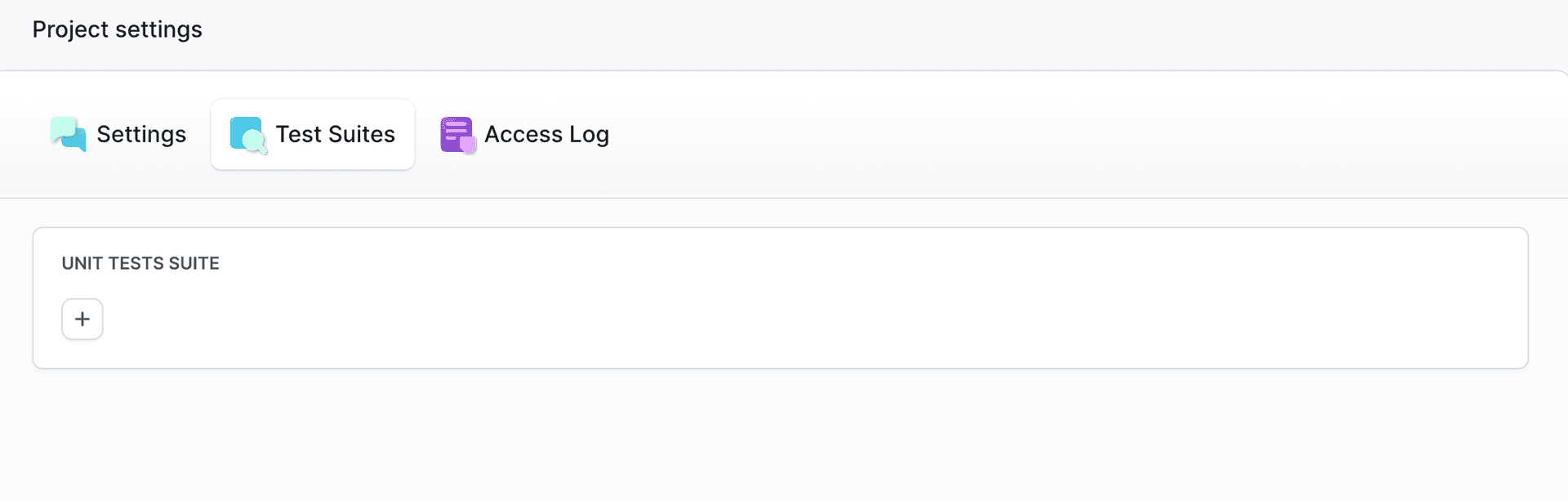
- Add a new suite form:
- Enter the suite name (e.g., "My Unit Test")
- ID is automatically generated based on the suite name (e.g.,
my-unit-test). The suite ID can be used as a reference in YAML, variables, and scripts. - Click Add suite
Image loading...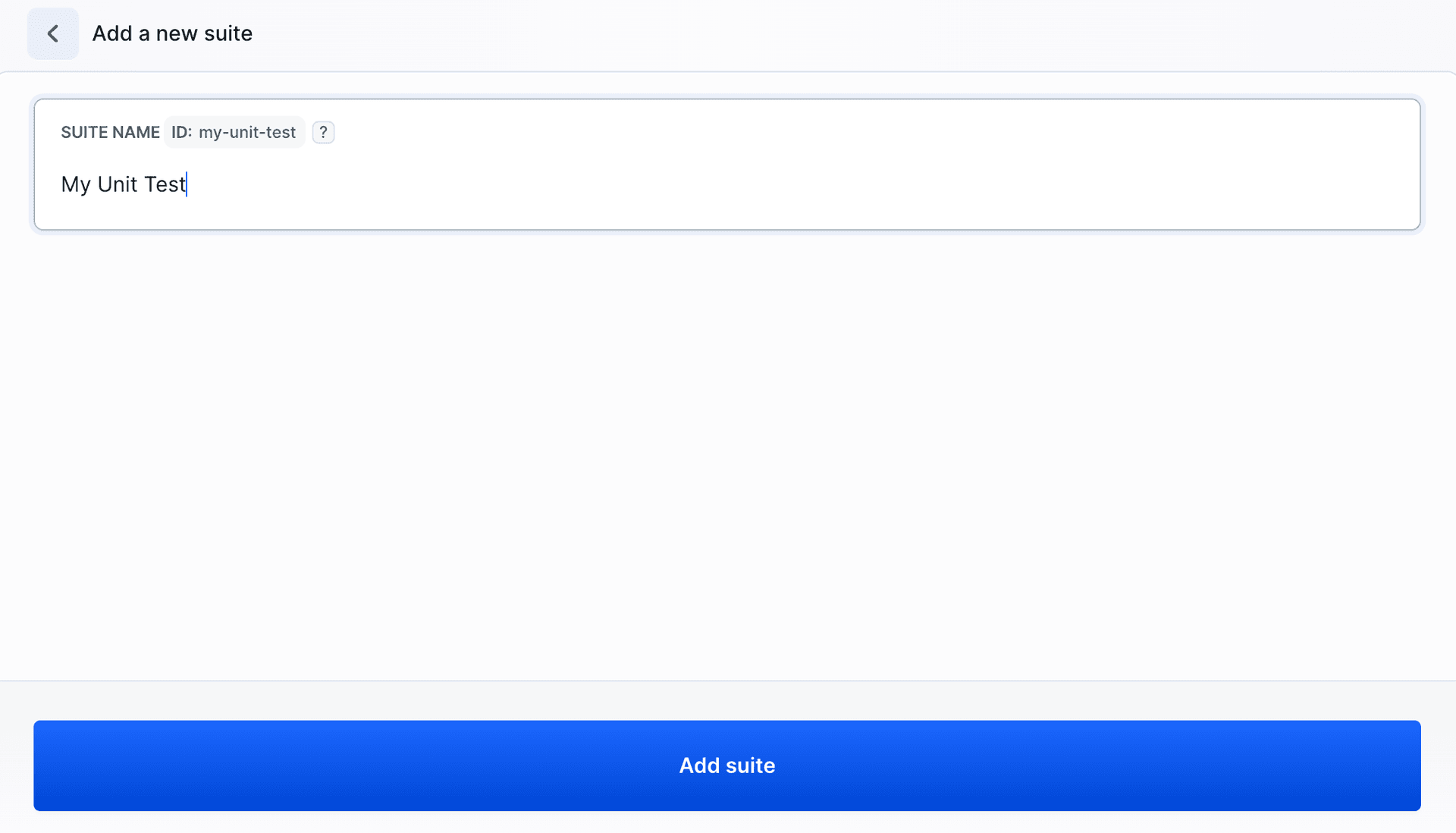
After creating a suite, you will see a configuration interface with tabs for different testing frameworks: Jest, Jasmine, Mocha, Cypress, Playwright, Vitest, and More (which includes JUnit XML and NUnit options).
Each framework tab contains step-by-step instructions:
- Install unit tests package - the command for installing the package, including information about requirements
- Set token - the command for exporting the environment variable with the suite’s unique token
- Run tests with Buddy reporter - the command for running tests with the Buddy reporter
Installing the Package
Install Buddy Unit Tests package:
bashnpm install --save-dev @buddy-works/unit-tests$
Setting the Token
Set the BUDDY_UT_TOKEN environment variable using your suite’s token:
bashexport BUDDY_UT_TOKEN=<YOUR_TOKEN>$
You will find the token in the suite settings
Running Your First Test
After installing the package and setting the token, you can run the tests from the terminal. For example, with Playwright:
bashnpm install --save-dev @buddy-works/unit-tests npx playwright install export BUDDY_UT_TOKEN=<YOUR_TOKEN> npx playwright test --reporter=@buddy-works/unit-tests/playwright$$$$
After running the tests, the interface automatically switches to the Sessions tab, where you can see live test results as they execute. The session will complete once all tests have finished.
To use Unit Tests in a Buddy pipeline, see the Pipeline Integration section. You can find detailed information about viewing results in the Results & Analytics section.
Suite Settings
Image loading...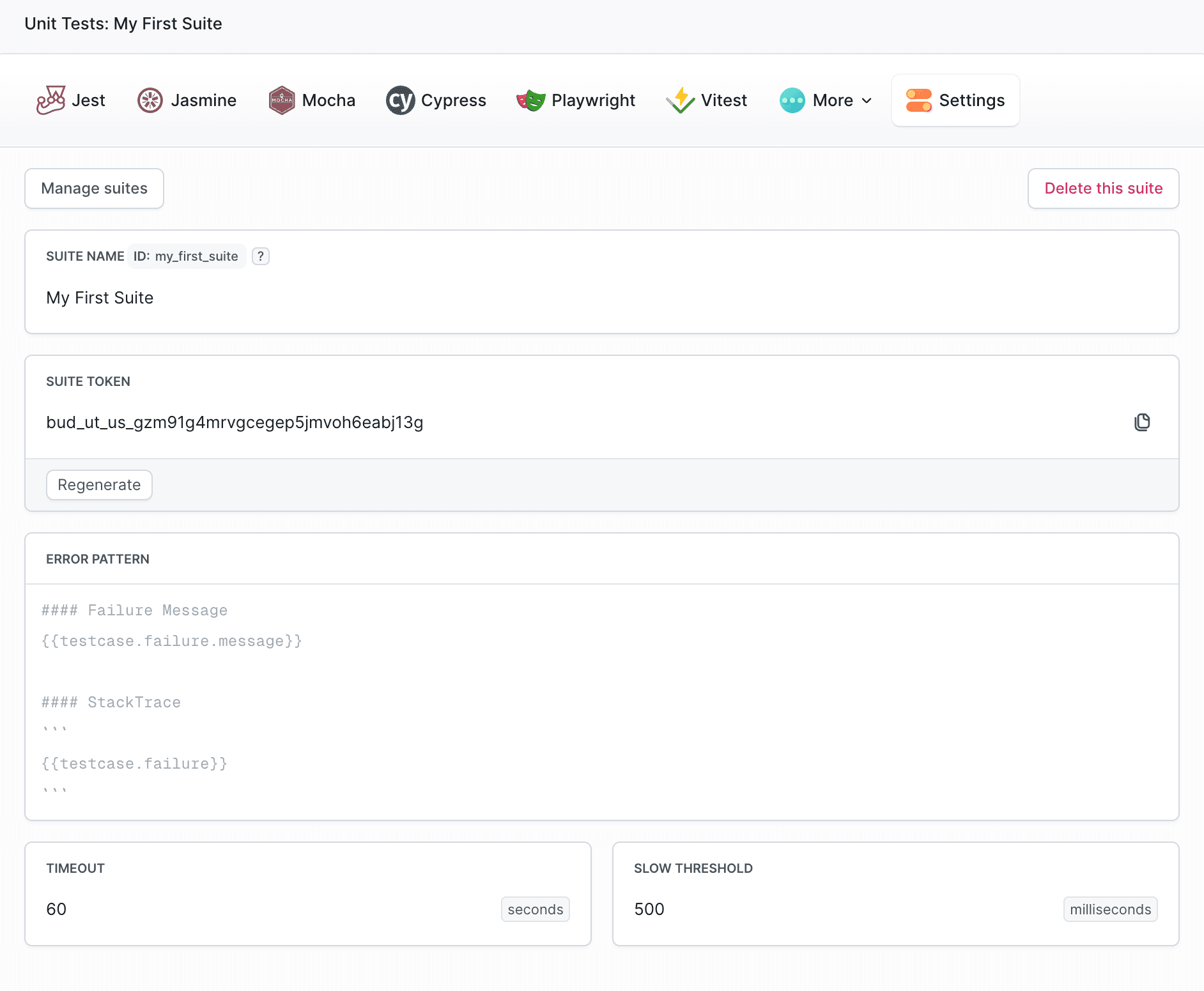
The Settings tab allows you to configure your test suite.
- SUITE NAME: Edit the display name of your suite.
- SUITE ID: Display or modify the suite ID (used in YAML, variables and scripts).
- SUITE TOKEN: View your suite’s unique token. The Regenerate button allows you to create a new token.
ERROR PATTERN: Adjust the error description pattern using the placeholders:
#### Failure Message {{testcase.failure.message}} #### StackTrace {{testcase.failure}}- TIMEOUT: Set the maximum duration of a test session. Default is 60 seconds.
- SLOW THRESHOLD: Define the
slowtests treshold. Default is 500ms.
Unit Tests CLI
The CLI tab provides quick access to configuration commands for all supported frameworks. You can switch between the framework tabs (Jest, Jasmine, Mocha, Cypress, Playwright, Vitest, JUnit XML, NUnit) to view the appropriate installation commands, token configuration, and test execution instructions.
For frameworks that use JUnit XML or NUnit, the CLI tab also provides options for:
- Operating system selection: Windows, macOS, Linux, Linux ARM
- Installation methods: Chocolatey, Download or npm
- CLI install command: e.g.,
sudo npm i -g bdy - Upload command:
bdy tests upload --format junit-xml TestResults/TestResult.xml
Image loading...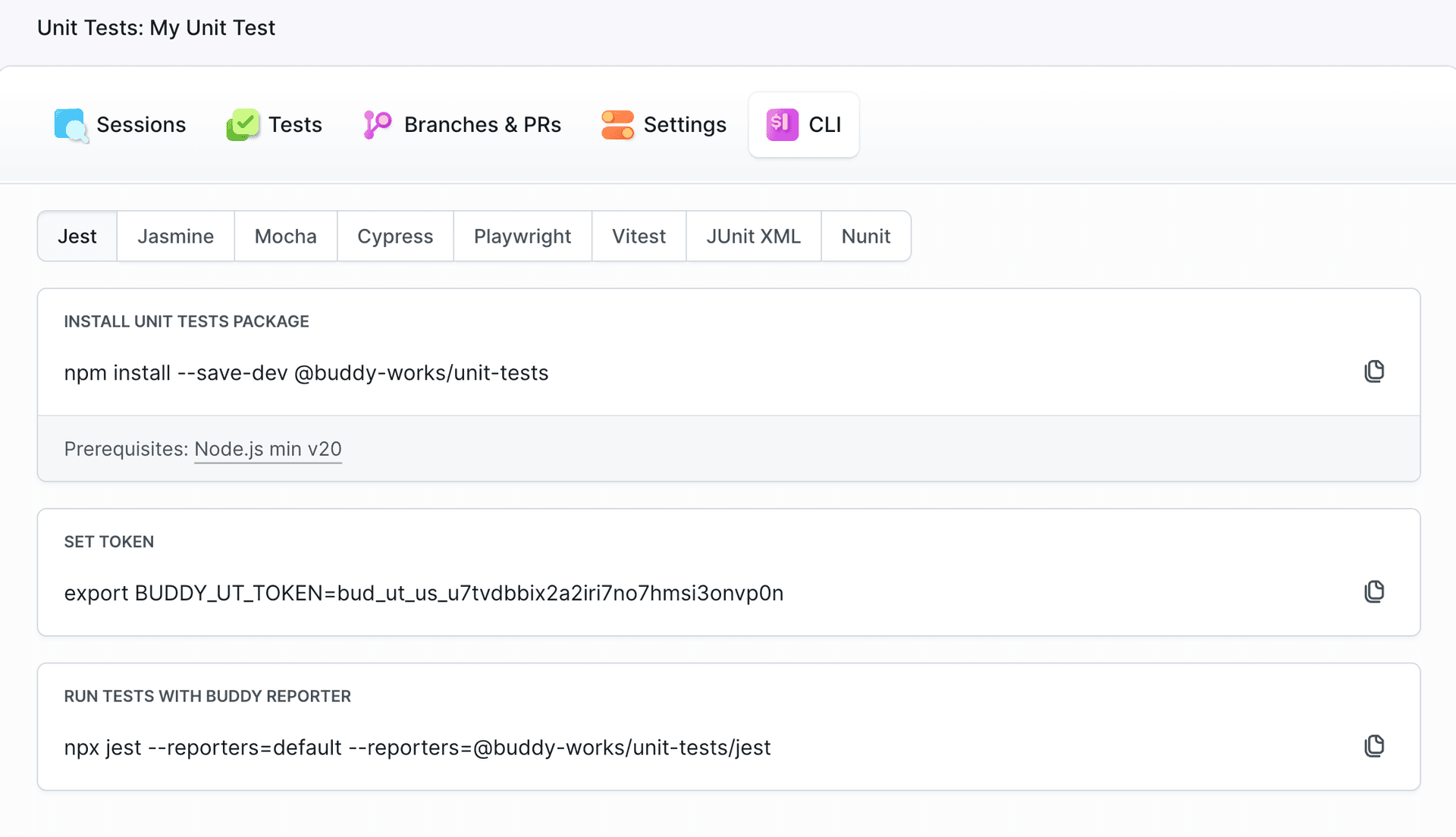
Built-in Live Reporters
Below you will find detailed configuration instructions for each supported testing framework:
Jest
bashnpx jest --reporters=default --reporters=@buddy-works/unit-tests/jest$
Jasmine
bashnpx jasmine --reporter=@buddy-works/unit-tests/jasmine$
Mocha
bashnpx mocha --reporter @buddy-works/unit-tests/mocha$
Cypress
First, install both the unit tests package and Mocha (required for Cypress):
bashnpm install --save-dev @buddy-works/unit-tests mocha$
Then configure your cypress.config.js:
javascriptconst { defineConfig } = require('cypress')
const BuddyCypressReporter = require('@buddy-works/unit-tests/cypress')

module.exports = defineConfig({
  e2e: {
    reporter: '@buddy-works/unit-tests/dist/reporters/cypress/index.js',
    setupNodeEvents(on) {
      on('after:run', BuddyCypressReporter.closeSession)
    },
  },
})
And run tests with:
bashnpx cypress run$
Playwright
bashnpx playwright test --reporter=@buddy-works/unit-tests/playwright$
Image loading...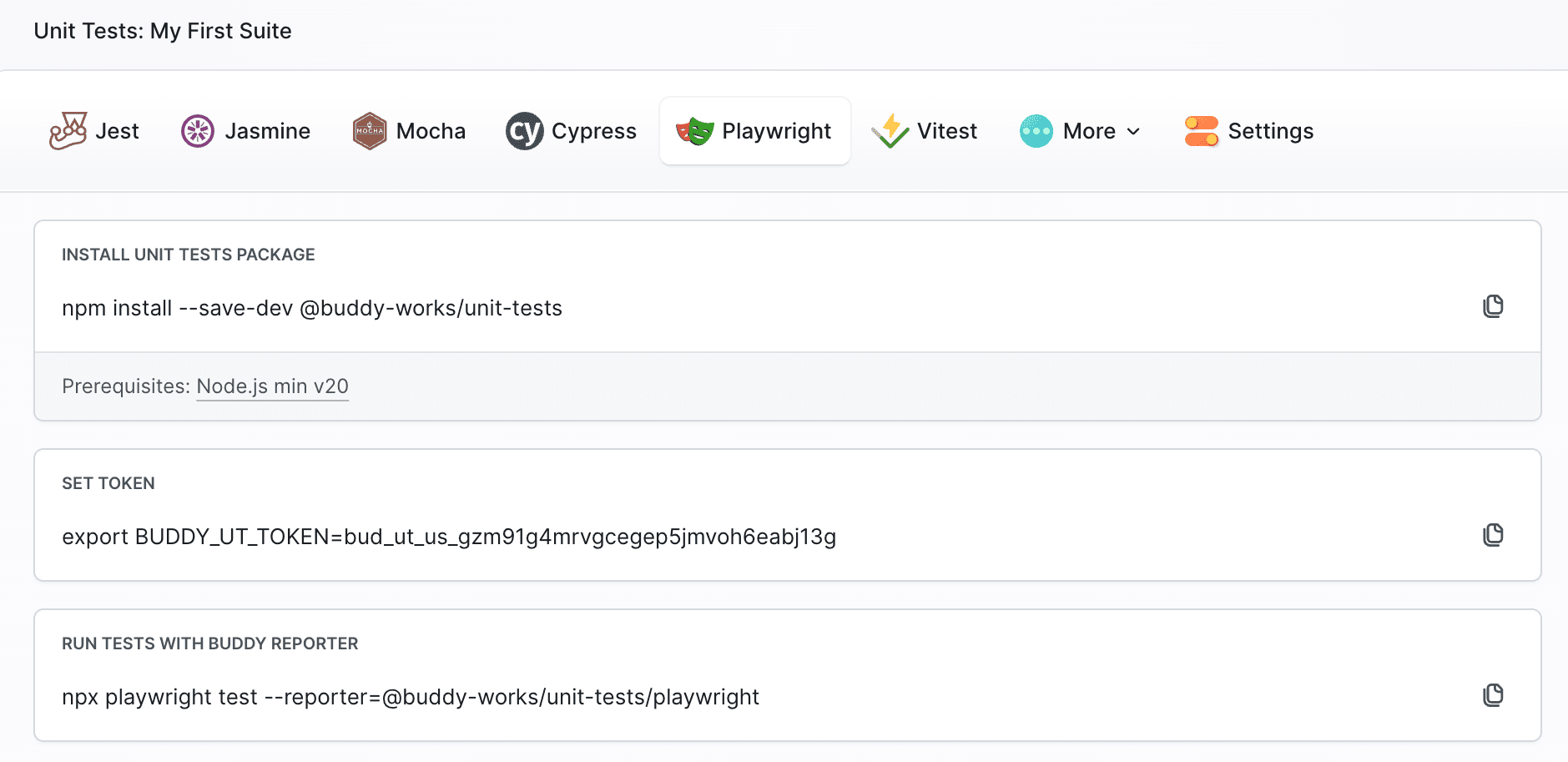
Vitest
bashnpx vitest --reporter=default --reporter=@buddy-works/unit-tests/vitest$
Other Frameworks
For frameworks that don’t have a built-in reporter, you can use the JUnit XML or NUnit format together with the Buddy CLI.
In the CLI tab you can specify operating system and installation method.
- Windows: Chocolatey, Download or npm
- macOS: Homebrew, Download or npm
- Linux / Linux ARM: APT, Download or npm
After installing the Buddy CLI and setting the token, you can upload the test results as follows:
JUnit XML
bashbdy tests upload --format junit-xml reports/*.xml$
Image loading...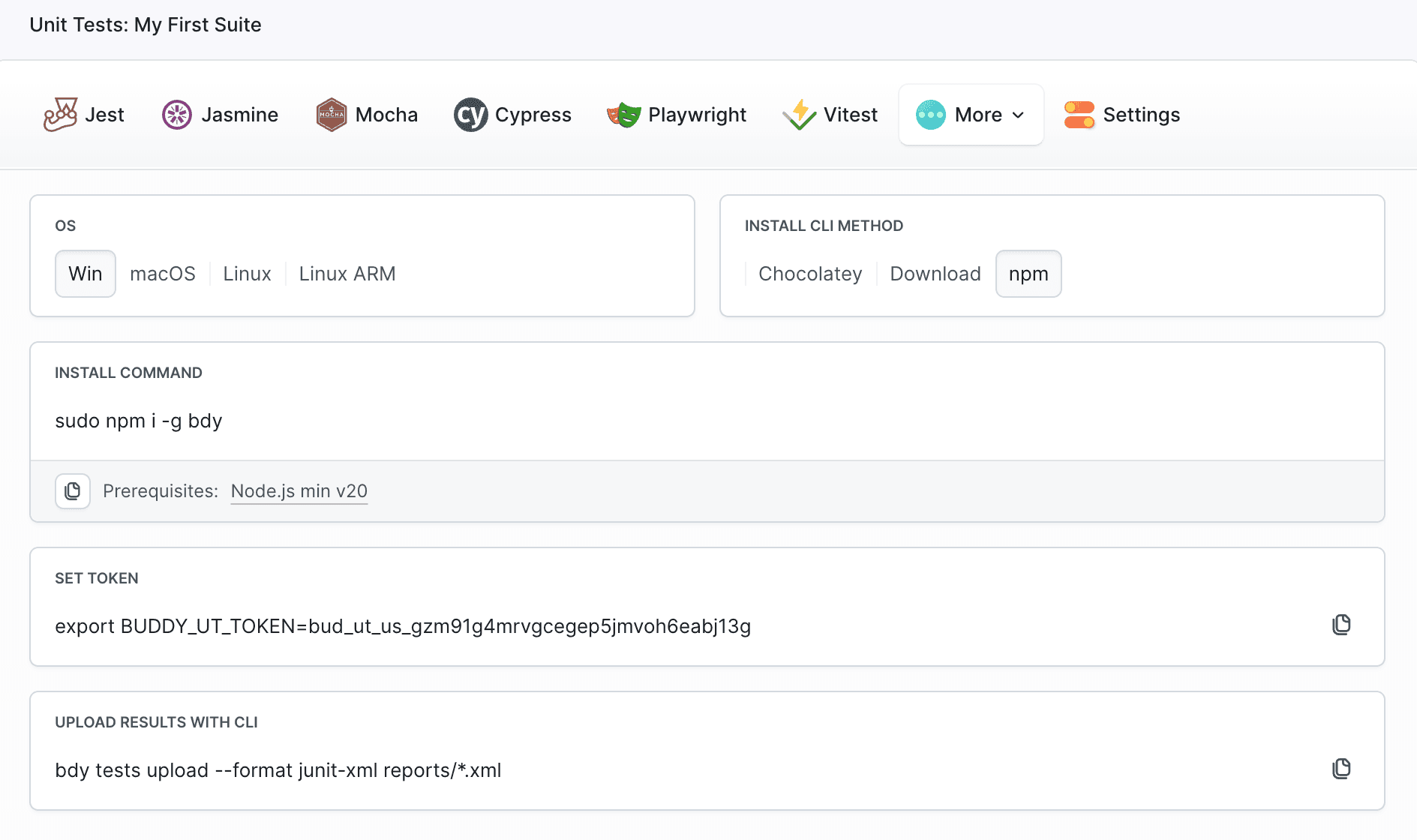
NUnit
bashbdy tests upload --format junit-xml TestResults/TestResult.xml$
Image loading...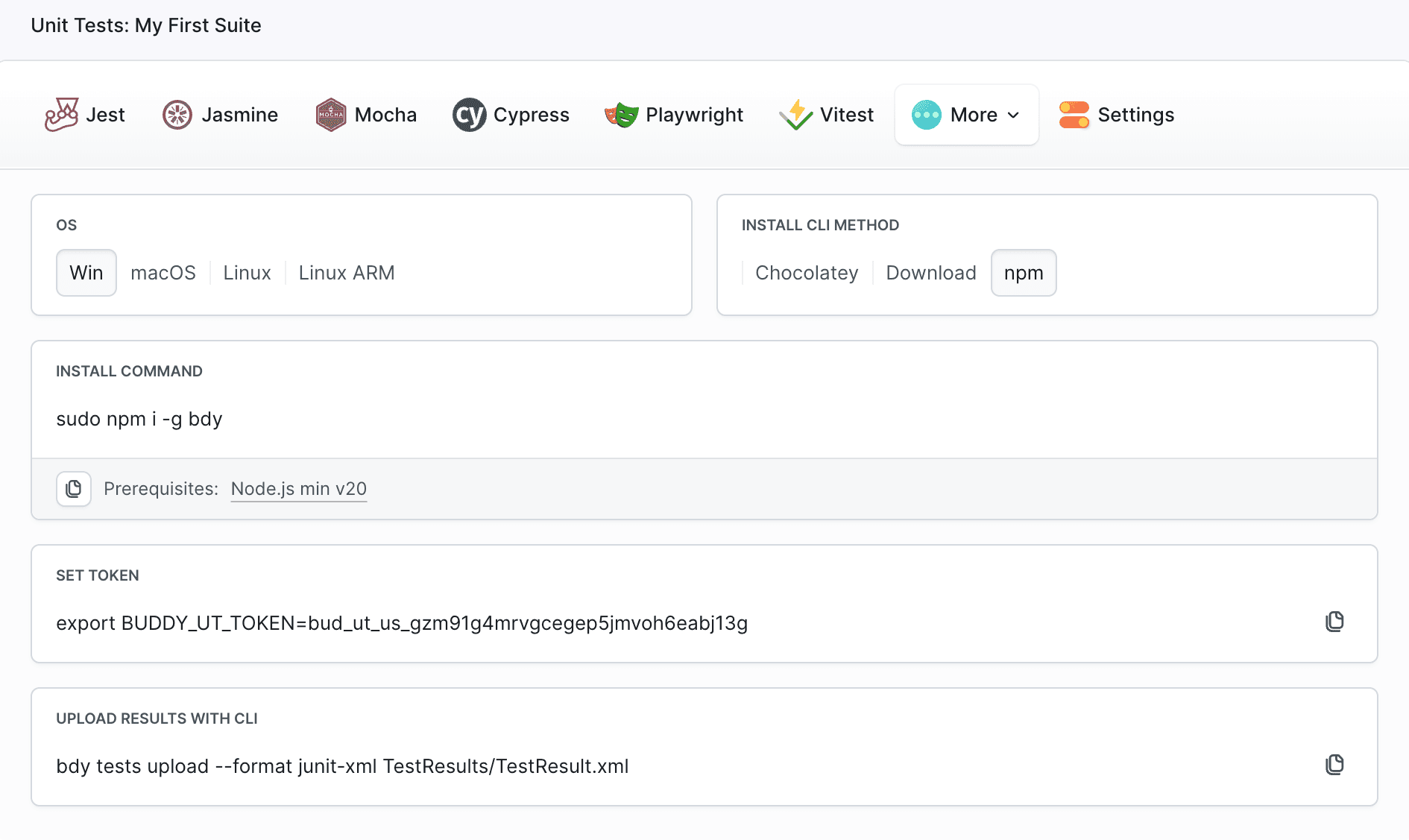
Alternatively, you can use the Buddy API to build your own live reporter.
Reporting from Anywhere
You can send test results from:
- Buddy pipeline - add a test action to your pipeline
- GitHub Actions - use Buddy reporters or CLI
- CircleCI and other CI platforms - integrate via Buddy CLI or API
- Terminal - run tests locally and display the results in Buddy
Last modified on Apr 22, 2026