Unit Tests in Pipeline
After creating a test suite, you can use it in a pipeline.
Pipeline configuration
- Add a Build action (e.g., Node) to your pipeline
- In the commands section, on the right side, you'll find the Collect test results button
- Click Collect test results to open the configuration.
Image loading...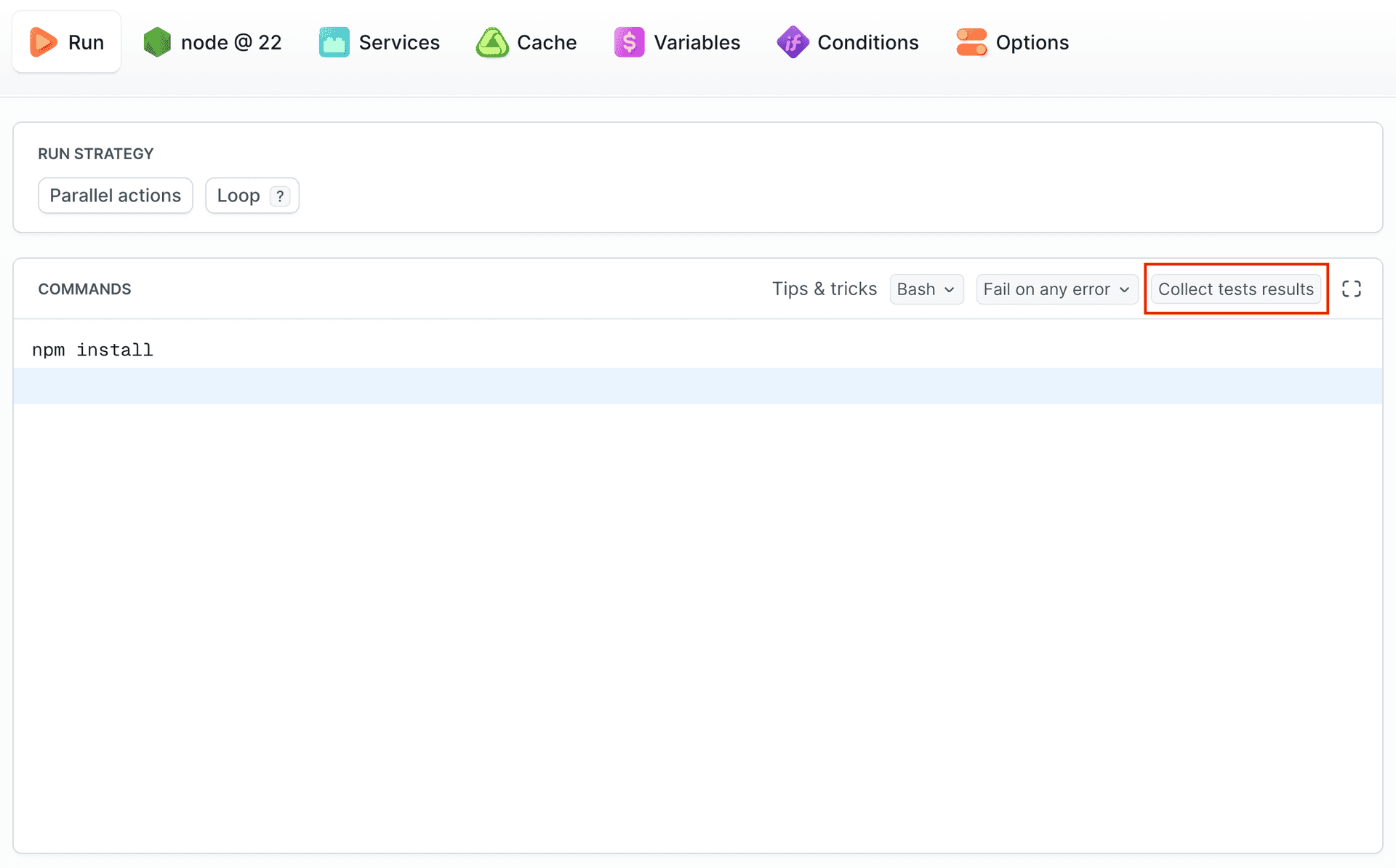
Framework and suite selection
In the popup:
- Select the created Suite from the dropdown list
- Choose the Framework instruction (e.g., Jest, Playwright, Cypress)
- Follow the provided instructions
Image loading...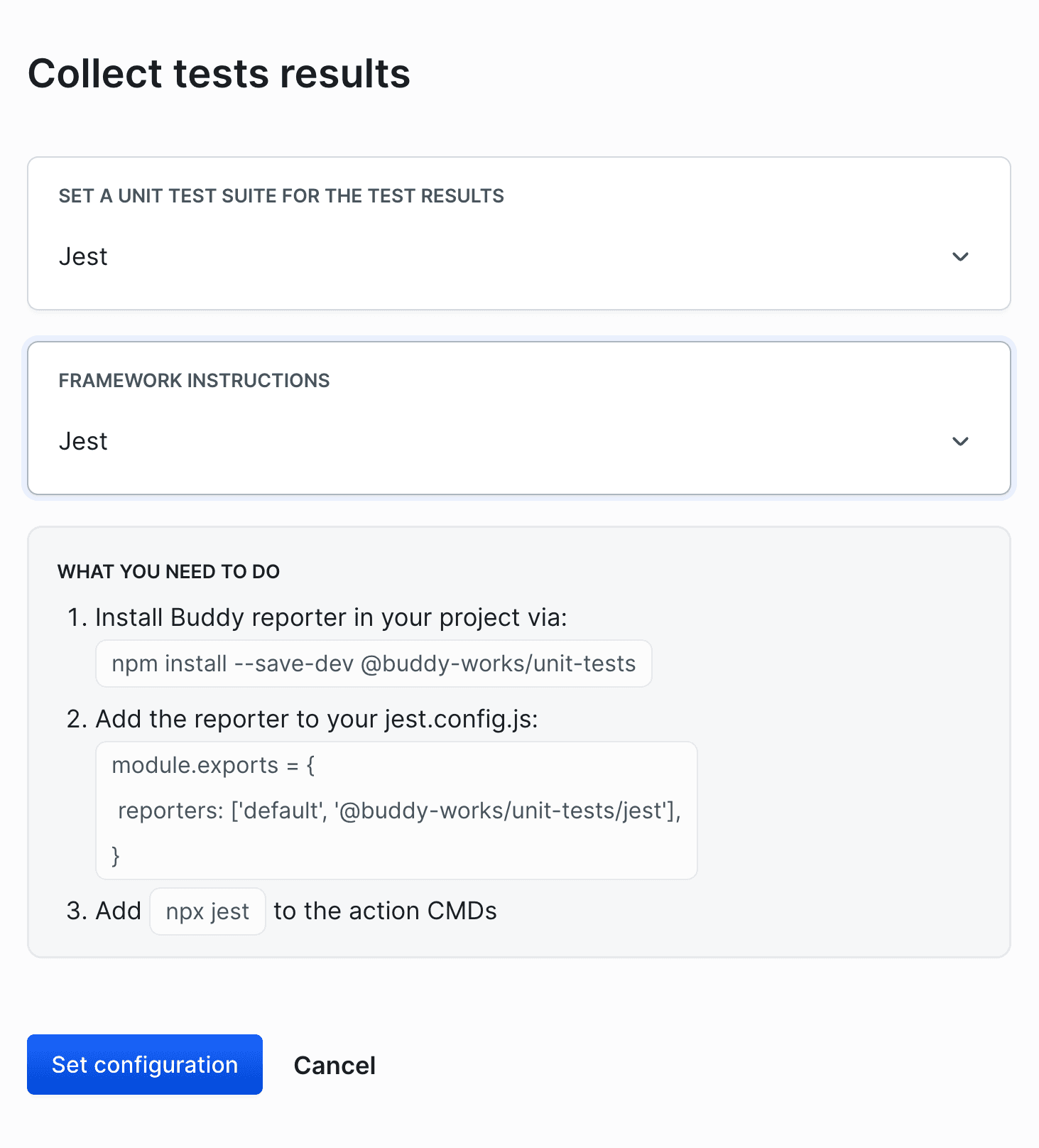
Finalizing configuration
- Click Set configuration - the selected Suite will appear in the Collect test results button.
- Add the commands in the commands section according to the instructions displayed in the popup.
Image loading...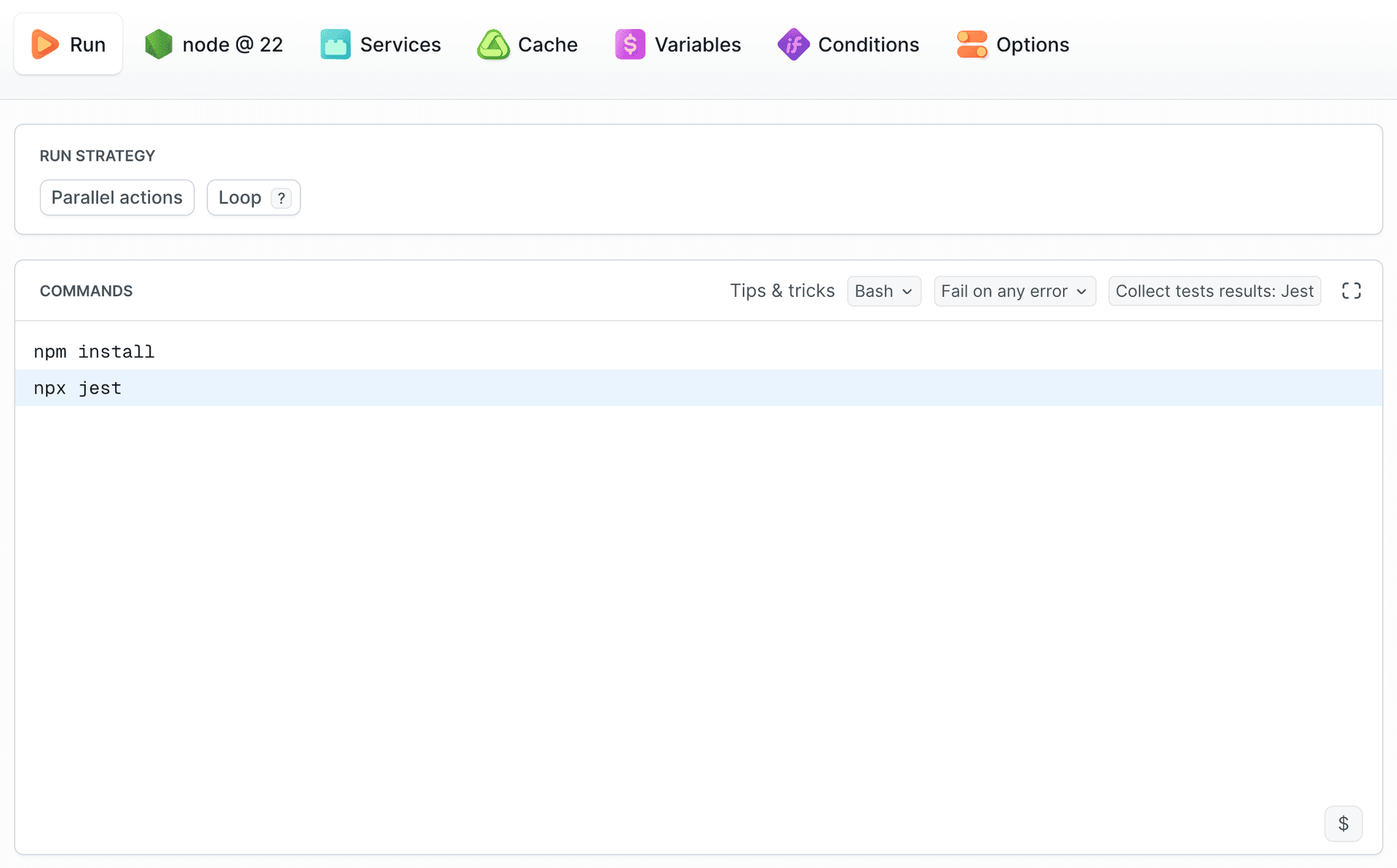
After running the pipeline, the tests will be executed, and the results will be visible in the Unit Tests section in the project sidebar, where you can select your Suite. You can also access them directly from the execution summary.
Image loading...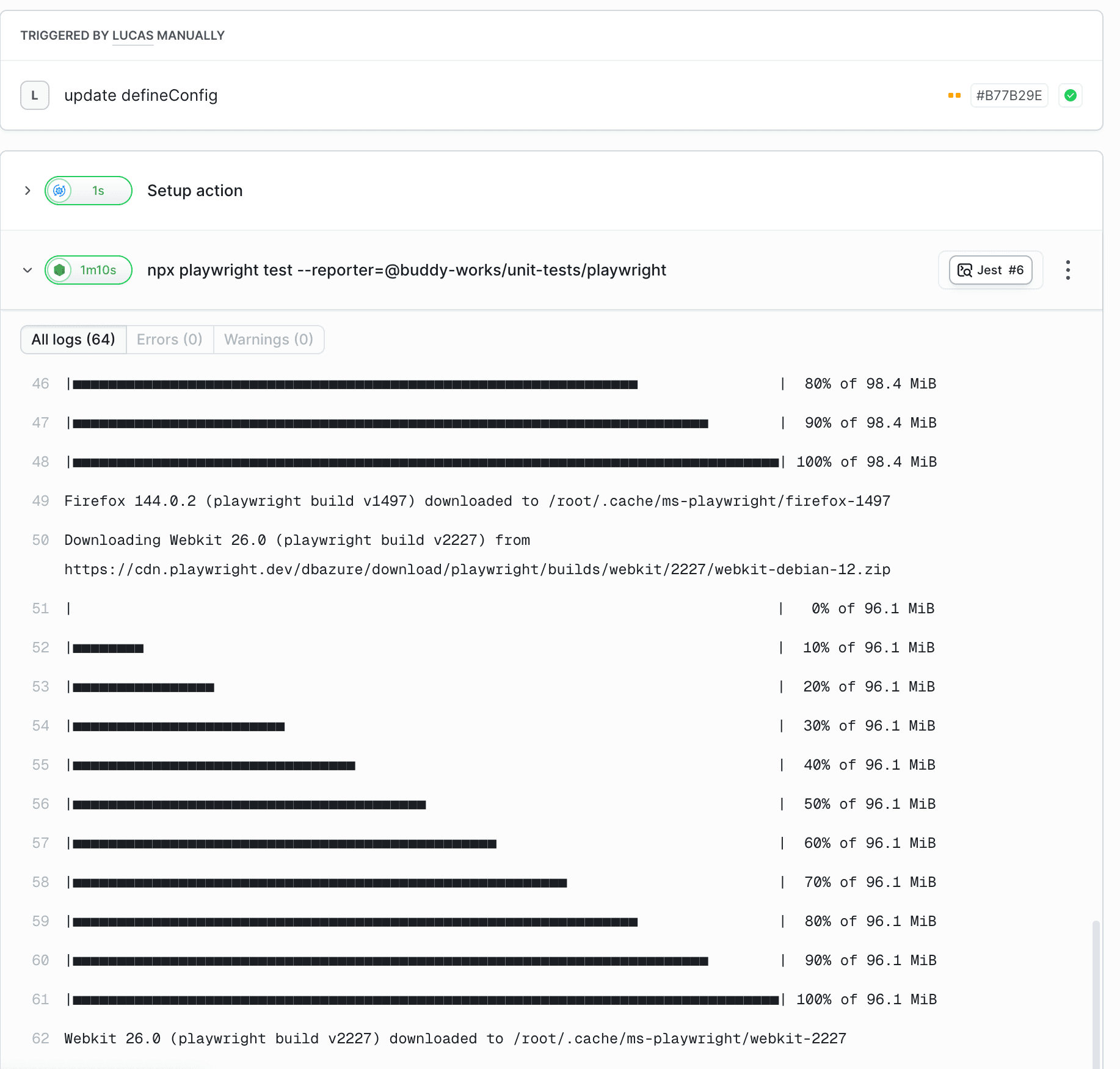
Info
You don’t need to manually set the
BUDDY_UT_TOKEN environment variable in the pipeline - Buddy automatically uses the token assigned to the selected Suite.
You can find detailed information about viewing test results in the Results & Analytics section.
Last modified on Apr 22, 2026