Move a ClickUp Task to Review, Get a Tested Preview Back
At Buddy, we plan our work in ClickUp. When a developer moves a task to review, QA, the PM, or a designer needs to see the change live. Without an automated preview, someone has to deploy the branch, verify it, and add the link to the task.
Buddy now has a ClickUp trigger and two actions: Create ClickUp Task and Update ClickUp Task. We used the trigger and the Update ClickUp Task action to build a pipeline where a task status change starts a preview in a sandbox. The pipeline tests the preview with Playwright and comments on the same task. If the tests pass, it adds the preview link and screenshots. If they fail, it changes the task status back to in progress. The Create ClickUp Task action can also create a new task when a pipeline fails.
QA opens the link from the task and finds desktop and mobile screenshots in the attachments. This is what it looks like in ClickUp, from the failed run to the working preview:
Image loading...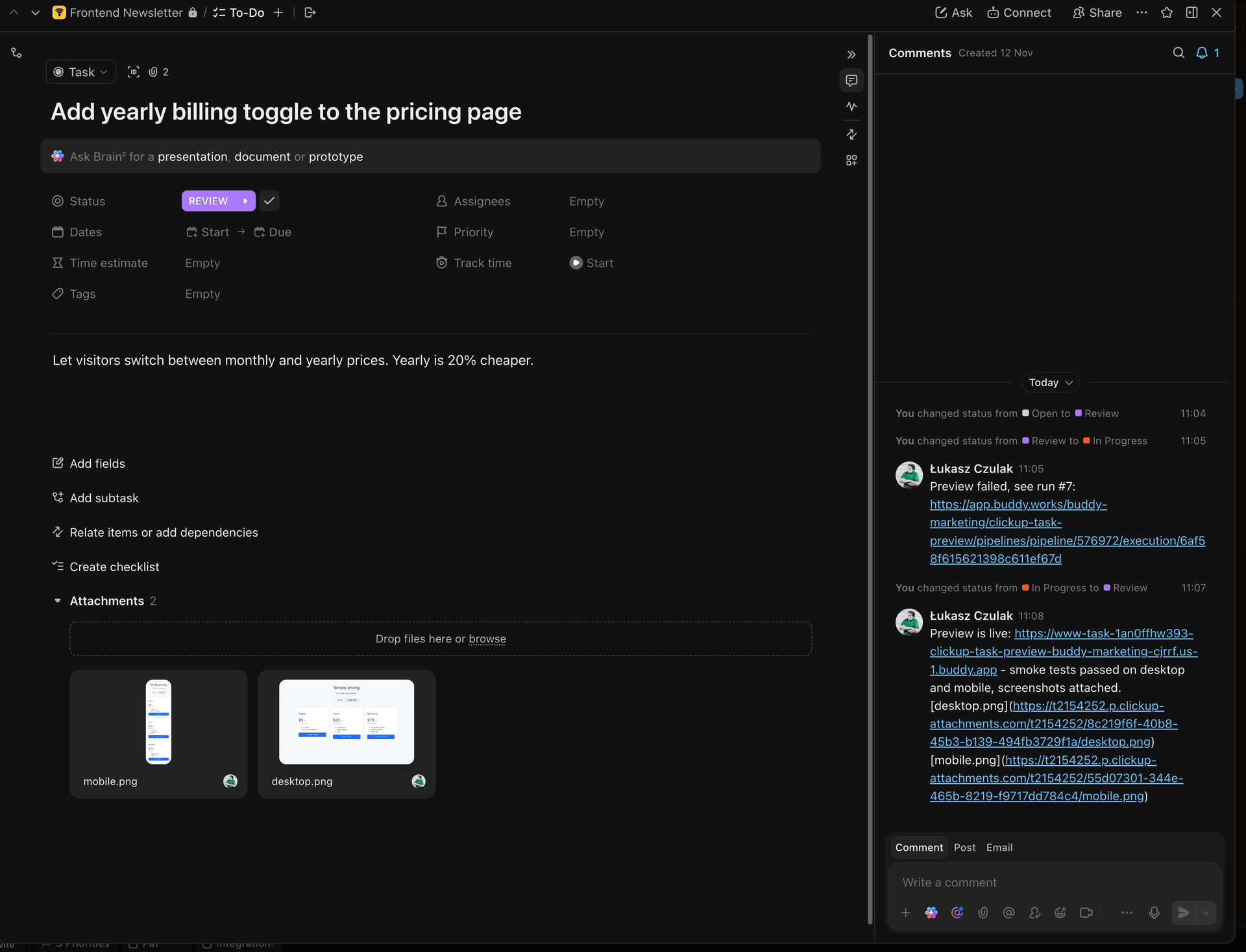
Behind it is the Task preview pipeline:
Image loading...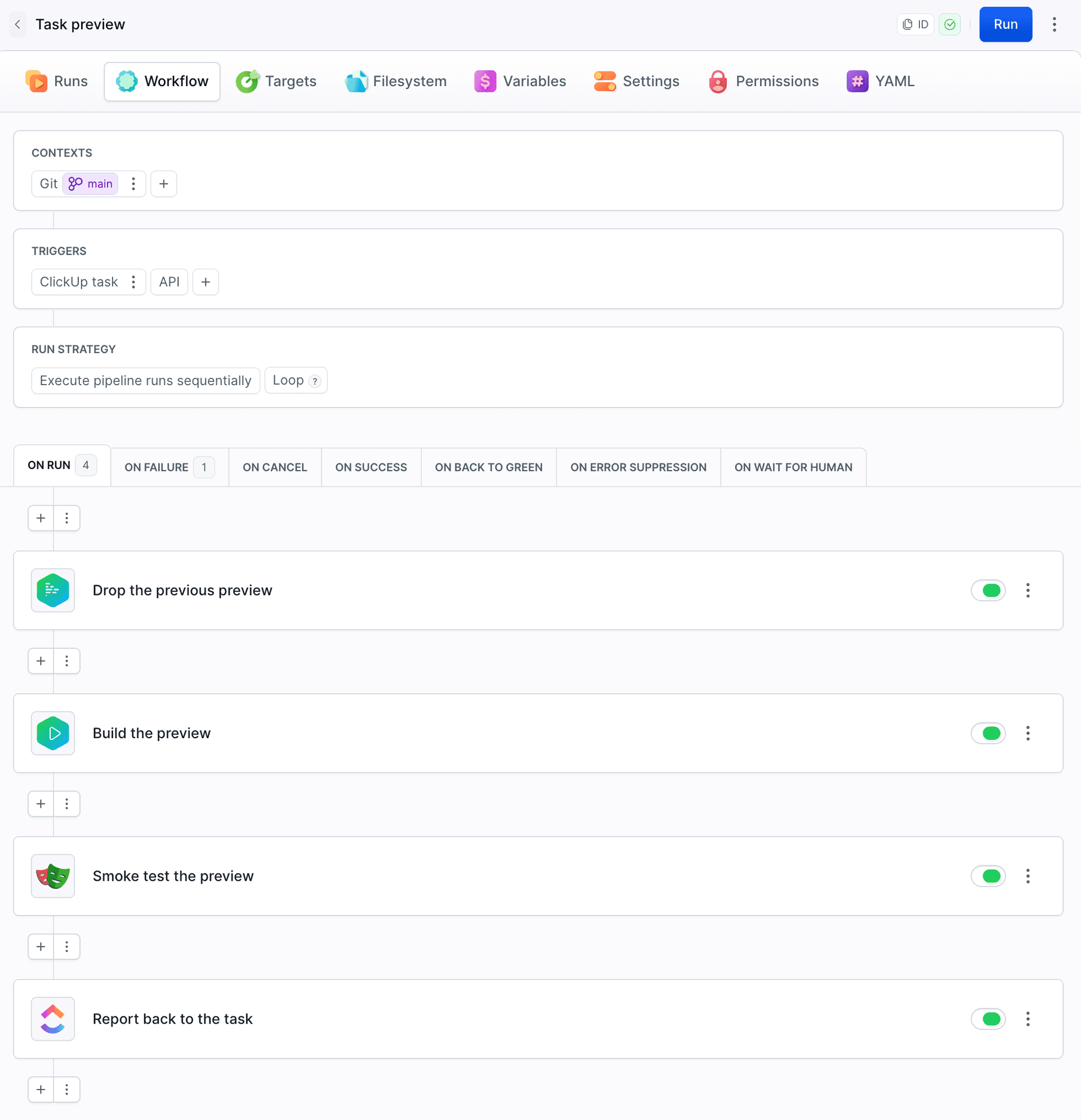
Run a pipeline when a ClickUp task changes status
ClickUp trigger runs a pipeline on supported ClickUp task events, including status changes, new comments, task creation, and task moves. Filters can restrict the trigger to selected lists, statuses, priorities, tags, and people. Task data is available in BUDDY_RUN_CLICKUP_* variables.
Start with the ClickUp integration. You need a personal token from the ClickUp settings (Settings > ClickUp API).
Then add the ClickUp trigger in the pipeline's Workflow tab. Select the Status updated event and add two filters: Lists = To-Do and Statuses = review.
Image loading...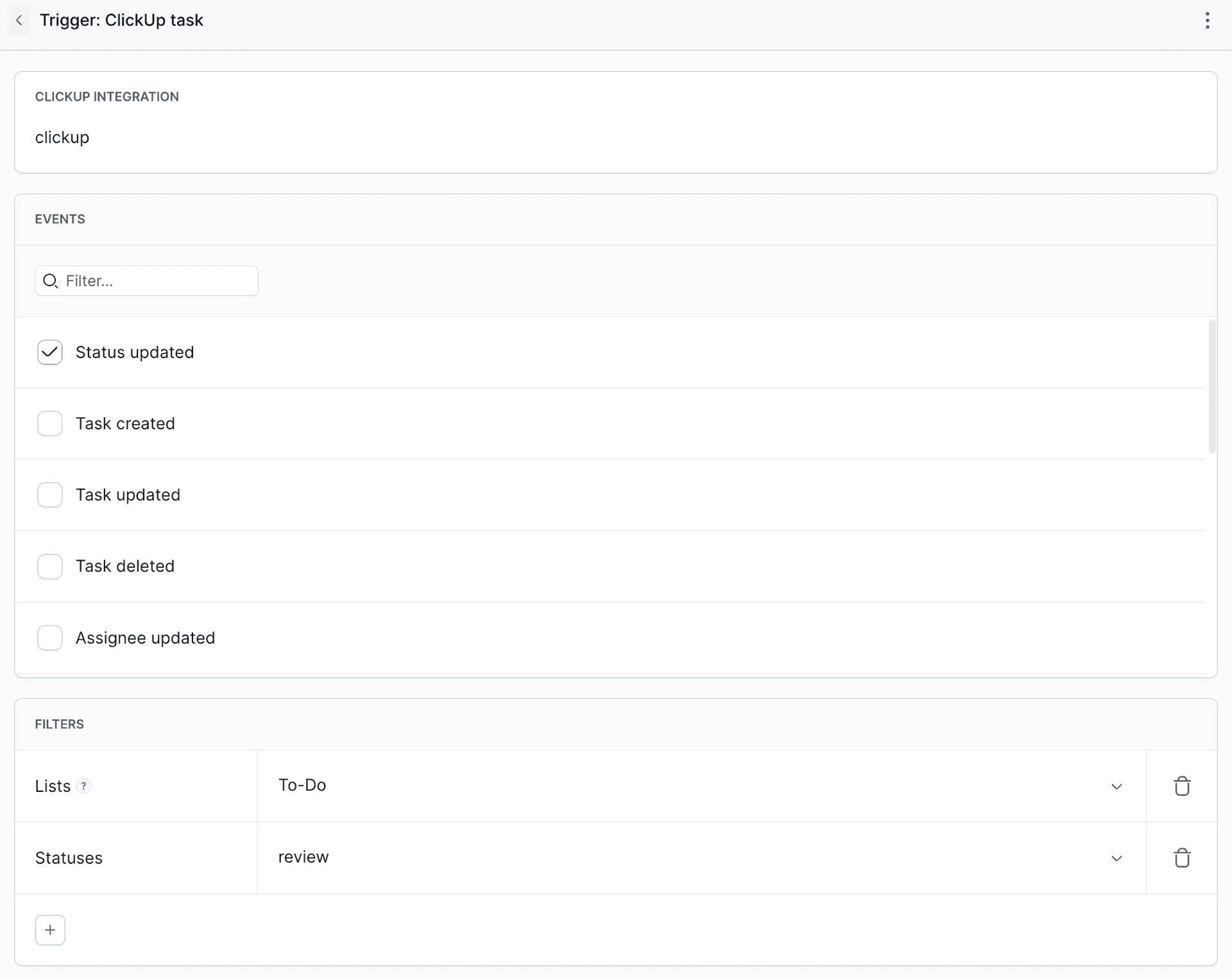
The status filter checks the status after the change, so the pipeline won't run when a task moves from review to a different status. Type status names exactly as they are defined in the list's status settings, including letter case.
Deploy a preview sandbox for every ClickUp task
The Create Sandbox action deploys a preview in a sandbox straight from the pipeline. Each task gets its own sandbox named task-<task id>, built from the cu-<task id> branch. The developer names the branch after the task ID (you can see it in the task URL), so the pipeline knows what to build. First we delete the previous sandbox, so every run uses the latest version of the branch:
- action: "Drop the previous preview"
  type: "SANDBOX_MANAGE"
  ignore_errors: true
  operation: "DELETE"
  targets:
    - "task-${BUDDY_RUN_CLICKUP_TASK_ID}"
- action: "Build the preview"
  type: "SANDBOX_CREATE"
  from: "SCRATCH"
  spec:
    sandbox: "task-${BUDDY_RUN_CLICKUP_TASK_ID}"
    name: "${BUDDY_RUN_CLICKUP_TASK_NAME}"
    os: "ubuntu:24.04"
    tags:
      - "preview"
    apps:
      - run_command: "node server.js"
    timeout: 3600
    endpoints:
      - name: "www"
        endpoint: "0.0.0.0:3300"
        region: "US"
    fetch:
      - ref: "cu-${BUDDY_RUN_CLICKUP_TASK_ID}"
        path: "/buddy"
ignore_errors: true prevents an error on the first run, when the sandbox doesn't exist yet. A recreated sandbox can get a different address, so every run adds the current link to the task.
Test the preview with Playwright before posting the link
The Playwright action tests the preview before the link goes to the task. The pipeline runs on main, so the tests come from main too, and the same suite checks every task:
- action: "Smoke test the preview"
  type: "PLAYWRIGHT"
  docker_image_name: "mcr.microsoft.com/playwright"
  docker_image_tag: "v1.56.0-noble"
  commands: |-
    export PREVIEW_URL="$BUDDY_SANDBOX_URLS"
    npm install
    npx playwright test
$BUDDY_SANDBOX_URLS holds the addresses of the sandbox endpoints. With one endpoint it's a single URL, which playwright.config.js sets as baseURL: process.env.PREVIEW_URL. The test opens the page on desktop and mobile, saves screens/desktop.png and screens/mobile.png, and fails if the page throws a JavaScript exception.
Move the task back when preview tests fail
The Update ClickUp Task action in the On failure section changes the task status and adds a comment with a link to the run when the preview tests fail.
The first version of the branch contained a bug in the page code. The Playwright test failed, which caused the run to fail and this action to move the task back to in progress:
- action: "Send the task back"
  type: "CLICKUP_UPDATE_TASK"
  trigger_time: "ON_FAILURE"
  integration: "clickup"
  task_id: "$BUDDY_RUN_CLICKUP_TASK_ID"
  status: "in progress"
  comment: "Preview failed, see run #$BUDDY_RUN_ID: $BUDDY_RUN_URL"
Image loading...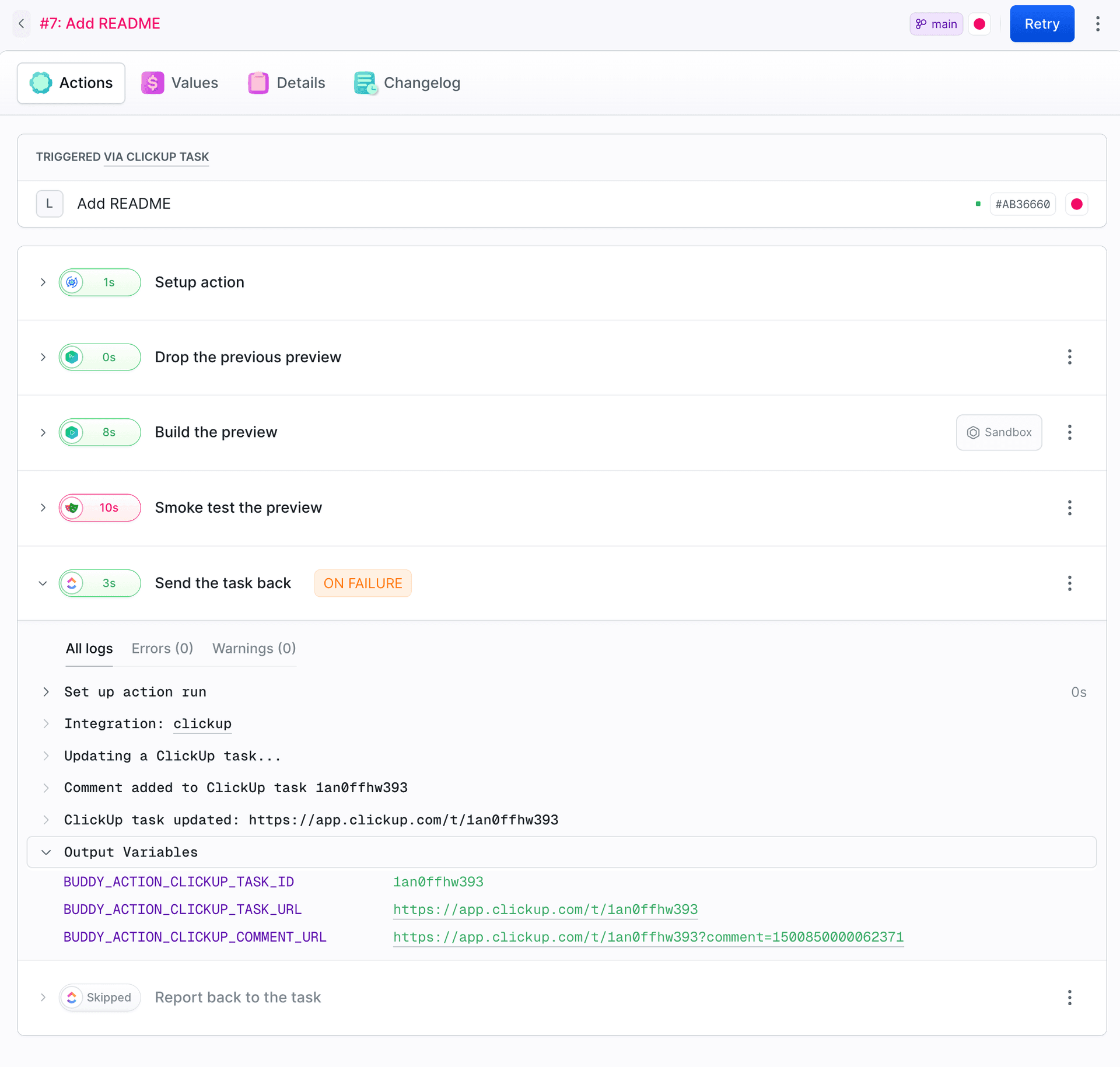
Changing the status to in progress doesn't trigger the pipeline again, because the filter only accepts the review status.
Post a preview link to a ClickUp task
The Update ClickUp Task action adds a comment with the preview link to the task. To attach files from the pipeline filesystem, such as screenshots or a test report, list them in the comment_attachments field. The task ID is provided by $BUDDY_RUN_CLICKUP_TASK_ID.
After the fix, the developer moves the task back to review. This time the tests pass, and the pipeline adds a comment with the link and both screenshots:
- action: "Report back to the task"
  type: "CLICKUP_UPDATE_TASK"
  integration: "clickup"
  task_id: "$BUDDY_RUN_CLICKUP_TASK_ID"
  comment: "Preview is live: $BUDDY_SANDBOX_URLS - smoke tests passed on desktop and mobile, screenshots attached."
  comment_attachments:
    - "screens/desktop.png"
    - "screens/mobile.png"
Both comments, from the failed run and the successful one, stay in the task, so the whole review history is in one place.
Delete the preview when the ClickUp task is closed
Once the task is closed, the preview is no longer needed. A second pipeline uses the same trigger with the Closed status and deletes the sandbox:
- pipeline: "task-preview-cleanup"
  events:
    - type: "CLICKUP"
      integration: "clickup"
      events:
        - "taskStatusUpdated"
      lists:
        - "To-Do"
      statuses:
        - "Closed"
  actions:
    - action: "Delete the preview"
      type: "SANDBOX_MANAGE"
      ignore_errors: true
      operation: "DELETE"
      targets:
        - "task-${BUDDY_RUN_CLICKUP_TASK_ID}"
ignore_errors: true is there so that closing a task without a preview doesn't end in a failed run.
Create a ClickUp task when a pipeline fails
The Create ClickUp Task action in the On failure section creates a new task when a run fails. Only the list and title are required. Specify the list by name. If several lists have the same name, add space. For a list inside a folder, add folder as well. Priority, assignees, and attachments are optional.
For example, when a production deployment fails, the pipeline can create a task with the run details and logs:
- action: "Open an incident task"
  type: "CLICKUP_CREATE_TASK"
  trigger_time: "ON_FAILURE"
  integration: "clickup"
  space: "Frontend Newsletter"
  list: "To-Do"
  title: "Deploy failed: $BUDDY_PIPELINE_NAME #$BUDDY_RUN_ID"
  description: "Run: $BUDDY_RUN_URL"
  priority: "urgent"
  attachments:
    - "logs/deploy.log"
Image loading...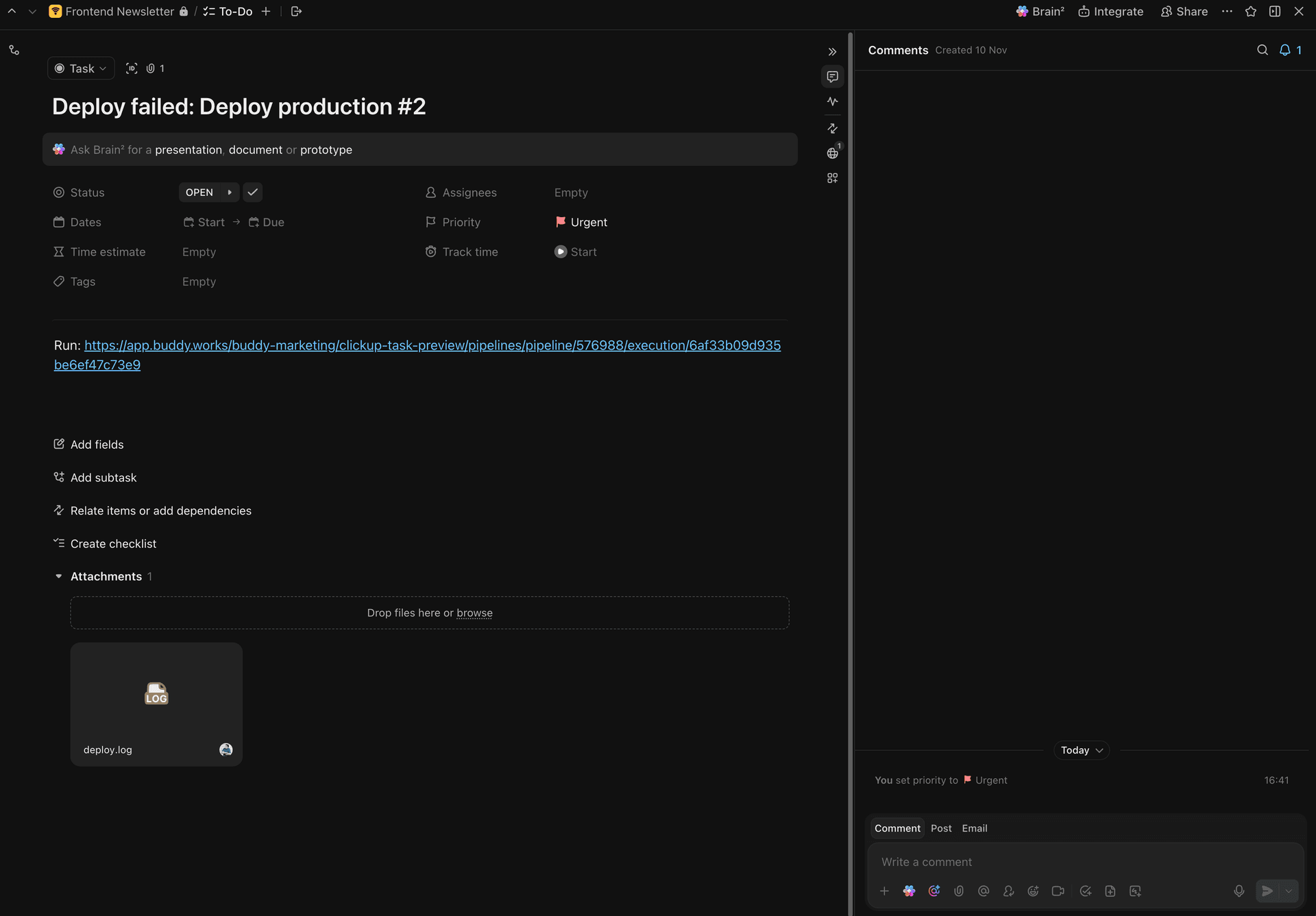
The fields of both actions are described on the ClickUp actions page.

Jarek Dylewski
Customer Support
A journalist and an SEO specialist trying to find himself in the unforgiving world of coders. Gamer, a non-fiction literature fan and obsessive carnivore. Jarek uses his talents to convert the programming lingo into a cohesive and approachable narration.