Manage Environments
Environment Targets
The Targets tab allows you to define and manage targets for a given environment. It enables you to create specific targets, such as FTP or SFTP/SSH, which will be used during the application deployment process. Each target is assigned a unique ID and additional labels, such as tags, to help organize environments.
Image loading...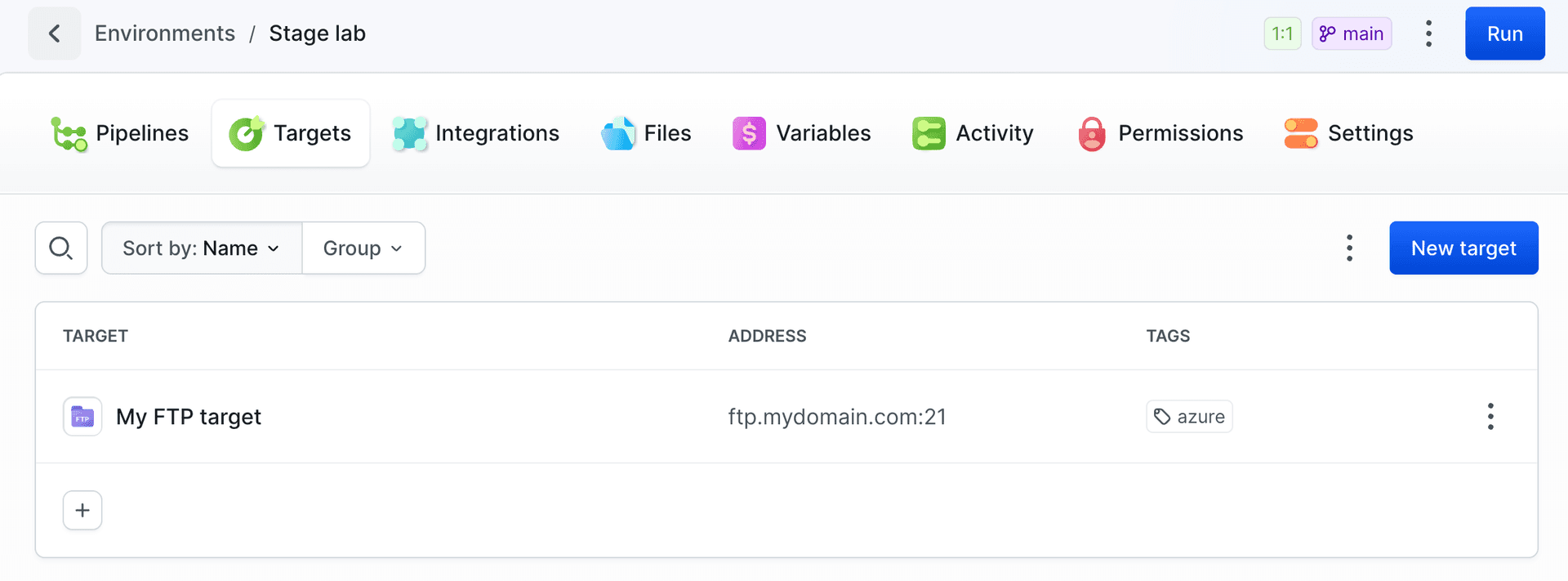
When a deployment action in the pipeline requires a connection to an external server, instead of providing connection details directly in the configuration, you can simply reference the target.
Image loading...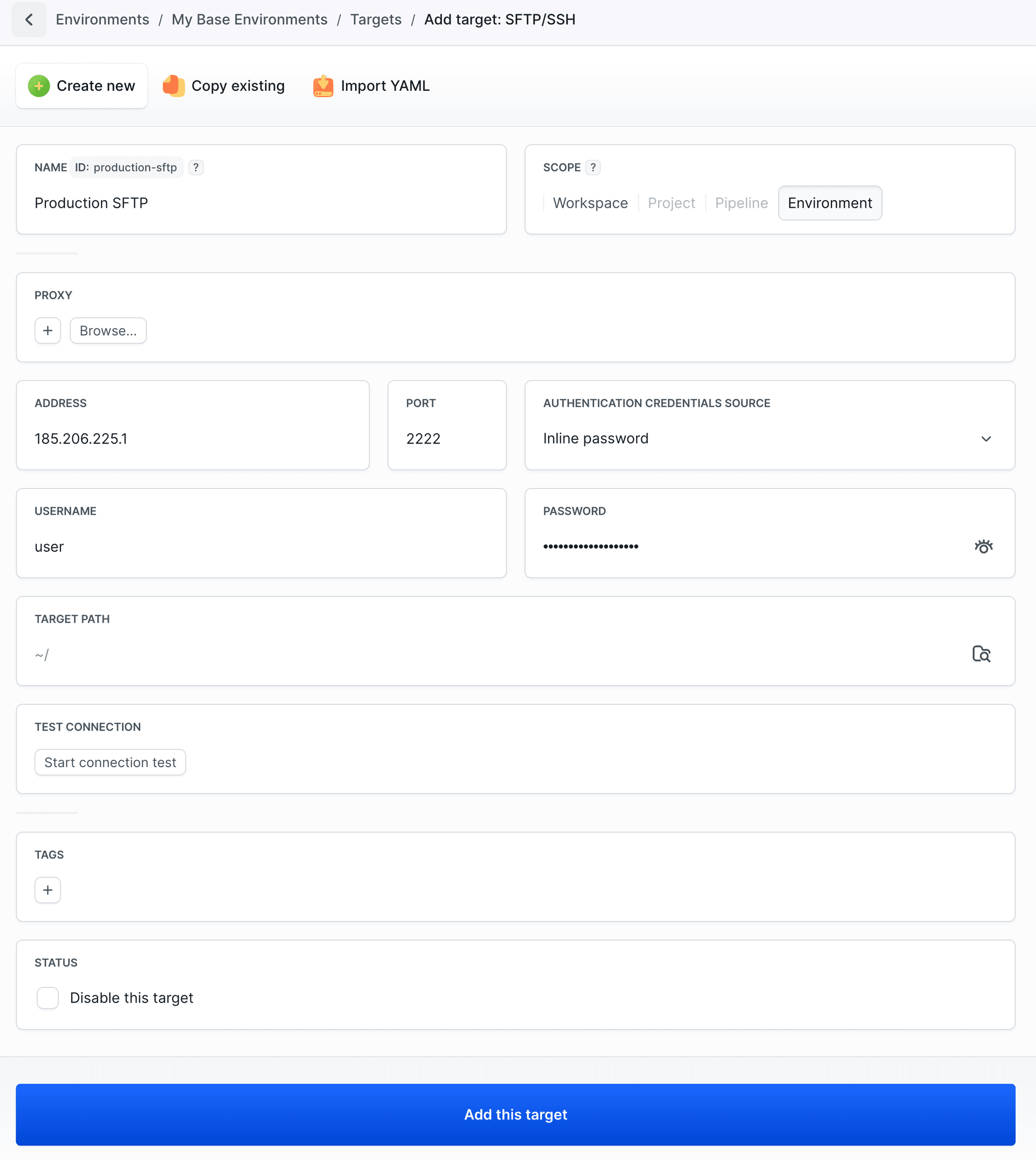
Deployments using targets
Deployment action using target ID:
Image loading...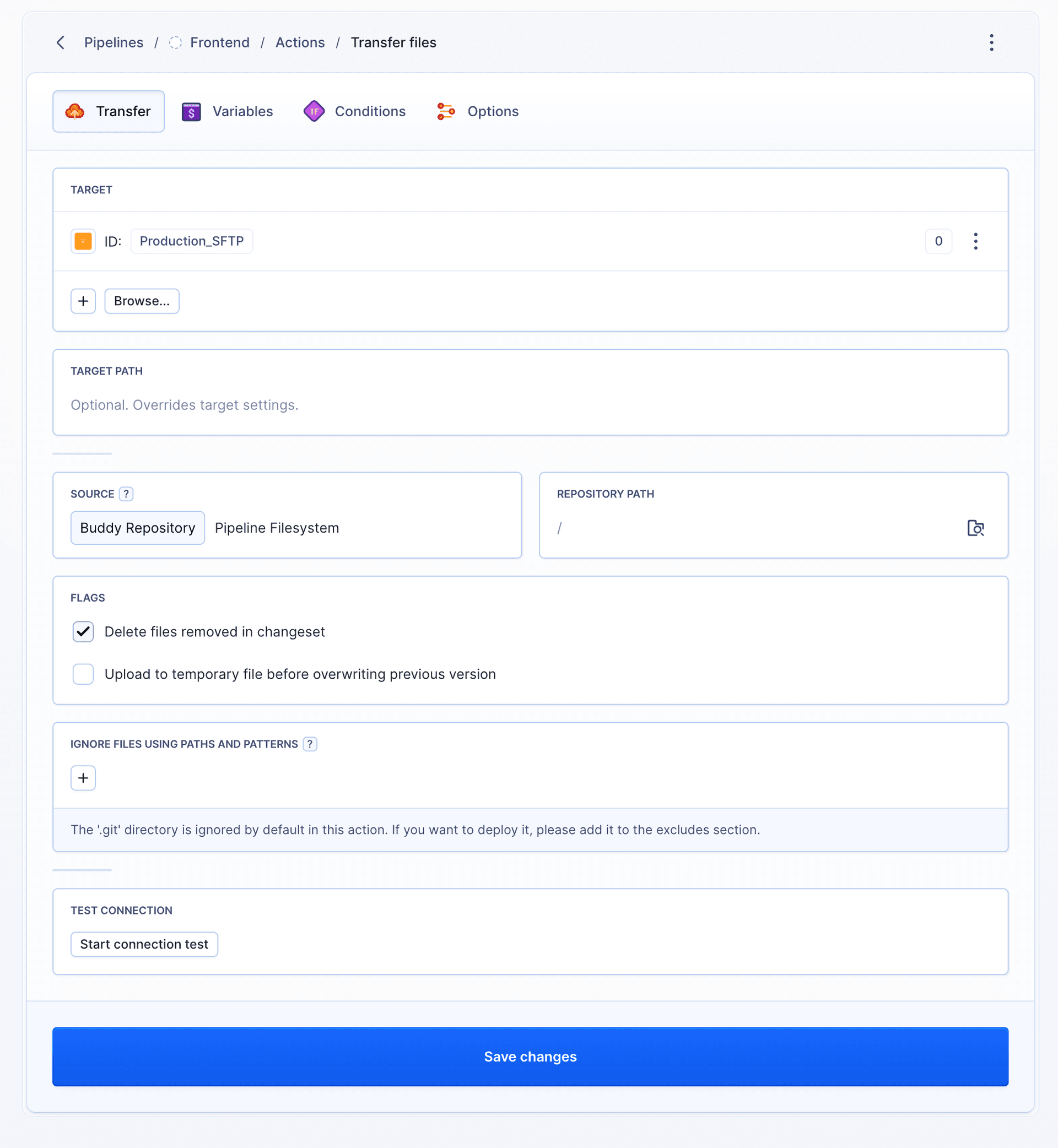
SFTP action example using an ID of a target defined in the Environment:
Image loading...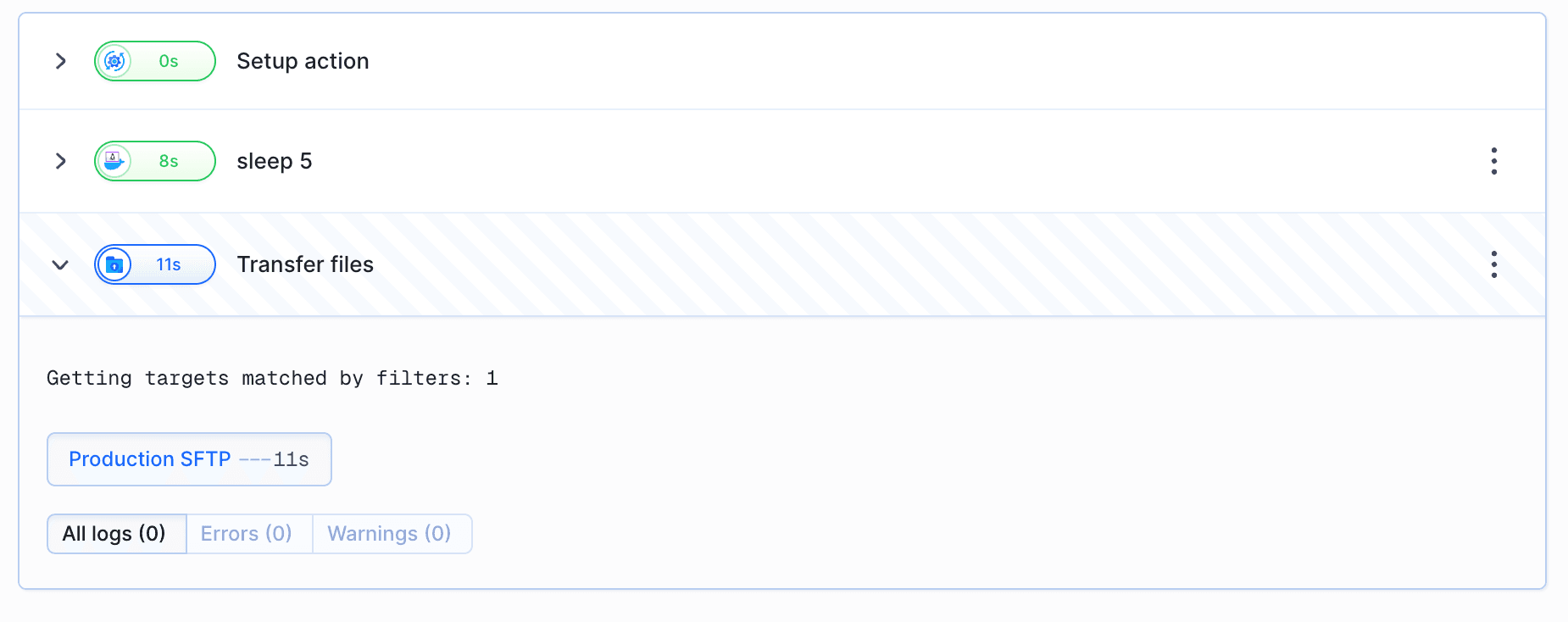
Environment Pipelines
In the pipelines tab you can manage pipelines that have this environment assigned to them.
Here, you can view, run, and delete existing pipelines, as well as add new ones that will be linked to this environment.
This section enables easy management of deployment automation and monitoring of ongoing processes.
The environment list view shows the package version and, per pipeline, Commits behind from the last execution, so you can see how far each pipeline's deployment is from the latest commit.
Image loading...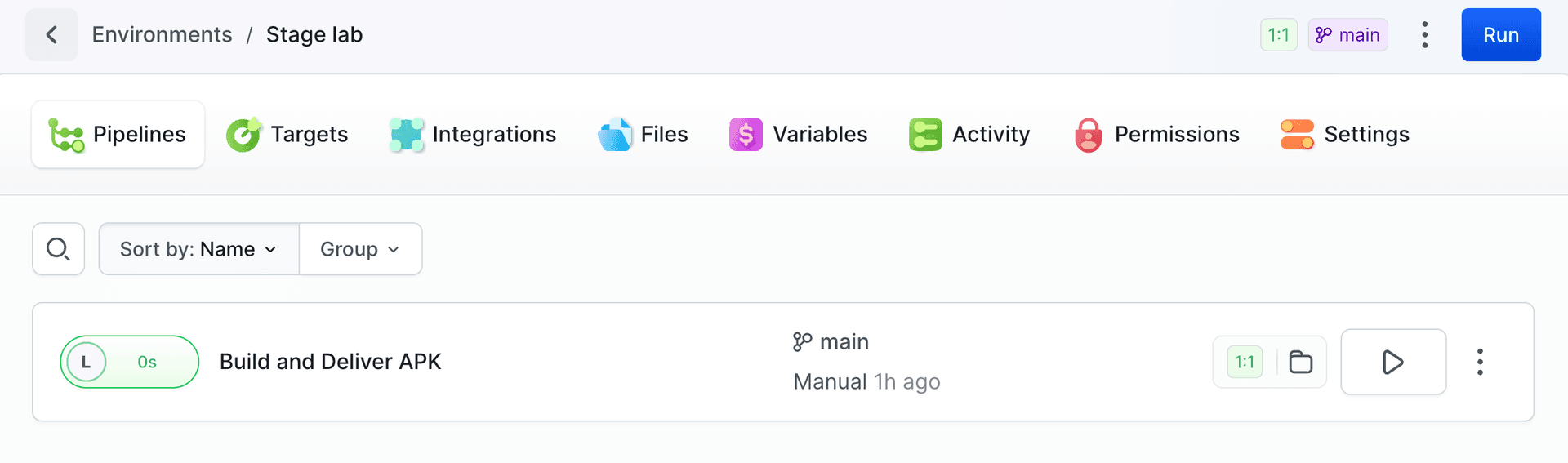
Pipelines can also react to the environment itself: the Environments: Created and Environments: Deleted triggers start a pipeline when an environment matching an ID pattern, scope, or tag is added or removed. See On environment event.
Environment Integrations
In this tab, you can add an integration that will be available within the pipeline execution running in the context of a specific environment.
This means that if a pipeline is assigned to more than one environment, the integrations will only be visible for the environment where the execution is currently taking place.
Image loading...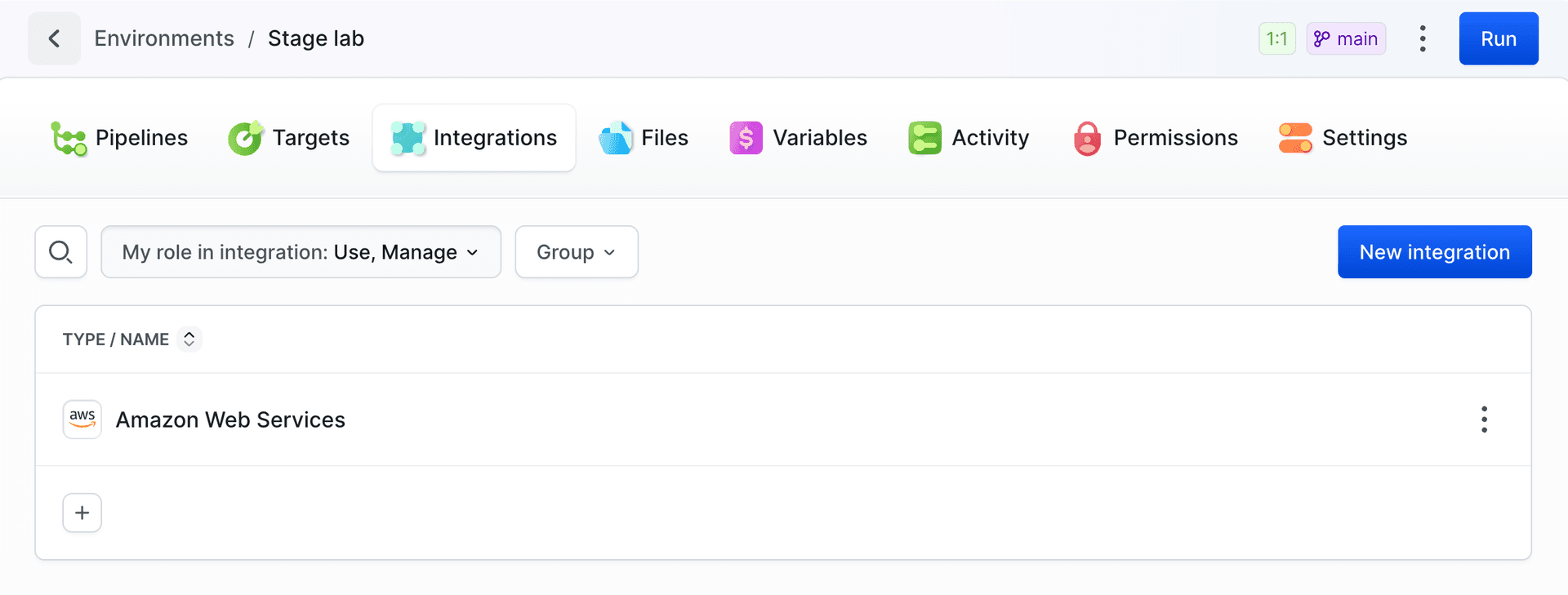
Environment Files
The Filesystem Environment stores files added by the user, which can be used within a pipeline.
When a pipeline is executed, files from the assigned environment are copied to the pipeline’s filesystem and remain there for the duration of its execution. During this time, they are available for actions, enabling their usage.
After all actions in the pipeline are completed, the copied files are removed from the pipeline’s filesystem, but they remain in the Environment Files.
Image loading...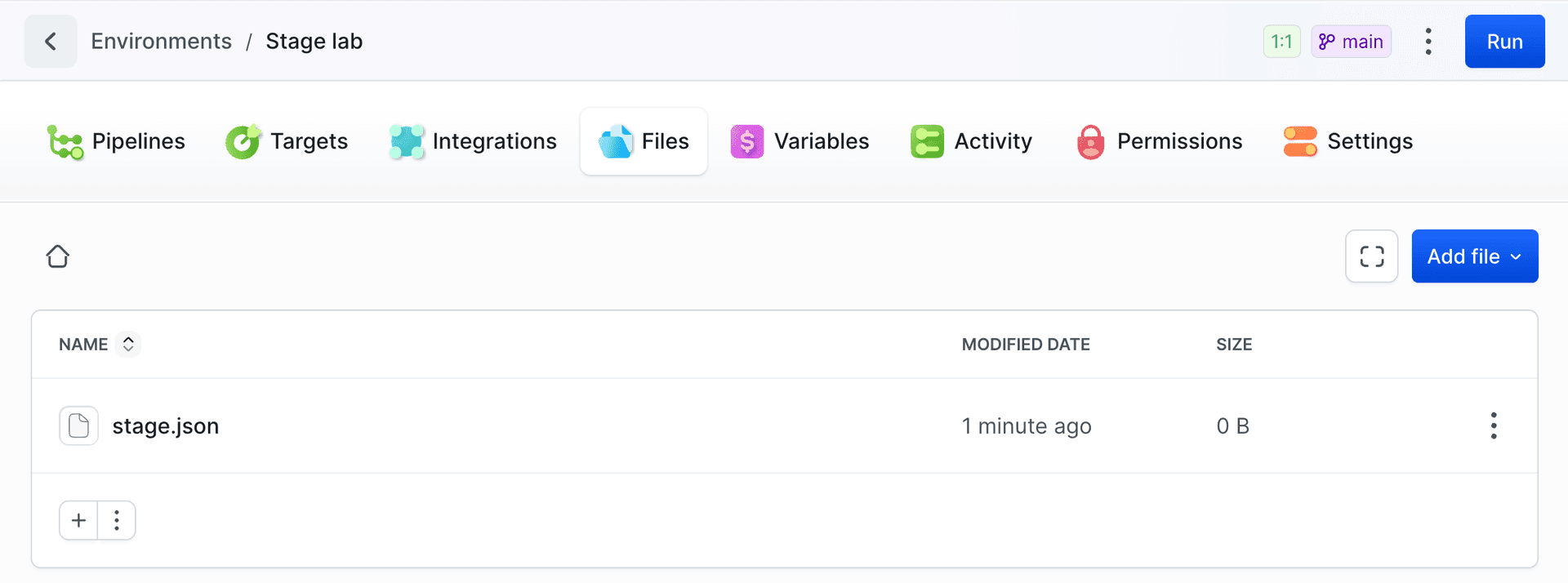
Environment Variables
In this tab, you can add variables that will be used only in the pipeline where the given environment is assigned.
Image loading...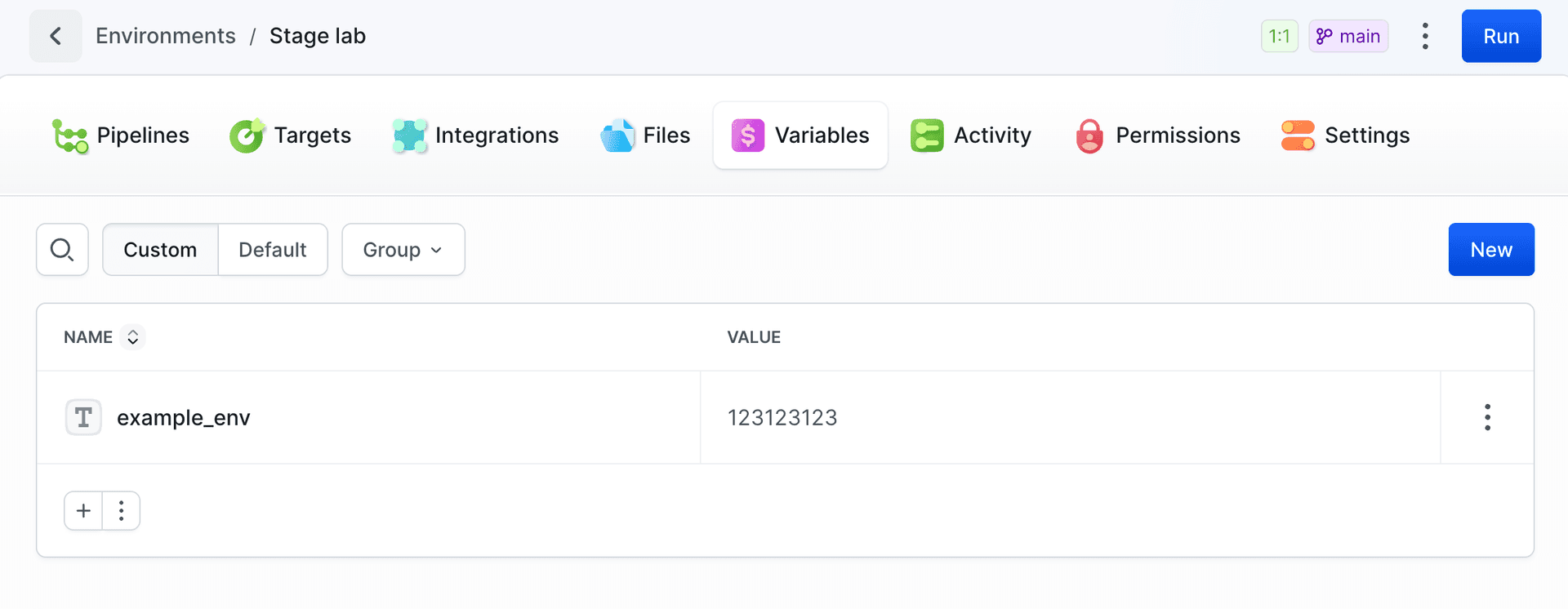
Reading encrypted values over the API
By default, the REST API returns encrypted variables masked as !encrypted. To return decrypted values for an environment's encrypted variables, enable allow_decrypted_values on the environment and use a token with the MASKED_VARIABLE_VALUE_DECRYPTED scope. Both are required. A token with this scope still receives masked values from environments where decryption is not enabled.
yaml- environment: staging
  name: Staging
  allow_decrypted_values: true
Sending a masked value back unchanged in an update keeps the stored value intact.
Manage Environments using REST API
The API allows you to edit and delete environments, making it easy to adjust configurations as needed.
Last modified on Oct 29, 2026