Automate Cursor Agent with Buddy Pipelines
Buddy now integrates with Cursor, introducing a new pipeline action that lets you run it directly in your workflows. Connect your API key once and the same agent you prompt in the editor becomes something you can drop into a pipeline - triggered by a push, a pull request, a schedule, or an inbound webhook, with the repository and the run context already in front of it.
Cursor joins Claude Code, Antigravity, and Codex CLI as the fourth coding agent you can run inside a Buddy pipeline. Same idea across all four: the agent gets the checked-out repository, the environment variables, and the filesystem of that run, and can run unattended as part of the pipeline. The action runs the headless Cursor Agent CLI, so what you get in the pipeline is the agent you already know from the editor.
Setup is two steps.
Step 1: connect Cursor to Buddy
Open the Integrations tab, click New integration, and pick Cursor.
Image loading...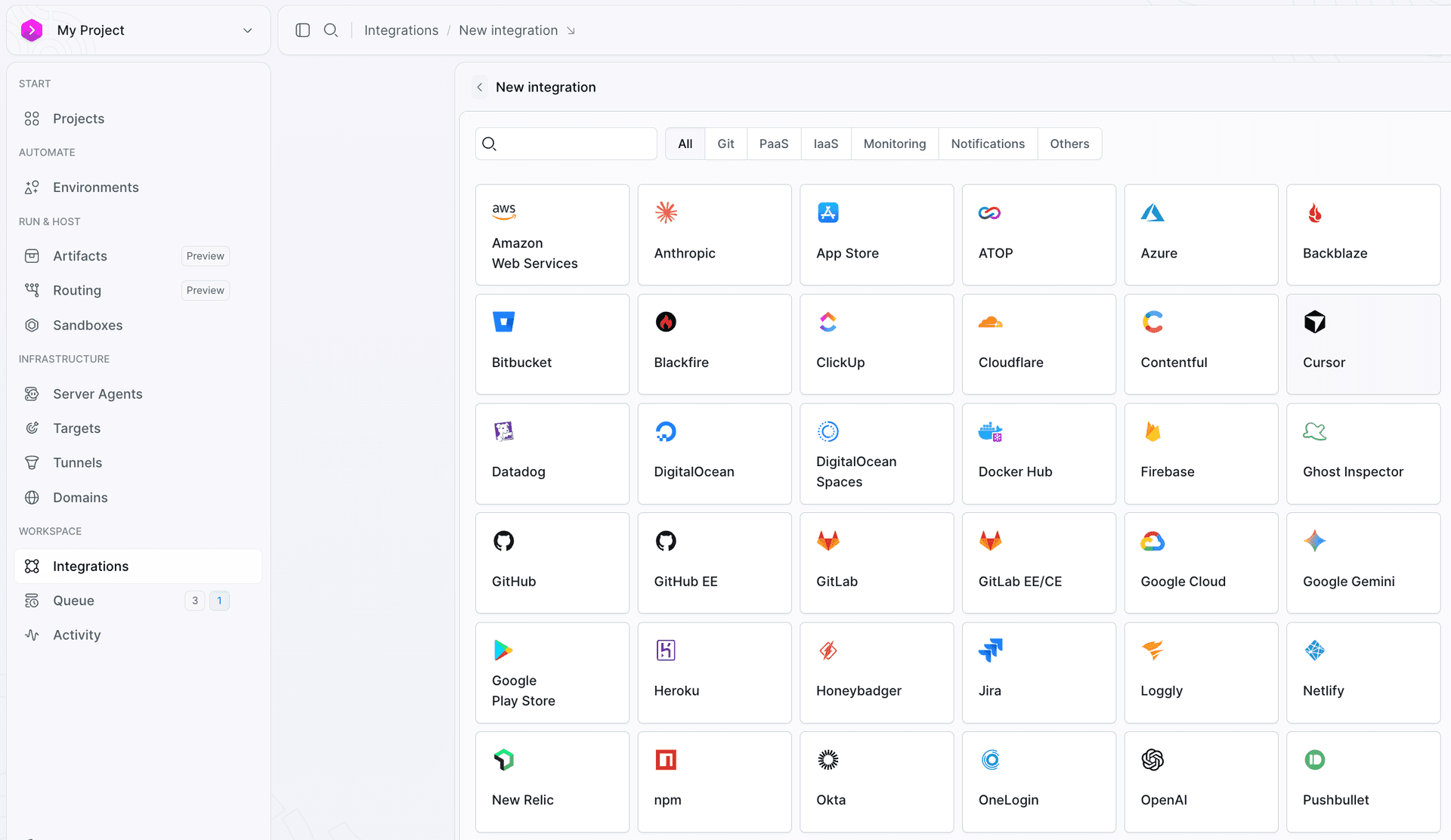
All it needs is a User API Key:
- Go to Cursor API Keys in the Cursor dashboard and click New API Key.
- Name the key and pick how long it stays valid - 30 days, 90 days, 180 days, 1 year, or never expires.
- Copy the generated value - Cursor shows it exactly once - and paste it into the API KEY field in Buddy. The key always starts with
crsr_. - Give the integration a name and ID, set its scope, and click Add a new integration.
Image loading...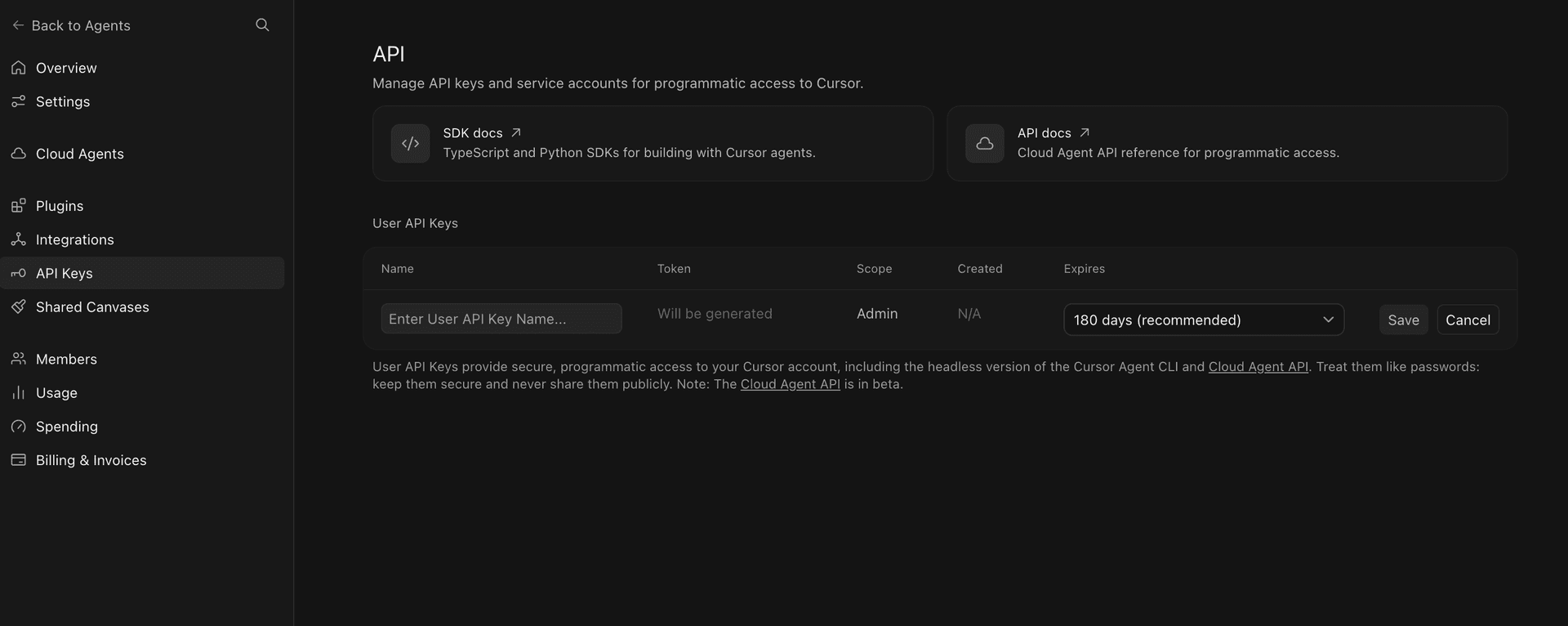
The key is stored as an encrypted secret and passed to the pipeline as a secure environment variable - it never lands in your repository. From here on, pipelines reference the integration by its ID.
Image loading...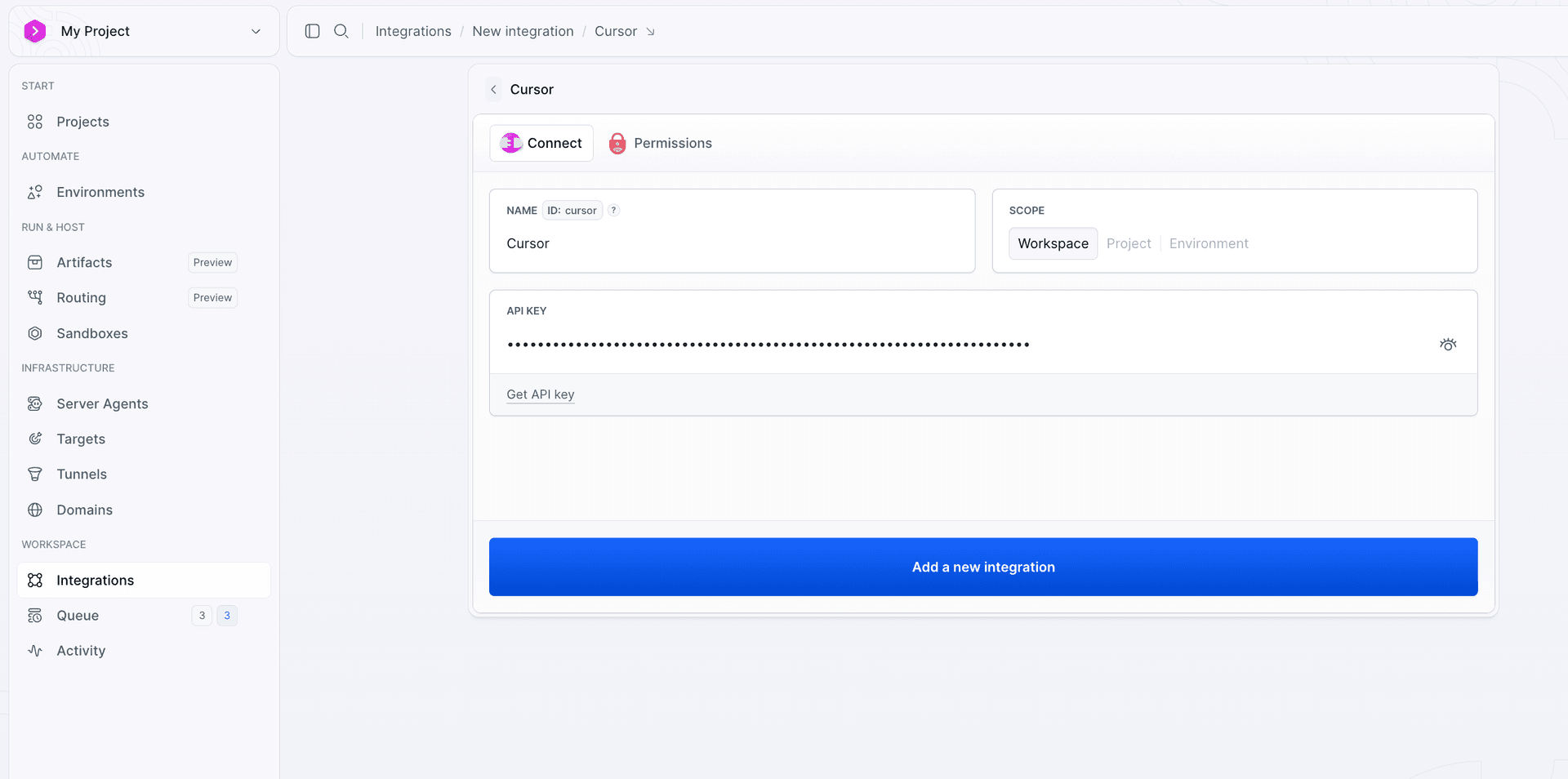
There are two things you should decide on when setting up an integration. A user API Key carries Admin scope over your Cursor account, so consider creating a dedicated key for each integration. That way you can revoke it, without affecting anything else.
An expiring key is safer by default, but it can also expire during a pipeline run. Choose a liftime you are likely to remember, or use never expires if that better fits your setup. You can find the full walkthrough with screenshots in the Cursor integration docs.
Step 2: add the Cursor action to your pipeline
With the integration in place, add a Cursor action to your pipeline. Then select the integration from step 1 and choose a model.
Image loading...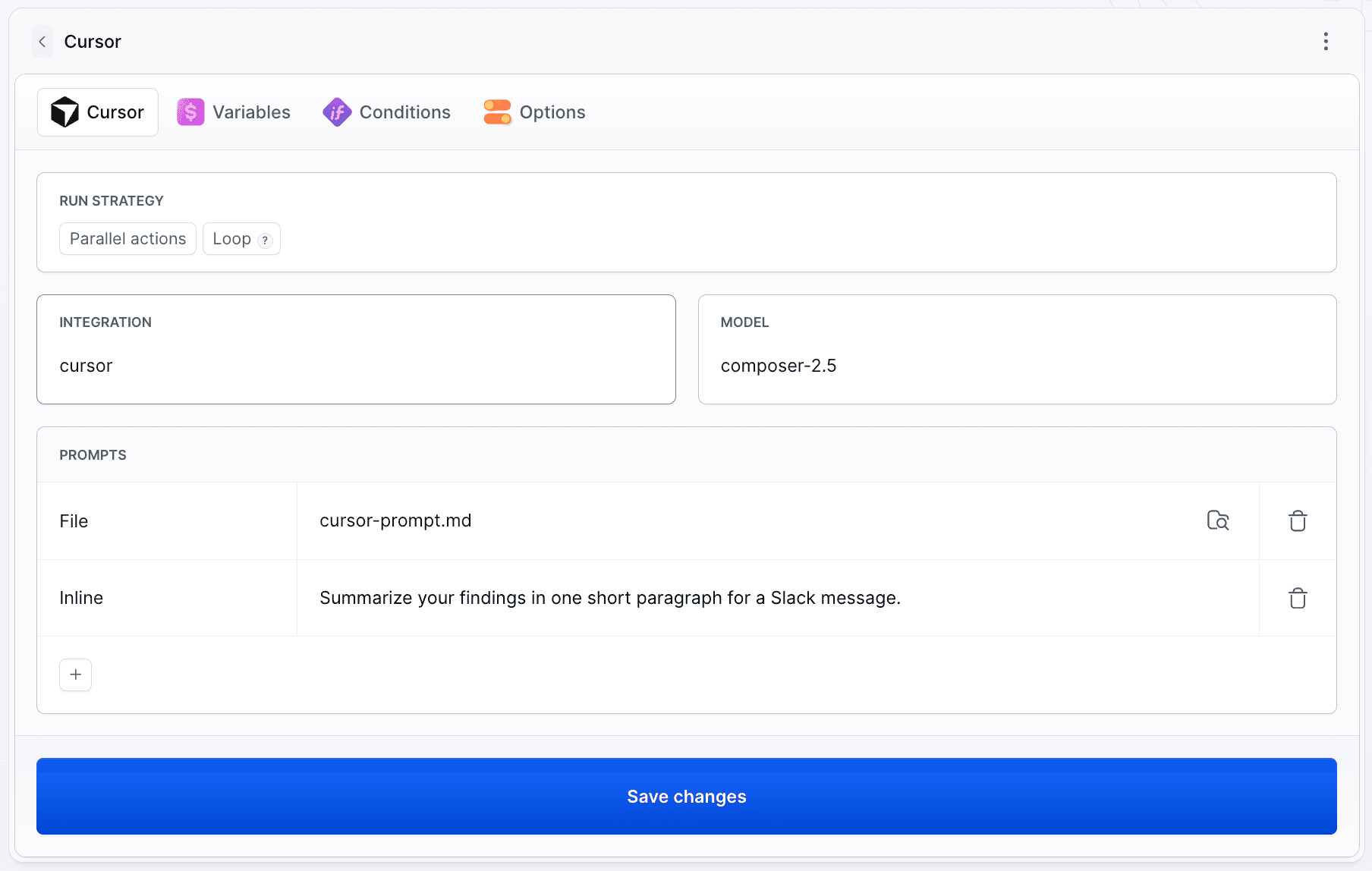
The list covers Cursor's own composer models alongside the third-party ones your account can reach, plus auto-smart and default if you would rather let Cursor pick. In a pipeline that choice is money as much as quality: pinning a model makes runs reproducible and the bill predictable, while auto-smart adapts to the task and lets the cost move with it.
Prompts live in the repo, not in the UI
An action takes one or more prompts, executed in order. Each is either typed inline or read from a file in the repository.
Inline is fine for a one-liner. For anything you actually care about, use a file and version it next to the code. The prompt then goes through pull requests like any other change, and the same file can be reused across pipelines. Prompts also utilize environment variables, so you can pass the branch, the commit range, or the output of a previous action straight into the agent.
The smallest project that proves it works
Two files are enough to see the whole thing run end to end. First, something for the agent to work on - a single page with an obvious gap in it:
html<!doctype html>
<html lang="en">
  <head>
    <meta charset="utf-8" />
    <title>Buddy + Cursor</title>
  </head>
  <body>
    <h1>Hello from Buddy</h1>
    <p>This page has no description, no favicon, and no styling.</p>
  </body>
</html>
Second, the prompt, as cursor-prompt.md:
promptReview index.html in this repository.

List what is missing for a production-ready static page - metadata, accessibility,
and performance. Reference the exact lines, and suggest a concrete fix for each
finding. If the file is already fine, say so in one line instead of inventing problems.
That last instruction is important. It tells the agent to report only meaningful issues instead of forcing it to find a problem in every review.
And the pipeline that runs them:
yaml- pipeline: my-project
  name: My Project
  refs:
  - :default
  actions:
  - action: Cursor
    type: CURSOR
    integration: cursor
    model: composer-2.5
    prompts:
    - file: cursor-prompt.md
The setup is simple: add the action, write the prompt, and choose a model. With no trigger defined the pipeline runs on demand - a click in the UI or a call from the CLI - which is exactly what you want while you are still tuning the prompt. Wire it to a real event later.
Prefer the terminal? The Buddy CLI creates the same pipeline from that file and runs it on the spot:
bashbdy pip create --yaml @my-project.yml$
bashbdy pip run start my-project --wait$
Add an events section with - type: PUSH or - type: PULL_REQUEST and the same pipeline runs on every change instead.
What comes out of the run
The agent's answer does not stay in the build log. When the action finishes it exposes a set of output variables that later actions in the same pipeline can read:
BUDDY_ACTION_CURSOR_CONCLUSION      success
BUDDY_ACTION_CURSOR_SESSION_ID      agent-25176025-8137-48a9-b720-35c3a6cae26b
BUDDY_ACTION_CURSOR_RESULT          index.html is missing a meta description, a favicon, and a viewport tag...
BUDDY_ACTION_CURSOR_OUTPUT_FILE     .buddy/output/cursor/report_1_lp6umx6jtxkz3u.json
CONCLUSION is what you branch on, RESULT is the agent's final text, and the report file holds the full session transcript as JSON if you want to parse it. So the review reaches the team instead of the build log:
yaml- action: Send notification type: SLACK content: "Cursor review:\n$BUDDY_ACTION_CURSOR_RESULT" integration: slack channel: releases
Image loading...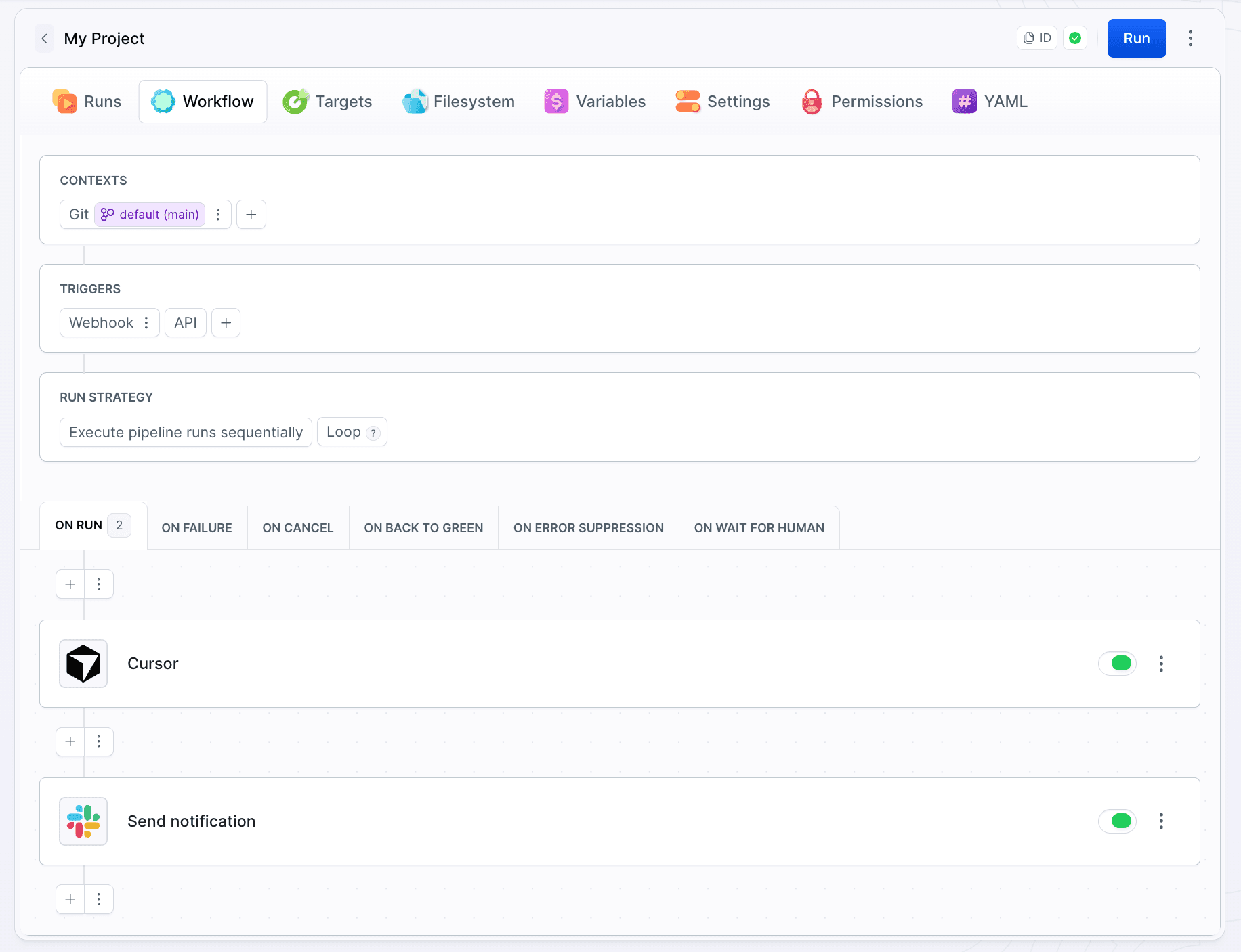
Beyond review: let the agent fix what it finds
A read-only review is a good place to start, but the Cursor action can also modify files in the pipeline filesystem. That means the agent can fix the issues it finds in the same run.
Those edits live and die with the run, so to keep them add a Git Push after the Cursor action in the pipeline and use it to push the changes to a new branch.
Point its target_branch at a new branch instead of the one the pipeline checked out, and put something readable in comment - the commit message is the only place the reason for those edits survives the run.
Other useful setups include:
- Adding the action to the ON FAILURE section of an existing pipeline, so the agent can investigate a failed deployment.
- Triggering it on a schedule for recurring maintenance or cleanup tasks.
- Triggering it with a webhook from tools like Sentry or an incoming email, so the agent can start investigating automatically.
And if you would rather drive Buddy from your side of the editor, that direction works too - the Buddy CLI, skill, and MCP server let Cursor deploy your project, run your pipelines, and read your build logs. That is covered in Cursor with Buddy.
Learn more
- Cursor integration - full setup with screenshots
- Run agents in a pipeline - models, prompt files, and triggers
- Cursor action in YAML - every field
- Cursor action in the API - POST parameters

Jarek Dylewski
Customer Support
A journalist and an SEO specialist trying to find himself in the unforgiving world of coders. Gamer, a non-fiction literature fan and obsessive carnivore. Jarek uses his talents to convert the programming lingo into a cohesive and approachable narration.