Terraform Plan, Apply, and Drift Detection
Until now, Terraform in Buddy ran through the Terraform CLI action. It runs any command, but the backend, the approval step, and parsing the plan output were up to you. Buddy now has three dedicated actions: Terraform Plan shows what will change, Terraform Apply deploys it, and Terraform Drift Detection detects changes made outside Terraform. They support Terraform and OpenTofu, and keep the state in a Buddy artifact, AWS S3, Google Cloud Storage, or your own backend.
Below are two pipelines. The first one deploys changes and waits for approval when the plan destroys or replaces resources. The second one checks for drift on a schedule.
Step 1: plan, approve destructive changes, apply
The example manages an S3 bucket on AWS with tags and versioning enabled. The pipeline has four actions:
Image loading...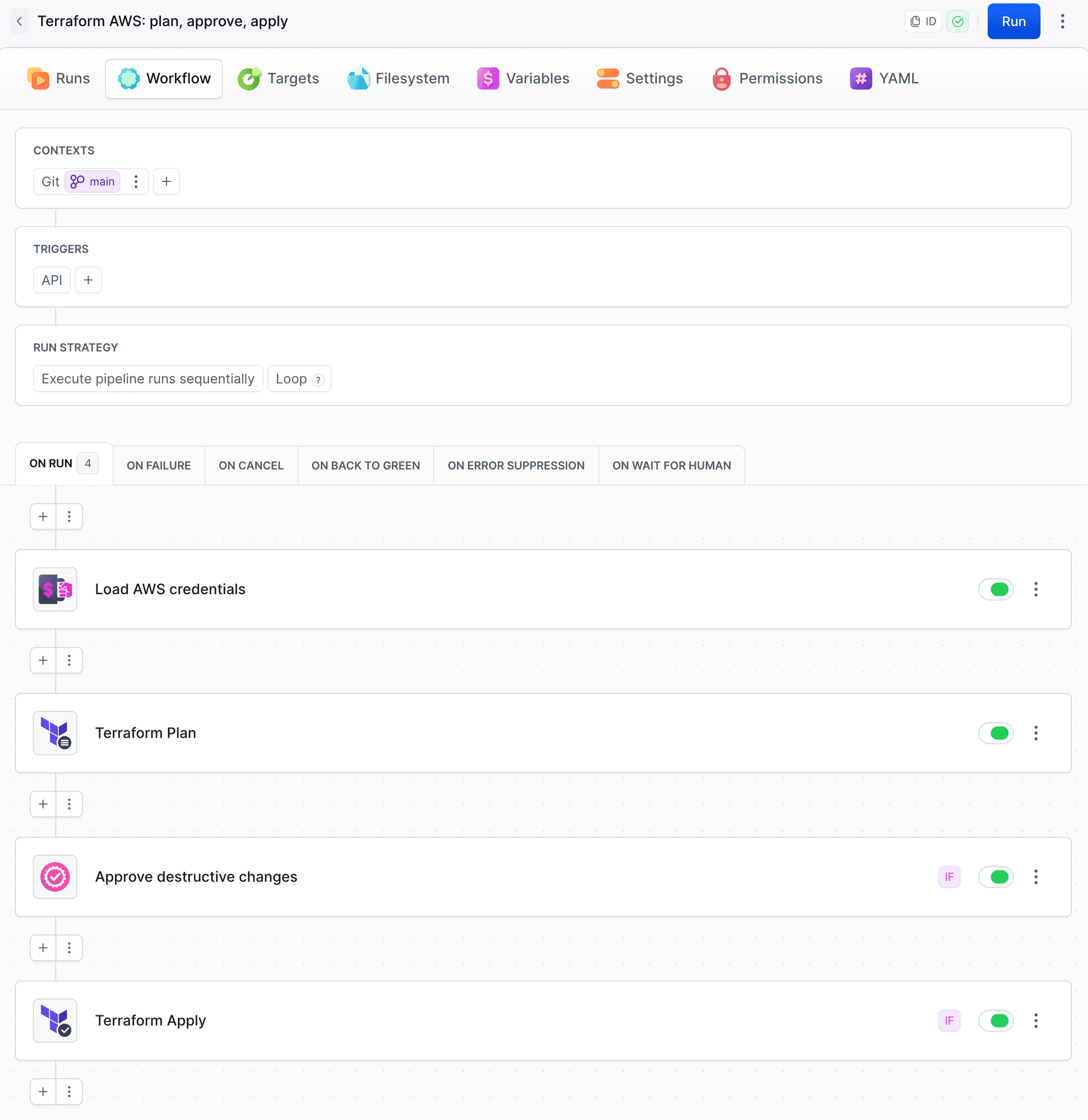
Terraform Plan exports the number of resources to add, change, replace, and destroy. The approval step runs only when the plan destroys or replaces resources:
trigger_conditions:
  - trigger_condition: OR
    trigger_operands:
      - trigger_condition: VAR_GREATER_THAN
        trigger_variable_key: BUDDY_ACTION_TF_PLAN_DESTROY_COUNT
        trigger_variable_value: "0"
      - trigger_condition: VAR_GREATER_THAN
        trigger_variable_key: BUDDY_ACTION_TF_PLAN_REPLACE_COUNT
        trigger_variable_value: "0"
Terraform Apply runs only when BUDDY_ACTION_TF_PLAN_TOTAL_COUNT > 0, so a plan with no changes deploys nothing:
| Change | Plan | Approval | Apply |
|---|---|---|---|
| First run, new bucket | 4 to add | Skipped | Created the bucket |
| Second run, no code change | No changes | Skipped | Skipped |
| Bucket renamed in code | 3 to add, 3 to destroy | Waited for approval | Ran after approval |
The approval comment shows the plan summary, and the full diff is in the Terraform Plan action in the run view. Apply uses the plan file from Terraform Plan, so it deploys exactly the plan you reviewed. If the state changes after approval, Apply stops.
The approval condition is just an example. An in-place change, such as a security group rule, can be risky too. To cover it, add BUDDY_ACTION_TF_PLAN_CHANGE_COUNT to the condition.
Image loading...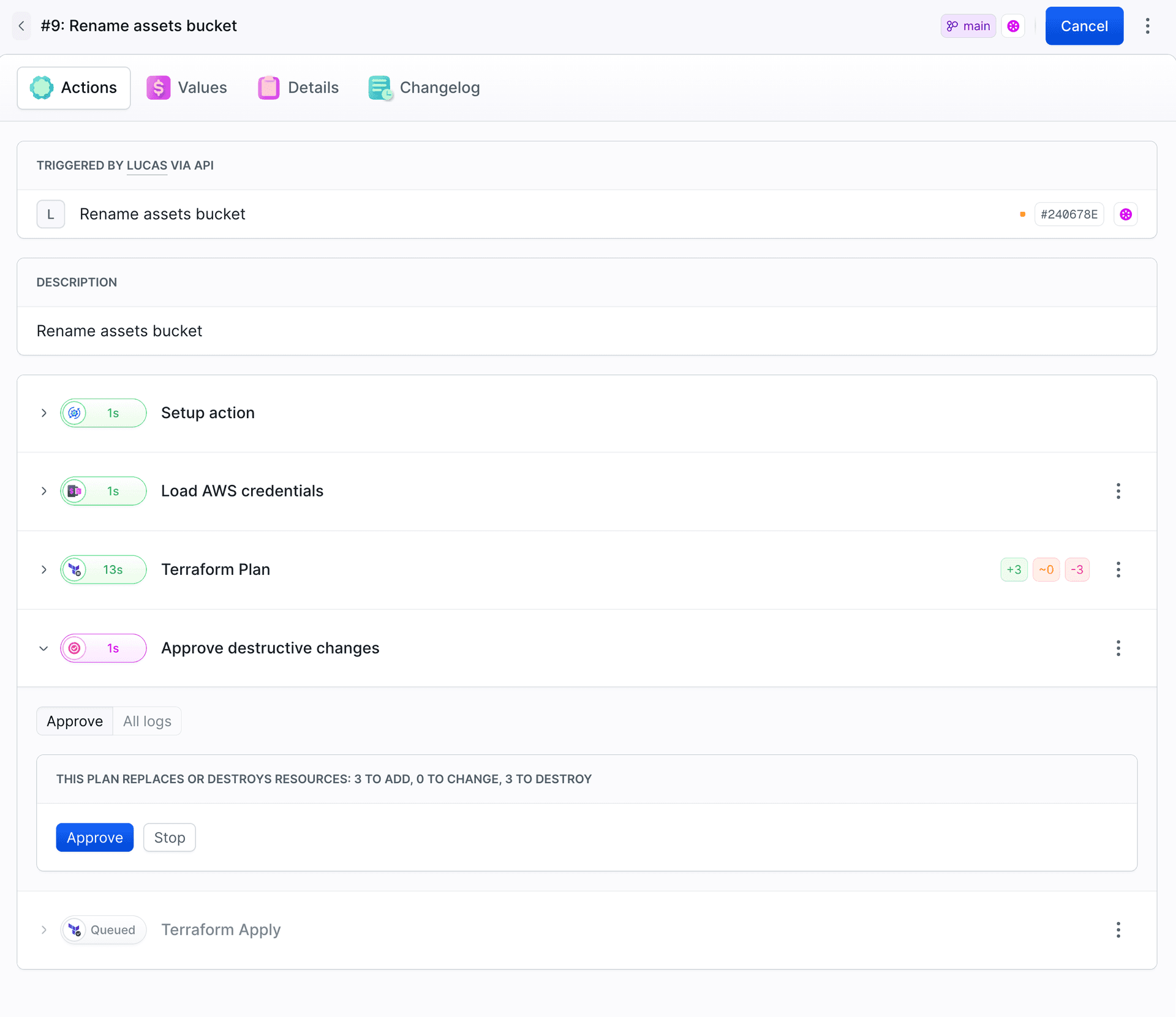
After approval, the Changes tab of Terraform Apply shows what was deployed:
Image loading...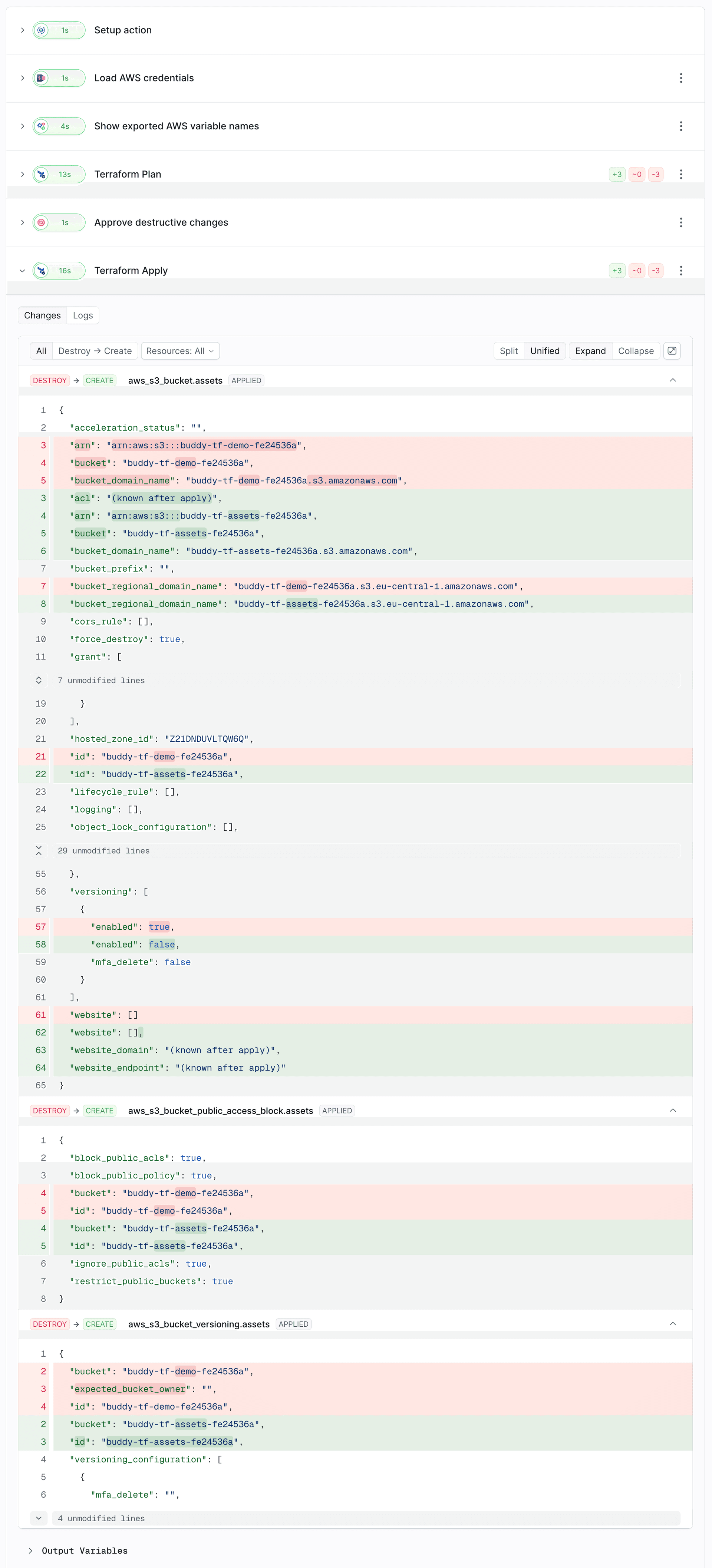
State in a Buddy artifact
We keep the state in a Buddy artifact of type Bucket (tf-demo-state, version prod), because it needs no separate bucket or lock table. You pick the backend on the Backend tab of each Terraform action:
Image loading...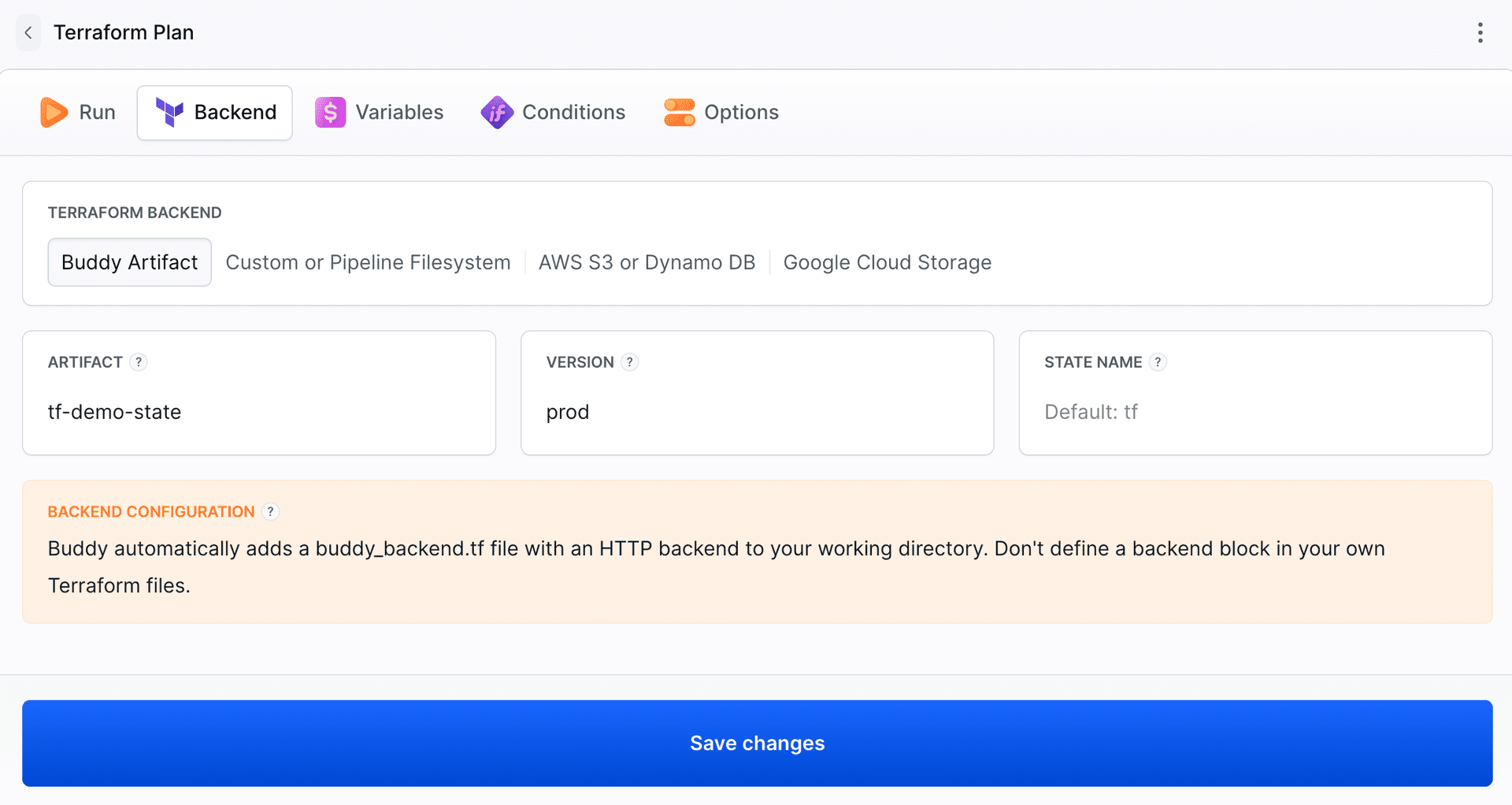
After the first run, the prod version holds a tf.tfstate file:
Image loading...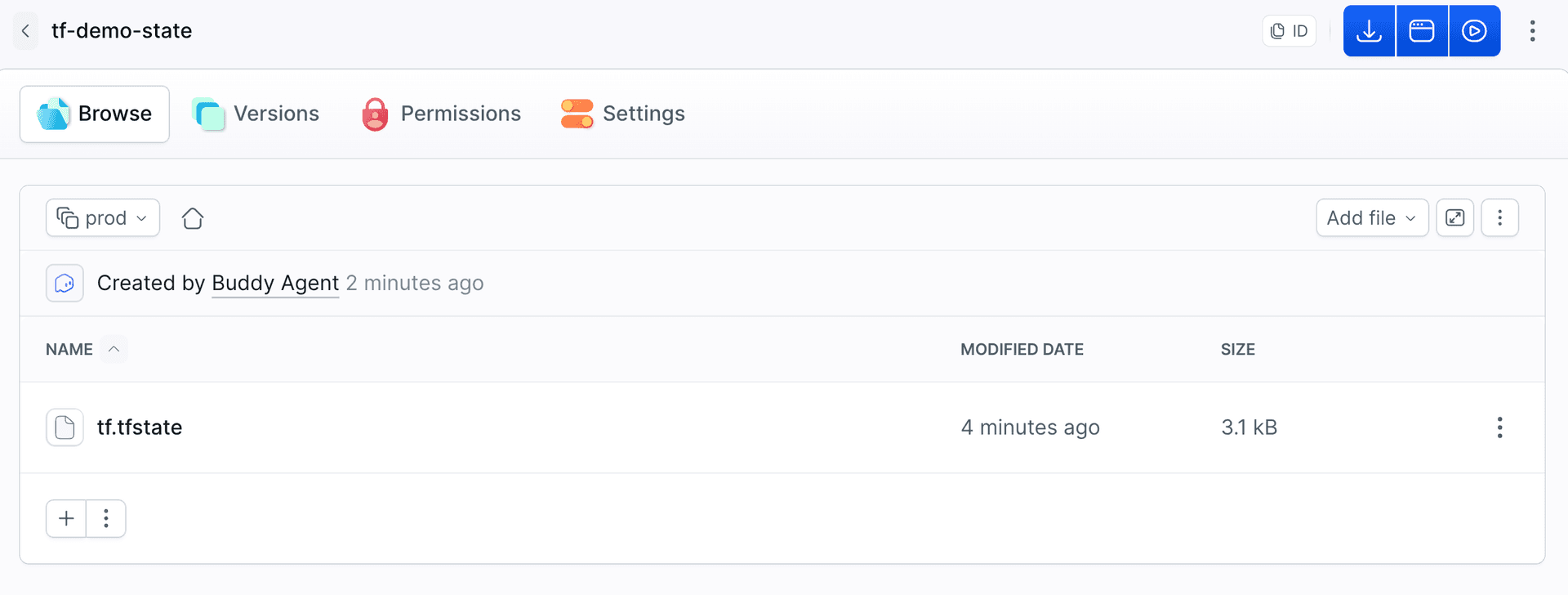
With this backend, Buddy doesn't log in to AWS on its own, so the Integration Variables action (Load AWS credentials in the screenshot) passes the integration keys to the provider.
Keep in mind:
- Give the pipelines read-write access to the artifact, including the drift pipeline. Don't give it to any other pipeline, because the state can contain secrets.
- Remove the
backendblock from your code. Buddy adds its own. - One artifact version is one state. Keep environments apart with versions (
dev,staging,prod).
Step 2: check for drift every weekday
Drift is a change made outside Terraform, for example directly in the cloud provider console. Terraform Drift Detection compares the infrastructure with the state and doesn't modify anything. Add it to a separate pipeline with a schedule, for example every weekday at 7:00:
Image loading...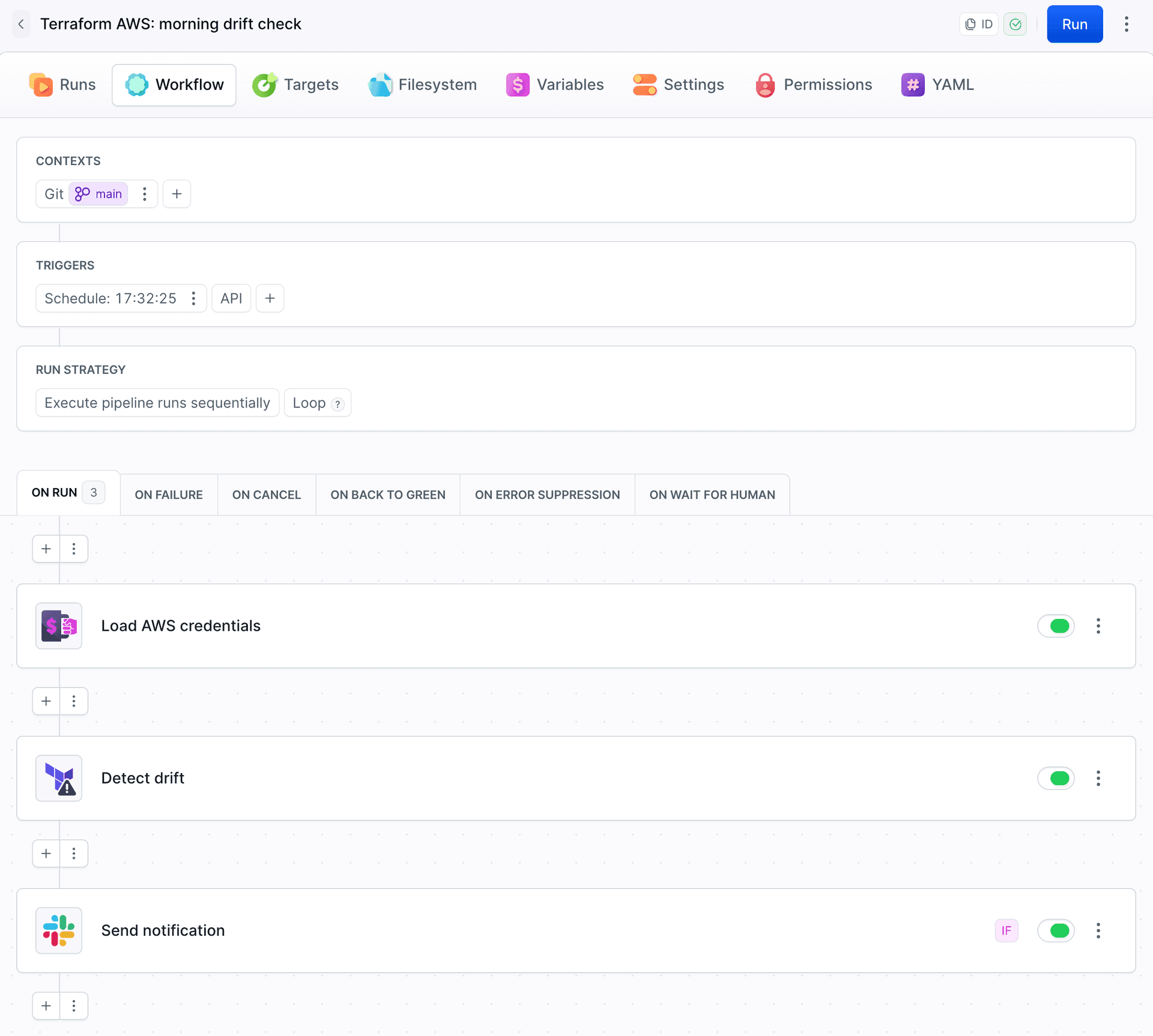
The Slack notification has the condition BUDDY_ACTION_TF_DRIFT_DETECTED = true, so it's sent only when there's drift. In the message, you can use $BUDDY_ACTION_TF_DRIFT_SUMMARY and $BUDDY_ACTION_TF_DRIFT_RESOURCES.
The Drift tab shows two manual changes: a different environment tag and suspended versioning. The extra action in the screenshot makes those changes in the console:
Image loading...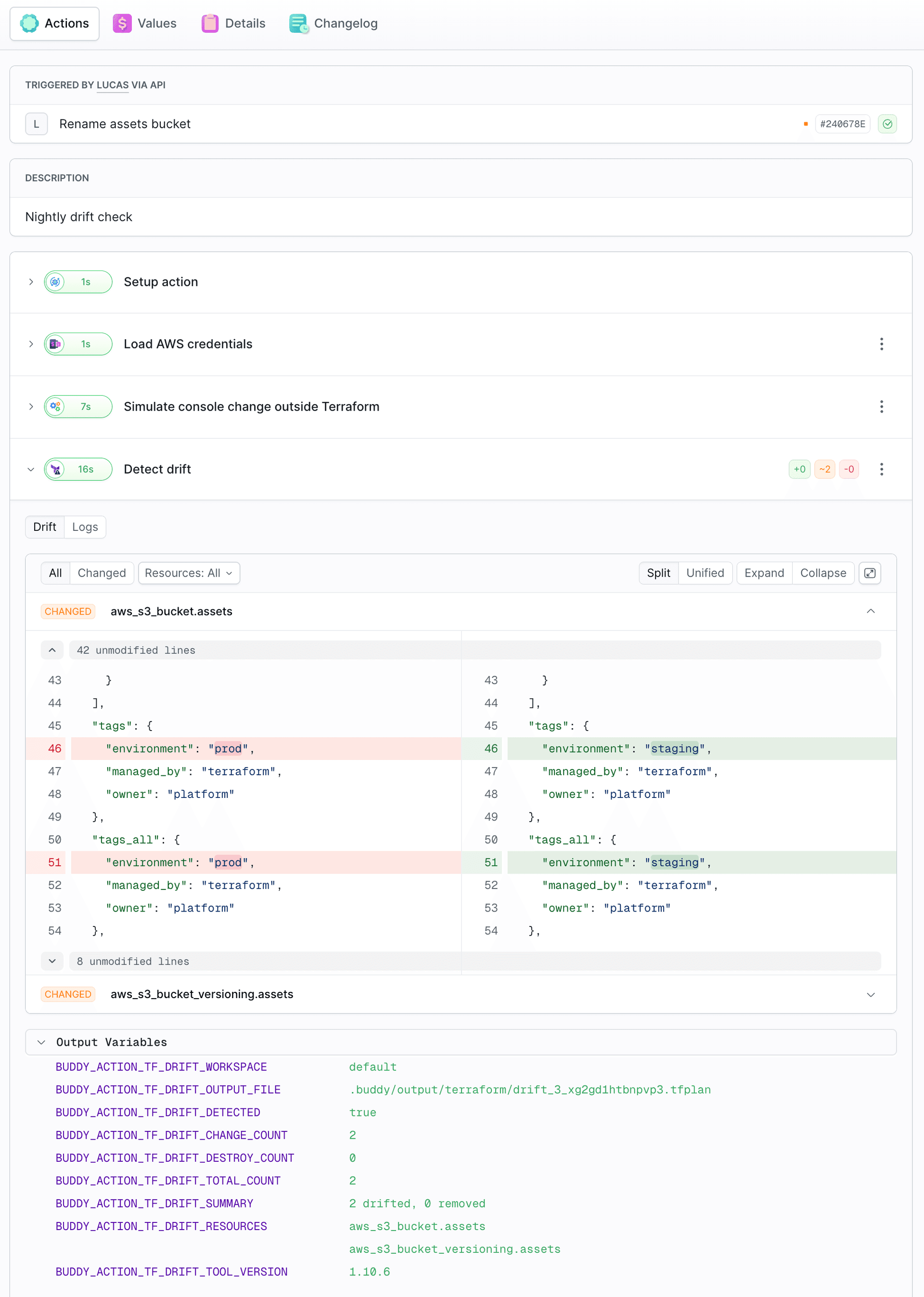
Fail on drift
The Fail on drift option decides how the run ends when the action finds drift:
Image loading...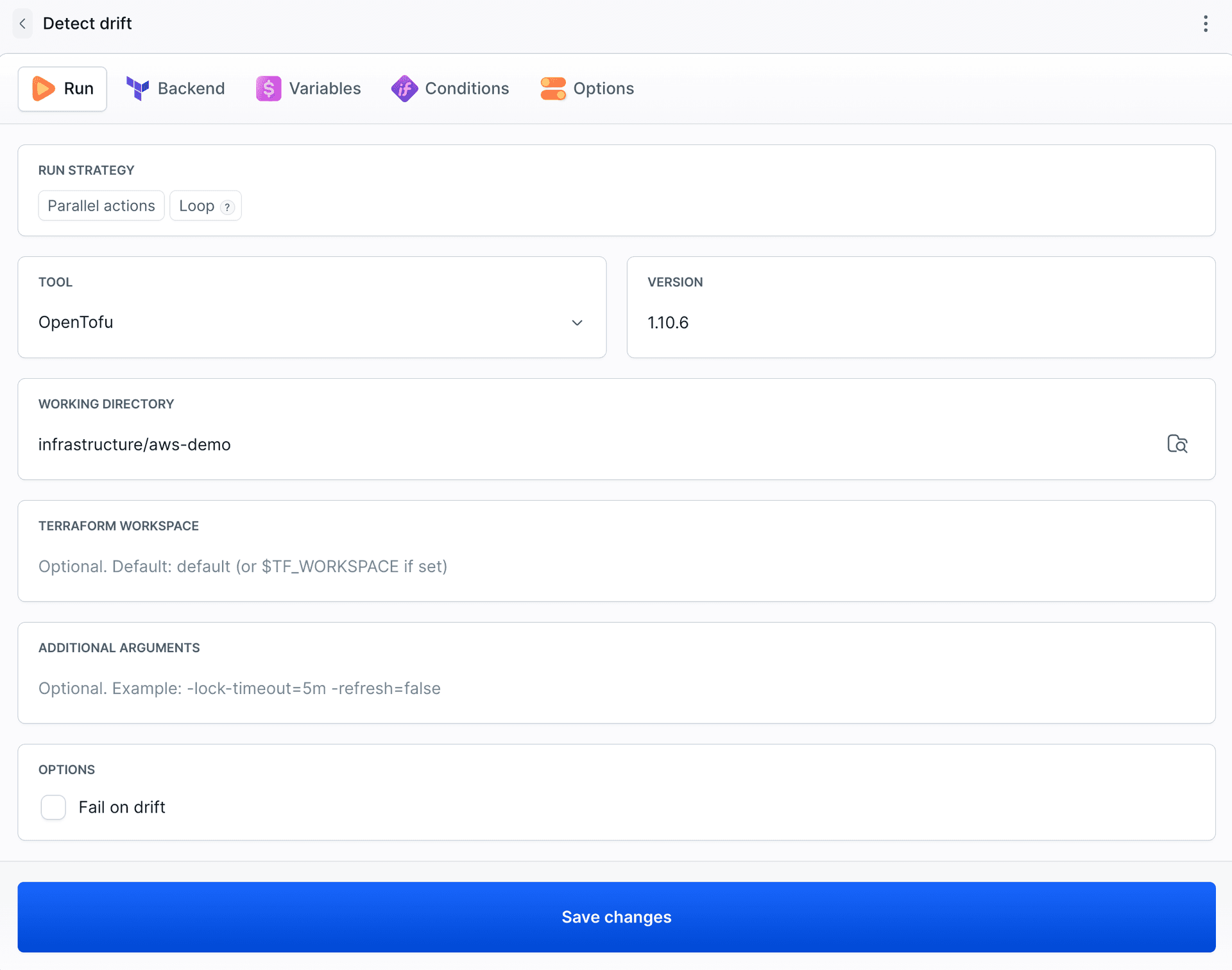
- Off (as in the example): the run succeeds, and Slack gets a report.
- On (the default): the run fails. When used at the start of a deployment pipeline, it prevents deployment until the drift is reviewed.
What to do about drift
It depends on where it came from:
- The change was a mistake: run the plan-and-apply pipeline again, and it brings the infrastructure back to what's in the code.
- The change was intentional: move it into the code, and update the state with Terraform Apply using the plan from Drift Detection.
All options and output variables are in the YAML reference:

Jarek Dylewski
Customer Support
A journalist and an SEO specialist trying to find himself in the unforgiving world of coders. Gamer, a non-fiction literature fan and obsessive carnivore. Jarek uses his talents to convert the programming lingo into a cohesive and approachable narration.